Powered By

Powered by Blogger

Tampilkan postingan dengan label pdf. Tampilkan semua postingan

Selasa, 19 April 2011

Download Ubuntu Packaging Guide (PDF, Epub, HTML In A Single .deb)

Ubuntu Packaging Guide

Daniel Holbach maintains a daily builds PPA for a project called "Ubuntu Packaging Guide" which aims to provide a set of articles for working with debian packages and Launchpad, uploading your GPG key to Launchpad (required to create a PPA), fixing bugs, getting the code via BZR, working with a PPA and so on. The guide is in its early stages (currently version 0.1.0) so it's not complete but it's already quite useful.

The guide is not meant to replace the Debian documentation but to provide Ubuntu-specific instructions:

The Ubuntu Packaging Guide is a set of articles that should help you to get involved with packaging and development of Ubuntu. It's not meant to replace other great documentation like the Debian New Maintainer's Guide or the Debian policy, but serve as a starting point with easy and simple to understand articles.


The package provides PDF, Epub and single / multiple HTML files but to get these you'll need to either add the PPA or download the .deb.

The PPA currently provides Ubuntu Packaging Guide packages for Ubuntu 11.04 only but it might get packages for older Ubuntu versions too (there was some bug which prevented the packages from building on older Ubuntu versions and then the packages were deleted). Add the PPA and install Ubuntu Packaging Guide in Ubuntu 11.04 using the following commands:
sudo add-apt-repository ppa:ubuntu-packaging-guide-team/ppa
sudo apt-get update
sudo apt-get install ubuntu-packaging-guide

If you're not using Ubuntu 11.04, you can download the Ubuntu Packaging Guide .deb from HERE. But remember: the guide is constantly updated so to get the latest changes you should add the PPA!


Once installed, open Nautilus and navigate to /usr/share/doc/ubuntu-packaging-guide and you should find a file called "ubuntu-packaging-guide.pdf.gz" - you can open this with Evince. You'll also find a folder called "epub" in which you'll find an epub format for the Ubuntu Packaging guide (look for ubuntu-packaging-guide.epub.gz), as well as two folders which provide the Ubuntu Packaging Guide in HTML format.

Also see: An Introduction To Debian Pagaging PDF guide

Jumat, 25 Maret 2011

gImageReader (Tesseract OCR GUI) Gets Multipage Recognition Support

GImageReader

gImageReader (runs on Linux and Windows) is a GUI for tesseract-ocr, a free software optical character recognition (OCR) engine which you can use to extract text from PDF documents or images.

gImageReader allows you to select columns, part of a document, spell check the output and more but it didn't recognize a whole document at once. But the latest gImageReader 0.9 adds multipage-recognition support for multipage PDF. You can also set gImageReader to extract the text from a page range if you don't need it to recognize a whole document.

Besides this very useful (and much needed!) new feature, gImageReader 0.9 also comes with:
  • new language profiles: chinese, korean, japanese, hebrew, arabic, croatian
  • all formats supported by gdk_pixbuf to file filter for open dialog
  • option to cancel the recognition
  • fixed auto-installing new dictionaries (new dictionaries would not appear in main language selector until program restart)
  • many other minor improvements and bug fixes

How about the speed you may ask. Well, in my test, gImageReader was able to recognize a 36 page PDF document in 1,10 minutes (on a kind of slow computer I have at work).

For a slightly more detailed post on gImageReader which also includes installing the latest Tesseract OCR in Ubuntu 10.10 and 10.04 (which comes with more languages and much improved recognition but is experimental!), see: Extract Text From PDFs And Images With gImageReader, A Tesseract OCR GUI

Download gImageReader (.deb, .rpm and .exe files available)


Thanks to lffl.org for the news!

Rabu, 23 Maret 2011

Edit PDF Documents In Linux With PDF Mod (Remove Or Add Pages, Rotate, Reorder PDF Files)

PDF Mod

PDF Mod is a great application for editing PDF documents which can be used to remove or add pages to existing PDF files, export images, rotate, reorder, edit the metadata (subject, title, author) and so on.

Sure, there are some more powerful command line tools like pdftk but not everybody enjoys the command line so if you want a GUI for this, try PDF Mod.


PDFMod is really easy to use: when you open a PDF, all the pages are displayed in a grid and you can for instance open a second PDF file and drag and drop some pages from one PDF document to another. Right clicking a page lets you remove, rotate, extract it or export the image (if available). You can of course edit multiple pages at once by selecting them the usual way (holding down the Control key) or even select all odd / even pages as well as based on a matching pattern.


PDF Mod 0.9 which has been released earlier this month (and so it's not available in the official Ubuntu repositories but there's a PPA for it!) comes with a cool new feature: bookmark editing (outlines):

PDF Mod

The new version also fixes some important bugs and brings improved speed (removing many pages is a lot faster now).


Install PDF Mod in Ubuntu


PDF Mod is available in the official Ubuntu repositories but to get the latest version you must use the PDF Mod Ubuntu PPA. 

Add the PPA and install PDF Mod 0.9 in Ubuntu using the commands below (or add the PPA using a GUI tool like Y PPA Manager and then install it from the Ubuntu Software Center):
sudo add-apt-repository ppa:pdfmod-team/ppa
sudo apt-get update
sudo apt-get install pdfmod

Also see: Highlight Text Or Annotate PDF Files In Ubuntu With Xournal

Do you use PDF Mod to edit PDF documents? Or maybe you know some better GUI tool for modifying PDF files? Let us know in the comments!

Sabtu, 12 Maret 2011

Firefox: Embedded PDFs With Evince (Using Mozplugger)

Evince embedded firefox

Mozplugger is a Firefox plugin that allows you to embed applications that handle various file types in Firefox.

In this post you'll see how to get embedded PDF files in Firefox 3.6 and Firefox 4 (I've tested it in both) - like in Google Chrome (sort of) - using Evince, the Ubuntu default PDF reader.


Get embedded PDF files in Firefox using Evince


1. Install Mozplugger. Ubuntu users can simply click the button below:


Or copy/paste the following command in a terminal:
sudo apt-get install mozplugger

2. Only for Ubuntu 10.10. In Ubuntu 11.04, it works without this step (and in fact it won't work if you apply this in Ubuntu 11.04): now you must edit the mozpluggerrc file. To do this, press ALT + F2 and enter:
gedit /home/YOUR_USERNAME/.mozilla/mozpluggerrc
(In the above command, replace "YOUR_USERNAME" with your username. No, using "~" doesn't work for the run dialog).

And in this file, paste the following:
application/pdf: pdf: PDF file
application/x-pdf: pdf: PDF file
text/pdf: pdf: PDF file
text/x-pdf: pdf: PDF file
application/x-postscript: ps: PostScript file
application/postscript: ps: PostScript file
repeat noisy swallow(evince) fill: evince "$file"
Now restart Firefox and try to open a PDF file. It should be embedded in Firefox using Evince if you've followed the steps correctly.


Thanks to hhlp @ AskUbuntu for the instructions.

Jumat, 18 Februari 2011

Download "An Introduction to Debian Packaging" PDF Guide

An Introduction To Debian Packaging PDF

An Introduction to Debian Packaging is a PDF created by Lucas Nussbaum, designed to tell you what you really need to know about Debian packaging, keeping a resonable size. The guide doesn't attempt to be complete but it's great if you want to start making your own .deb files or simply understand how the Debian packaging works.

Note: If you're using Chrome to open the PDF, the text is not readable because of the background. Download the PDF and open it in a PDF viewer instead and the font will look ok (or use Google Docs).

Download "An Introduction to Debian Packaging" PDF | Open the PDF with Google Docs.

For the full Debian packaging documentation, refer to The Debian New Maintainers' Guide or the Debian Policy Manual. There's also a small how-to on this available on WebUpd8: How To Create A .DEB Package [Ubuntu / Debian] (it's pretty basic but should be enough to get you started).

Rabu, 16 Februari 2011

Highlight Text Or Annotate PDF Files In Ubuntu With Xournal

Xournal PDF annotate highlight text

Xournal is an application for note taking or sketching and even though its page says it's a tool similar to Microsoft Windows Journal, Jarnal, Gournal, and NoteLab, I'd also add Foxit Reader to the list.

That's because even though its Sourceforge page doesn't mention this, Xournal can also be used as a lightweight PDF viewer and further more, it can be used to highlight text in PDF documents, make annotations and so on. However, please note that Xournal is not a PDF editor!


To use Xournal to highlight or add text to a PDF file, select File > Annotate PDF (you can also chose the usual File > Open, but make sure you then select to view all files, not just Xournal files) and select the PDF you want to annotate or highlight text.

Xournal cannot save a file in PDF format but you can easily select File > Export to PDF to achieve something similar so it's a viable solution for those who are looking for a reliable tool to annotate/highlight text in PDF files on Linux.


Xournal is available in the Ubuntu repositories and you can install it by clicking the link below (if you're reading this in a feed reader, the button won't work - you'll have to visit the post on WebUpd8 to use it):


If you prefer to install Xournal from the command line, open a terminal and copy/paste the following command:
sudo apt-get install xournal


[via AskUbuntu]

Rabu, 05 Januari 2011

Nautilus Columns Update Brings PDF Support

Nautilus Columns PDF info

Nautilus Columns is a Nautilus extension that adds music (mp3, WAV and FLAC) and EXIF metadata info to the Nautilus List View.


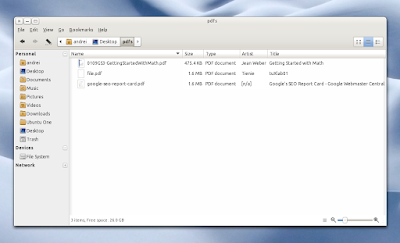
A new version of Nautilus Columns which adds PDF info (thanks to draxus) is available in the WebUpd8 PPA. This is very useful for those who have a lot of PDF files for which the title is not descriptive.

To display the PDF info, in Nautilus go to Edit > Preferences > List Columns and check "Artist" (Artist was used instead of Author to keep the Nautilus columns number low) and "Title", then navigate to a folder where you have some PDF files and change the Nautilus view to "List View". Please note that your PDF files need to have the author and title info available or else you'll get "n/a" in those fields.


Install Nautilus Columns

Nautilus Columns is available in the WebUpd8 PPA for Ubuntu Lucid and Maverick. Add the PPA and install Nautilus Columns using the following commands:
sudo add-apt-repository ppa:nilarimogard/webupd8
sudo apt-get update
sudo apt-get install nautilus-columns
nautilus -q

For more info on Nautilus Columns, see: Music And EXIF Metadata Information In Nautilus List View [Nautilus Columns Extension - PPA]


Thanks to draxus for the PDF support!

Minggu, 07 November 2010

Download Compress PDF 1.4 (Nautilus Script) [Updated]

Compress PDF

Compress PDF is a Nautilus script which uses ghostscript to compress PDF files and comes in 8 languages (English, Portuguese (pt-PT), Spanish (es-AR), Czech, French, Simplified Chinese, Arabic, Malayalam). The script lets you choose between 5 different compression levels: Screen-view only, Low Quality, Hight Quality, High Quality (Color Preserving) and Default.

Ricardo has just released an update (version 1.2) which fixes a bug that was causing metadata from the original PDF file (meaning author, title, creator) to be lost after compression.


Update: the post now links to Compress PDF 1.4 which comes with the following changes:

  • Compress PDF now uses notify-osd to inform the user when the compression is completed, and automatically exits (useful for bigger files);
  • Temporary files are now hidden;
  • Saving and replacing the original PDF file with the compressed one works as expected;
  • Fixed: If the user presses Cancel, at any time, Compress PDF will exit and temporary files will be removed;


To use the script, run the following commands in a terminal:
sudo apt-get install zenity ghostscript
cd ~/.gnome2/nautilus-scripts
rm "Compress PDF" #in case you're using an older version
wget http://launchpad.net/compress-pdf/1.x/1.4/+download/Compress-PDF-1.4.tar.gz
tar zxvf Compress-PDF-1.4.tar.gz && rm Compress-PDF-1.4.tar.gz


Or manually download the script from HERE.

Thanks to Ricardo Ferreira for the script and the tip!

Selasa, 25 Mei 2010

Nautilus Script To Compress PDF Files

Ricardo Ferreira (who sent us quite a few tips before) wrote a nice Nautilus script which comes with a GUI (Zenity) to compress and optimize PDF files called Compress PDF.

The script currently comes in multiple languages: English, Spanish*, French*, Czech* and Portuguese (but you can translate it into your language if you want - there are only 10 short lines to translate) and you can choose between 5 different compression levels: Screen-view only, Low Quality, Hight Quality, High Quality (Color Preserving) and Default:

compress pdf script

As an example: compressing a PDF using the "Default" preset, the file size was reducced from 4,6mb to 3,3mb with no visible quality lost.


To "install" this Nautilus script, simply paste this in a terminal:
sudo apt-get install zenity ghostscript #dependencies
cd ~/.gnome2/nautilus-scripts
wget http://launchpad.net/compress-pdf/1.x/1.1/+download/Compress-PDF-1.1.tar.gz
tar zxvf Compress-PDF-1.1.tar.gz


Then to use it, simply right click on a PDF file and select "Compress-PDF" from the "Scripts" menu:

nautilus right click compress pdf


Credits for this script (and many thanks!): Ricardo Ferreira


*Spanish translation by Eduardo Battaglia
*French translation by astromb
*Czech translation by clever fox


Many thanks to all who translate the script!

Rabu, 10 Februari 2010

How To Extract All Text From PDFs (Including Text In Images) [Ubuntu]

The following tutorial will explain how to extract all text from PDFs (including text in images), by using a combination of Ghostscript and a command line OCR tool called tesseract-ocr. This is yet another guest post by StoneCut.


First we need to convert our PDF to individual image files (TIFF) so we can then OCR-scan them again. We need Ghostscript for that. It's probably already installed on your system but just to be sure you can run:

sudo apt-get install ghostscript

Once we have ghostscript installed we can convert the actual PDF using the gs utility:
gs -dNOPAUSE -sDEVICE=tiffg4 -r600x600 -dBATCH -sPAPERSIZE=a4 -sOutputFile=Output_File_Name.tif Name_of_PDF.pdf

You will need to adjust the "Name_of_PDF.pdf" and "Output_File_Name.tif" from the above command for your purposes.

This will leave us with one large TIFF file (mine was about 10x as big as the original PDF) which we will now OCR-scan (Optical Character Recognition). We're going to use "tesseract-ocr" for that. But we need to install it first:
sudo apt-get install tesseract-ocr tesseract-ocr-eng

The package "tesseract-ocr-eng" is the English language recognition support and is REQUIRED for tesseract-ocr to work, no matter what locale your system is. Support for other languages is available in packages with their country code in them such as "tesseract-ocr-deu" for German language support.

Let's finally convert our big TIFF file to a TXT file including all the text, even that from images in the original PDF:
tesseract Output_File_Name.tif Name_of_TXT -l eng

Again, adjust "Output_File_Name.tif" to the filename you originally choose and substitute your desired TXT file name for "Name_of_TXT" - leave out the *.txt extension. If your PDF isn't in English, then set the "-l eng" accordingly to the package for your language support you installed earlier.

That's it. Check out the resultant TXT file.

Please note: the quality of extracted text from the images inside the PDF is highly dependent on the quality of the original PDF's images.


This is a guest post written by StoneCut (thank you very much!). Browse all the posts by StoneCut.

Minggu, 22 November 2009

Convert HTML to PDF [Linux]

There are numerous ways one can convert a web page (HTML) to PDF. Some using websites, a Firefox addon, but here is how to do it in Linux.


You could just, select "Print" (in Firefox: File > Print) and then select "Print to file" and the output "PDF".

But some pages with lots of CSS, javascript and so on won't be displayed correctly. For this, see the second method of converting webpages (html) to PDF (below).

Using wkhtmltopdf


To install wkhtmltopdf in Ubuntu, run the following command in a terminal:
sudo apt-get install wkhtmltopdf

Then, to convert a webpage to PDF, open a terminal and type this:
wkhtmltopdf http://www.webupd8.org webupd8.pdf

Replacing http://www.webupd8.org and webupd8.pdf with the website you want to convert to PDF / the name you desire for the converted PDF file.

The output of wkhtmltopdf is pretty good. Take a look:

wkhtmltopdf result


With wkhtmltopdf, you can disable the javascript on the page if you want, change the quality, orientation (portrait or landscape), and more. Too see everything wkhtmltopdf can do, type:

wkhtmltopdf --help

Kamis, 19 November 2009

Sumatra PDF Viewer Is A Lightweight, Portable Alternative To Adobe Reader [Windows, Open Source]

Sumatra PDF Viewer

Sumatra PDF Viewer is a lightweight, very quick alternative to Adobe Reader for Windows. The open source application is just 1.2 MB (Adobe Reader takes up 199 MB after installation) in size and uses about 11 MB of RAM on my system (compared to 55 MB for Adobe Reader - tested on a single page PDF):

The focus is to build a small and simple program that starts up fast and offers basic features needed for comfortable on-screen viewing of PDF files. Simplicity and elegance have higher priority than additional features.


Sumatra PDF Viewer is not a fully-featured application, but it's perfect for quickly opening a PDF, even on an old computer.

Download Sumatra PDF

Jumat, 30 Oktober 2009

PDF Annotator Software For Windows, Linux and Mac OSX

Whyteboard

Whyteboard is a simple whiteboard and PDF annotator application for Windows, Linux and Mac OSX.

It supports the the annotation of PDF, PostScript documents and various image formats with common drawing tools (pen, rectangles, ellipses, text). Your drawing history is stored, allowing you to replay it.

Whyteboard uses tabbed painting, having multiple sheets, with each sheet having its own live-updating thumbnail. Each sheet has its own *unlimited* undo and redo operations as well as its own history replay list. Closed sheets can also be undone, restoring its data.

Download Whiteboard (.exe, .deb, .rpm and source files available)

Senin, 14 September 2009

Download 2 Free Books From Google About SEO

The following 2 books come directly from Google and are basically about SEO and how exactly Google works so that you build your website to get the most out of Google.

1. Google's Search Engine Optimization (SEO) Starter Guide:

Quote from the book:

Welcome to Google's Search Engine Optimization Starter Guide. This document first began as an effort to help teams within Google, but we thought it'd be just as useful to webmasters that are new to the topic of search engine optimization and wish to improve their sites' interaction with both users and search engines. Although this guide won't tell you any secrets that'll automatically rank your site first for queries in Google (sorry!), following the best practices outlined below will make it easier for search engines to both crawl and index your content.

Search engine optimization is often about making small modifications to parts of your website. When viewed individually, these changes might seem like incremental improvements, but when combined with other optimizations, they could have a noticeable impact on your site's user experience and performance in organic search results. You're likely already familiar with many of the topics in this guide, because they're essential ingredients for any webpage, but you may not be making the most out of them.


DOWNLOAD


2. Google: Making the Most of Your Content - A Publisher's Guide to the Web:


Quote:

At Google we’re frequently asked how web search works, and how web publishers can maximise their visibility on the Internet. We’ve written this short booklet to help you understand how a search engine ‘sees’ your content, and how you can best tailor your web presence to ensure that what you want to be found is found – and what you want to keep hidden, stays hidden. From webmaster tips and online tools, to a step-by-step guide to frequently asked questions, this booklet is geared towards small web publishers as well as owners of large sites. Just as the Internet itself has evolved dramatically in the past decade, so has Google’s own approach to web search and its relationship with site owners. We’ve created numerous tools to help webmasters maximise the visibility of their content, as well as control how their web pages are indexed. But there’s always more we can do. We hope that this booklet will encourage you to give us feedback and let us know what we can do to make the web an even better place for both searchers and publishers.


DOWNLOAD