Powered By

Powered by Blogger

Tampilkan postingan dengan label firefox. Tampilkan semua postingan

Selasa, 29 Maret 2011

Firefox 4 Mobile, Finally Released [Android And Maemo]

Mozilla has finally released Firefox 4 Mobile for Android and Maemo (Nokia N900). You probably already know all the new features since Firefox 4 Mobile has been in alpha/beta for quite some time, but I'll do a small recap:
  • Probably the coolest feature is Sync which you can use to sync your Firefox preferences, history, bookmarks, passwords and even tabs across other devices (including your desktop). Sync even supports custom servers.
  • Extension support
  • Lots of mobile optimizations are also available in the latest Firefox 4 mobile: pinch to zoom, resize text to fit the screen, volume rocker on Nokia N900
  • Save to PDF lets you save sites for offline viewing which is quite cool at times.
  • Share a page by email, Facebook, Twitter and Google Reader
  • Password manager
  • Tabbed browsing
And lots more. Check out the release notes for more info.


You can watch the official Firefox 4 Mobile for Android presentation video below:


Overall, Firefox 4 feels quite fast while browsing but the startup time really needs to be improved. It has improved lately but it's still nowhere near as fast as the stock Android browser. I almost dare to say it sometimes makes me forget why I like it - which is mainly thanks to the extensions support.

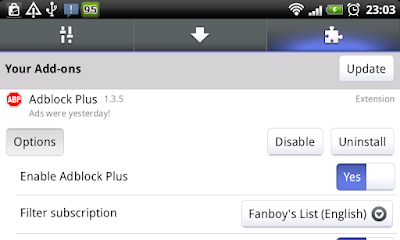
And speaking of extensions: there are a lot of extensions available already, but of course some of your favourites will probably be missing. For instance, while LastPass shows up in the extensions list, its page says it can't be installed on Android (you can install it from the LastPass website though - but it's not free). Luckily, 2 extensions which I'm sure you like: Adblock Plus and NoScript are already available on the Firefox Mobile addons page.

The CSS3 support is a very nice addition which I've missed in the default Android browser (yes, some people want the web to look nice too). And there's also HTML5 support meaning you can watch YouTube  and others without Flash.


Screenshots


Firefox 4 Mobile

Firefox 4 Mobile

Firefox 4 Mobile

Firefox 4 Mobile


Download Firefox 4 Mobile


You can get Firefox 4 via Android web market, http://www.firefox.com/m or using the following QR code:

download firefox 4 mobile

Did you try Firefox 4 Mobile for Android / Maemo? What do you think?

Senin, 28 Maret 2011

Bluebird Chrome / Firefox 4 Themes

If you like Bluebird, you may also want a Chrome / Firefox theme to match. Below you'll find a theme that matches Chrome perfectly and a Firefox 4 theme which isn't a perfect match for Bluebird but looks great nevertheless. The Firefox 4 theme actually integrates quite well with other themes too.


Chrome / Chromium


For Chrome there's a theme that matches Blubird perfectly . However, to get the full experience, you may want to check the "Use system title bar and borders" option in Chrome settings ("Personal Stuff") tab.

Here's how it looks like:

Bluebird Chrome


DOWNLOAD Bluebird for Chrome


Firefox 4


Bluebird already looks great with Firefox 4 but you can use a theme called "QSQ" to get nicer buttons and a "more integrated" overall look - even though it doesn't matches the Bluebird colors perfectly.

Here's how it looks:

Bluebird Firefox


Download QSQ for Firefox 4.


If you want to be able to move the Firefox 4 menu (button) to the right but have a blue icon like in QSQ and not orange, install the Movable Firefox Button extension, move the menu button then disable the Movable Firefox Button extension.


Rabu, 23 Maret 2011

Use Google Chrome Built-In Flash In Firefox For (Probably) Less Crashes

Chrome Flash in Firefox

I had some issues with Adobe Flash crashing very often using the latest Firefox 4 so I've searched for a way to fix this and found a topic on AskUbuntu which says to use Chrome's Flash plugin in Chromium so I though - why not do it for Firefox? - and it's actually working quite well for now.

Chrome uses a built-in Adobe Flash plugin which seems to work better then the regular Flash. But there's a catch: you must install Chrome (and keep it updated if you want further Flash updates) even if you don't use it.


Use the built-in Chrome Flash plugin in Firefox


1. Download and install Google Chrome (I for one prefer the unstable branch but I guess any version will do)

2. Open a terminal and copy / paste the following commands:
mkdir -p ~/.mozilla/plugins
ln -s /opt/google/chrome/libgcflashplayer.so ~/.mozilla/plugins/

3. Restart Firefox.


Chromium using Chrome Flash plugin

The exact same instructions above also work for Chromium (yes, using the ~/.mozilla/plugins/ folder even though it's for Chromium).

Note: I've tested this with the latest Firefox 4 32bit only (and Chromium 32bit)! It should work with older Firefox versions too though.

What other "tricks" do you use to improve Flash performance under Linux? Let us know in the comments!

Selasa, 22 Maret 2011

Firefox 4.0, Uploaded To The Firefox Stable Ubuntu PPA

Apologies for all the Firefox posts today, but like I've promissed in the comments, I wanted to let you know that the Firefox Stable Ubuntu PPA has been updated and it now includes Firefox 4.0 stable for Ubuntu 10.04 and 10.10.

Our "Install Firefox 4 In Ubuntu 10.04 / 10.10 Via PPA Repository" post has been updated with exact installation instructions.

Firefox 4, Officially Released

I'll make this short:


Firefox 4 has been officially released and is available to download @ http://www.mozilla.com/en-US/firefox/new/

If you want to run it on Linux, close any running Firefox instance, extract the downloaded archive and double click the file called "firefox" (not firefox-bin!).

Ubuntu: see how to install Firefox 4 from a PPA


To see what's new in Firefox 4, check out the following video:


For a complete list of new features, see http://www.mozilla.com/en-US/firefox/features/

Senin, 21 Maret 2011

Firefox 4 (Stable) Available For Download!

Firefox 4.0

Firefox 4.0 (stable) has been released. Not officially, but is available for download via the Mozilla FTP servers.

The latest Firefox 4.0 stable is not yet available in any Ubuntu PPA and will most probably be uploaded to Ubuntu 11.04 Natty Narwhal official repositories firstly, tested and only then uploaded to the PPAs we were talking about last week.

If you want to run Firefox 4 in Linux already, you can download it from HERE, extract the downloaded archive and double click the file called "firefox" (not firefox-bin!).

I for one will wait for the PPAs to be updated because I've always encountered issues running Firefox downloaded via the Mozilla website, especially regarding the font rendering. However, these might be related to some packages installed on my computer so it might work great for you!


Download Firefox 4 | alternate download link (for Linux 32/64 bit, Windows and Mac)

Thanks to Carlos for the tip!

Jumat, 18 Maret 2011

Install Firefox 4 In Ubuntu 10.04 / 10.10 Via PPA Repository - The Proper Way

Firefox 4.0

Firefox 4 (stable) will be released soon and I though I'd let you know how to install it in Ubuntu 10.10 Maverick or 10.04 Lucid from a PPA - the proper way (from the semi-official Firefox 4 PPA).

No, using Ubuntuzilla or the Mozilla Daily PPA (well, this PPA is relatively ok but you'll never get stable builds so you might start receiving Firefox 4.1 alpha updates - or whatever the next Firefox version will be called -, as soon as Firefox 4 is released) is not the proper way to install Firefox 4. Why?

Ubuntuzilla: the Ubuntu devs had to push some fixes to the official Firefox builds just so they don't get so many bug reports that come from those using Ubuntuzilla. Check out this changelog (via Guiodic).

Ubuntu Mozilla Daily PPA: sure, if you like bleeding edge software, this PPA is ok but this PPA will never provide stable builds so one day, Firefox might stop working or corrupt your profile. Further more, this PPA will also upgrade Thunderbird to the latest daily builds. So if you want Firefox stable, go with the solutions below!


How to install Firefox 4 in Ubuntu 10.10 / 10.04 from the Firefox PPA (stable)


Before continuing, please note that I've only tested Firefox 4 from the PPA below in Ubuntu 10.10 Maverick Meerkat and while there shouldn't be any issues in Ubuntu 10.04, use it at your own risk. The Firefox 4 PPA (stable) below is semi-official but it doesn't include all the packages available in the Ubuntu repositories (so for example, you'll have to manually install a language pack if you want Firefox in your language - see below).

Update: The Firefox PPA (stable) has been updated and it now provides the latest Firefox 4 for Ubuntu 10.04 Lucid Lynx and 10.10 Maverick Meerkat.

Add the Firefox 4 PPA and install FF4 in Ubuntu 10.10 Maverick Meerkat or 10.04 Lucid Lynx using the commands below:
sudo add-apt-repository ppa:mozillateam/firefox-stable
sudo apt-get update
sudo apt-get install firefox ubufox

It doesn't matter if you're upgrading to Firefox 4 or you're installing it for the first time, you can use "sudo apt-get install firefox" (I've used this command because those who've previously installed Firefox 4 from the Mozilla Daily PPA or some other unstable PPA might have a build called "firefox-4.0" installed - that won't be upgraded). Ubufox is a Firefox extension that ships ubuntu tweaks and extensions that ships with Ubuntu (and is available in this PPA).


Also, in the future when you'll want to install a new Firefox milestone (alpha, beta or RC), use the Firefox Next PPA.


Firefox 4 in your language


Some users have reported that using the Firefox 4 PPA in this post will install Firefox in English only. To fix this you can install an extension from here: 32bit | 64bit (make sure you install the correct extension for your language!).

I've tested this in Ubuntu 10.10 and it seems to work proprely.


Use an icon for the Firefox 4 menu / put the Firefox menu on the left


Firefox 4 icon menu

When upgrading to Firefox 4, if you use the old Firefox profile your menu might be displayed on the right. You can move the menu to the left and also, get a Firefox icon instead of the menu by using the Movable Firefox Button extension (thanks to SckyzO for the tip!).

If you want to get the tabs in the titlebar (only works with Firefox 4), check out the following article: Firefox 4: Get Tabs In The Title Bar (Like Chrome)

This post was updated March 22, as soon as Firefox 4 was uploaded to the Firefox Stable PPA which I suggest all blogs to do because most of the "how to install Firefox 4 in Ubuntu" posts you'll find on the web include instructions to use the Mozilla Daily PPA which doesn't and will never include Firefox 4 stable.

Rabu, 16 Maret 2011

Elementary Hide Caption Titlebar Plus (HCTP) Style [Firefox 4]

Elementary HCTP style

Hide Caption Titlebar Plus (HCTP) is a Firefox extension you can use to get the tabs in the titlebar (sort of). What the extension does is display minimize/maximize/close buttons next to the tabs and by using Compiz you can remove the maximized windows titlebar and get "tabs in the tilebar".

We've covered HCTP last week so check out that post for more info: Firefox 4: Get Tabs In The Title Bar (Like Chrome).

If you're using the Elementary theme, there's now a nice Elementary HCTP theme (style) to go with it. Download it @ userstyles.org.


Wow, this post is huge. The introduction is 4 times longer then the actual post.


Thanks to arzali for the info!

Sabtu, 12 Maret 2011

Firefox: Embedded PDFs With Evince (Using Mozplugger)

Evince embedded firefox

Mozplugger is a Firefox plugin that allows you to embed applications that handle various file types in Firefox.

In this post you'll see how to get embedded PDF files in Firefox 3.6 and Firefox 4 (I've tested it in both) - like in Google Chrome (sort of) - using Evince, the Ubuntu default PDF reader.


Get embedded PDF files in Firefox using Evince


1. Install Mozplugger. Ubuntu users can simply click the button below:


Or copy/paste the following command in a terminal:
sudo apt-get install mozplugger

2. Only for Ubuntu 10.10. In Ubuntu 11.04, it works without this step (and in fact it won't work if you apply this in Ubuntu 11.04): now you must edit the mozpluggerrc file. To do this, press ALT + F2 and enter:
gedit /home/YOUR_USERNAME/.mozilla/mozpluggerrc
(In the above command, replace "YOUR_USERNAME" with your username. No, using "~" doesn't work for the run dialog).

And in this file, paste the following:
application/pdf: pdf: PDF file
application/x-pdf: pdf: PDF file
text/pdf: pdf: PDF file
text/x-pdf: pdf: PDF file
application/x-postscript: ps: PostScript file
application/postscript: ps: PostScript file
repeat noisy swallow(evince) fill: evince "$file"
Now restart Firefox and try to open a PDF file. It should be embedded in Firefox using Evince if you've followed the steps correctly.


Thanks to hhlp @ AskUbuntu for the instructions.

Senin, 07 Maret 2011

Firefox 4: Get Tabs In The Title Bar (Like Chrome)

Firefox 4 Ubuntu Tabs In The Title Bar

If you like how Chrome displays the window controls (close, minimize and maximize buttons) next to the tabs and want this in Firefox, you'll be glad to know it's quite easy to achieve.


Before we proceed, here are a couple of screenshots using Ambiance and Orta Stylish themes (these are styles for the buttons only):

Firefox 4 no titlebar buttons Ubuntu

Firefox 4 tabs in titlebar screenshot Ubuntu


How it works


What you'll get: window controls (close, minimize, maximize buttons) next to the Firefox menu and no titlebar for maximized Firefox windows only. Unmaximized windows will still have the regular window titlebar and buttons (unless you apply the tweaks at the end of the post).

Using Stylish, you'll also get those buttons to integrate with Ambiance and Orta GTK themes. Unfortunately for now these are the only 2 styles available so if you use a different theme, the buttons won't respect your GTK theme.

There is another way of doing this: using Window Applets but that's for those that use a Gnome Panel on top. If you don't use a Gnome Panel, then the instructions in this post will allow you to still have window buttons in Firefox while removing the titlebar.


Get the window controls next to the Firefox 4 menu and remove the Firefox titlebar


1. For this you'll need the latest Firefox 4 (either from the Mozilla daily PPA or from HERE), Stylish and Hide Caption Titlebar Plus Firefox extensions. Install them, restart Firefox 4 and proceed to step 2.

2. In Firefox 4, go to Addons, select the Hide Caption Titlebar Plus extension and click "Preferences". Here, on the "Look & Feel" tab, set the following:
  • Show Firefox 4's titlebar: Disabled
  • Uncheck "New Firefox 4's option: Place Tabs in the Titlebar
  • Skin for minimize, max & close buttons: "Auto. Current theme's skin"
  • Minimize, Max & Close Buttons located at top-right corner: Disabled
  • Uncheck Floating buttons appears when hovering micro-button or main menu is activated

Here's a screenshot with the exact settings:

HCTP look feel tab


On the "Look & Feel 2" tab (yes, another Look & Feel tab):
  • Uncheck: Enable custom Firefox Application "Home" button

Here's a screenshot for this too:

HCTP settings


3. Right click on the tab bar and select customize, then drag and drop the "[hcp] Min, Max, Close Buttons" item next to the Firefox menu:

Firefox 4 HTCP dragndrop


4. Now you should see some buttons next to your Firefox menu but they look ugly. To get some nice looking Ambiance-style buttons, install HCTP Ambiance theme. There's also an Orta HCTP theme (only enable one!).

Update: here's another Orta style with a modified alignment which looks better (thanks to Janhouse!).


5. Install CompizConfig Settings Manager:
sudo apt-get install compizconfig-settings-manager


CCSM screenshot

And go to the "Window Decorations" plugin settings and under "Decoration windows", enter:
any & !(class=Firefox & state=maxvert & role=browser)

Important: "class=Firefox" is for those using Firefox 4 stable from the FF stable Ubuntu PPA. If you're using Minefield, replace "Firefox" with "Minefield".

Now when you maximize Firefox, the titlebar should be removed and the window buttons should be displayed next to the Firefox menu (or wherever you've placed the buttons).


Apply this for unmaximized Firefox windows too


If you want to remove the window titlebar and get the close, minimize and maximize buttons for unmaximized Firefox windows too, in step 5 above, instead of "any & !(class=Firefox & state=maxvert)" use:
any & !(role=browser & class=Firefox)

You'll also need to edit the Ambiance / Orta Stylish user style to get the buttons on unmaximized Firefox window: Go to Addons > User Styles, then right click "HCTP Ambiance theme" or "HCTP Orta theme", select "Edit" and then:

- for Ambiance, remove the following code (you should find it somewhere near the end of the file):

/*Hide Buttons when unmaximized */
#main-window[sizemode="normal"]
.hc-mmcbuttons-cls
{
display:none !important;
}

Then click save.


- for Orta there are 2 steps:

1) search for "#main-window[sizemode="maximized"] #TabsToolbar{" (it should be somewhere near the top of the file) and remove "#main-window[sizemode="maximized"]" so that the line looks like this:
#TabsToolbar{

2) then, just like for Ambiance, remove the following code (you should find it somewhere near the end of the file):
/*Hide Buttons when unmaximized */
#main-window[sizemode="normal"]
.hc-mmcbuttons-cls
{
display:none !important;
}

Then save.


Credits for the instructions and user styles: arzali @ Ubuntuforums.

Minggu, 06 Maret 2011

Orta "Theme" (User Style) For Firefox 4

If you're using the beautiful Orta GTK theme, you've definitely noticed that Firefox looks odd and doesn't exactly follow the Orta style. But you can get Firefox 4 to look better with Orta GTK theme by using Stylish and an userstyle which will make Firefox 4 look like this:

Orta Firefox 4.0 style

Here's another screenshot taken by arzali @ Ubuntuforums:

Orta Firefox


To use this user style (only works with Firefox 4!), firstly install Stylish, then get the user style from HERE (once you have Stylish installed, all you have to do is click the "Install" button on the user style page).

Jumat, 04 Maret 2011

Fix Pink / Red YouTube Videos Bug Using Flash 10.2 In Ubuntu

Red YouTube bug

A lot of people are experiencing red/pink tint on YouTube videos starting yesterday. The cause seems to be a combination of Flash 10.2, a recent YouTube change and the users graphics cards and seems to be browser-independent (can occur in Firefox 3.x, Firefox 4 beta as well as Chrome / Chromium). Here are some solutions which will hopefully fix the red YouTube videos bug.


Possible fix 1:

Multiple users have reported that blocking the YouTube cookies solves the red YouTube videos issue. Unfortunately this means you won't be able to log in to YouTube.


Fix red youtube videos bug

Firefox: To block the YouTube cookies go to Preferences, on the Privacy tab click "Exceptions", under "Address of the site" enter "www.youtube.com" (or the YouTube domain for your country if you do not use YouTube.com) and click "Block".

Chrome/Chromium: go to Preferences, on the "Under the hood" tab click on "Content settings" and under "Cookies" click "Manage exceptions". Then add "www.youtube.com" under "Pattern" (or the YouTube domain for your country if you do not use YouTube.com) and under "Behavior" select "Block".


Possible fix 2 (64bit only):

64bit users who have installed Adobe Flash from the Sevenmachines Ubuntu PPA have reported they do not have the red/pink YouTube videos issue.


Possible fix 3 (disable Adobe Flash hardware acceleration):

Open a terminal and copy/paste the following commands:
sudo mkdir /etc/adobe
sudo bash -c "echo 'OverrideGPUValidation = 0' >> /etc/adobe/mms.cfg"

The following should be the same as the above fix, but since some users reported that only the below solution works for them, here is another way of disabling Adobe Flash hardware acceleration:

Right click a flash animation - this doesn't work with YouTube so you'll have to right click something like this site, then select "Settings" and uncheck the "Enable hardware acceleration box" like in the screenshot below:

Disable hardware acceleration Adobe Flash

Thanks to HenryKupfer for this tip!


Possible fix 4:

If everything else fails, you can try to either downgrade Adobe Flash player:

32bit:
wget http://archive.ubuntu.com/ubuntu/pool/multiverse/f/flashplugin-nonfree/flashplugin-installer_10.1.85.3ubuntu1_i386.deb
sudo dpkg -i flashplugin-installer_10.1.85.3ubuntu1_i386.deb

64bit:
wget http://archive.ubuntu.com/ubuntu/pool/multiverse/f/flashplugin-nonfree/flashplugin-installer_10.1.85.3ubuntu1_amd64.deb
sudo dpkg -i flashplugin-installer_10.1.85.3ubuntu1_amd64.deb

And then lock the Flashplugin-installer version in Synaptic and wait until YouTube / Flash 10.2 is fixed.

Or try the latest Adobe Flash Player 11 preview release (available only for 32bit).


Another solution is to enable HTML5 for YouTube and watch the videos without Flash. Unfortunately this won't work for all videos.


I've listed multiple solutions because I am not affected by this bug even though I use Adobe Flash Player 10.2. Are you experiencing the red YouTube videos bug? How did you manage to fix it?


Fixes thanks to Chimerarevo & Ubuntuforums | First screenshot via solomongaby @ AskUbuntu

Kamis, 17 Februari 2011

Firefox 5 Mockups Reveal "Site-Specific Browsers", Updated Location Bar

While Firefox 4 is still in beta and even though it seems it will be released in March, it might actually be further delayed, the first Firefox 5 mockups are already starting to emerge.

It seems that Mozilla will adopt something called "site-specific" browsers (this is basically the old Prism with a new look) or "desktop apps" starting with Firefox 5, which will have an integrated site menu. Here are some mockups to understand how that will work:

Firefox 5 browser specific browser mockup

Firefox 5 mockup prims

Firefox5 mockup


Further more, Firefox 5 which is scheduled to be released by the end of the first half of this year (hopefully we won't start seeing delays like for Firefox 4 again) will get an updated search bar that will sport a 240 pixels width and instead of the favicon it will use the search provider main color (green for Google, purple for Yahoo, yellow for Bing and so on):

Firefox 5 mockup: location bar


These are just the initial mockups so things might change. Also, we'll probably see a lot more changes in Firefox 5 as well as 6 and 7 - because Mozilla is planning to release all of these next year.


For more mockups, see:


Rabu, 09 Februari 2011

Use The Ubuntu Font With Any Website / Browser In Ubuntu

WebUpd8 reader TP has sent us a tip regarding a post he wrote about getting all the websites to use the Ubuntu font on your system (or whatever fond the user sets as the default Desktop font - this should work with any browser you use) instead of the font they have specified in the CSS rules:

I have never liked the way most websites look on a default installation or Live CD, it doesn't do anything to impress the new user. I feel this is largely due the fonts mess in Linux.

On my blog I have a detailed explanation of getting the Ubuntu font to be the default font used by web browsers to display websites. The experimentation was carried out on Maverick.

I was blown away by how beautiful websites looked when they used the Ubuntu font. The font was fuller and smoother.

-TP


Check out his post for more info and instructions on setting this up: Getting the most out of the Ubunt font. There are some screenshots too - see THIS Picasa Web album.

Thanks to TP for the tip!

Senin, 07 Februari 2011

Home Dash: Try The New Mozilla Labs Experimental Addon For Firefox 4

Home Dash Firefox 4

After releasing Tab Candy (now called Panorama) which has now graduated and is available in the latest Firefox 4.0 betas, Mozilla experiments with yet another very interesting concept called Home Dash. Is Home Dash revolutionary or is Mozilla trying too much? You decide.


What is Home Dash?


Home Dash is an experimental Firefox 4.0 extension that remove the conventional Firefox user interface items (location bar, search bar, the tabs) and provides a dashboard with search functionality which you can use to find your top sites, tabs, history or do a web search. It's like using Firefox in full-screen, but without the actual full-screen (weird, I know, but you'll understand exactly what I mean after watching the video).


Here is the Home Dash introduction video:


How does it work?


Once installed, you'll only have the Firefox window border and a Firefox logo in the top left corner of the window - clicking the Firefox logo (or hitting Ctrl + L), you'll activate the Firefox omnibar where you can search for a tab, your history, Google, enter an URL and so on. On the right, you'll also see a gird of your most visited sites and the last opened sites which you can hover to preview the page or click to switch to it.

Also, you can switch between open tabs using Ctrl + Tab or Ctrl + Shift + Tab.


Home Dash 4 + Video


Because Home Dash is still experimental, it's kind of buggy for now. Also, features are removed or added with each release so a lot may change in new versions.

The latest Home Dash version 4 - released today -, improves how you switch through open tabs: only the relevant pages to the currently focused page are displayed in the top right area. Also, the tab switching functionality now supports mouse scrolling for going through the open pages. Starting with version 4, you can easily close a tab by right clicking the Firefox logo. You can see the a complete list of changes for Home Dash 4 HERE.


Watch the video below for a quick Home Dash 4 demo:


Install Home Dash


Before installing Home Dash, you may want to enable the Menu Bar in case it's disabled (if you use the new Firefox menu) or else you won't be able to access the Addons dialog (in case you want to disable / remove Home Dash) and other options you may need. Enable it by right clicking on a toolbar and clicking on "Menu Bar".

Home Dash requires the latest Firefox 4.0 beta and can be installed from HERE (the link on the Mozillalabs is wrong because the latest Home Dash 4 is not yet available on the extension page but only on the versions page). After installing the extension you won't have to restart the browser to use it.


Did you try Home Dash? What do you think?

Rabu, 26 Januari 2011

BlueGriffon: A New WYSIWYG Editor Which Supports CSS3 And HTML5

BlueGriffon

BlueGriffon is a new WYSIWYG editor which uses Gecko, the Firefox 4 rendering engine for displaying the web pages. It's cross-platform and runs on Windows, Linux and Mac OSX.

What I like about it is the built-in HTML5 and CSS3 editing features - you can use it to easily apply transforms, transitions, text and box shadows, linear and radial gradients and so on. Further more, BlueGriffon comes with Google Font Directory and FontSquirrel addons so you can easily apply a custom font to your page.

Another interesting feature is the inclusion of SVG Edit - a SVG editor you can use to draw vectorial graphics from within BlueGriffon to embed them into your documents. BlueGriffon will automatically add to your HTML 4 documents the necessary chunk of JavaScript code enabling SVG rendering if you use it.

You can check out all its features @ bluegriffon.org


Install BlueGriffon in Ubuntu


In my test, the latest nightly builds was more stable then the latest release (0.8) so I suggest you use that. Download the latest nightly from HERE.

Even tough there is a .deb file available for download (only for the nightlies), it's better to use the installer because the .deb is only available for 32bit and it creates the executable file in the wrong place. 

Once you've downloaded the installer (its name ends with "-install"), simply right click it, select Properties > Permissions, check the "Allow executing file as program" box and then double click the downloaded file. Once installed, there should be an icon on your desktop which you can use to launch BlueGriffon.


Please note that BlueGriffon is not yet stable so expect to find bugs!


[Thanks to  sourceslist.eu for mentioning BlueGriffon]

Sabtu, 11 Desember 2010

Firefox And Thunderbird Application Menu (Global Menu) On The Way For Ubuntu 11.04

Firefox appmenu

In Ubuntu 11.04 Natty Narwhal, Firefox and Thunderbird will finally get an AppMenu (global menu). The above screenshot shows the initial work on this done by Chris Coulson.

Just like at the beginning of the work to AppMenu, both menus show up (in Firefox and on the top panel), for testing purposes only but once the work is completed, the menu in Firefox / Thunderbird will be removed.

If you want to try it out already, you can get the code @ Launchpad.


Info and screenshot via Jorge Castro.

Minggu, 21 November 2010

Firefox 4.0 For Linux Finally Gets A Unified Menu

Even though the Mozilla developers initially said they wouldn't do it, here it is: Firefox 4.0 (nightly build) finally gets an unified menu button. But not the way it's integrated in Windows (in the titlebar), but next to the tabs.


Here is how Firefox 4.0 for Windows looks like:

Firefox 4.0 Windows menu


And here is the new Firefox unified menu for Linux (from the latest Firefox 4.0 nightly):

Firefox 4.0 menu linux


To get the new unified menu, you need the latest Firefox 4.0 nightly build which you can either install from the Mozilla Daily PPA (I do not recommend it) or by simply downloading the latest Firefox 4.0 nightly from HERE (to use: extract it, then double click the "firefox" file - important: not firefox-bin!).

Once you have the latest Firefox 4.0 up and running, go to View > Toolbars and uncheck "Menu bar" - then you should get the new unified menu.


Thanks to Ubuntu Life & Soft Libre for the news. Credits for the Windows Firefox screenshot: gawkerassets.com

Jumat, 29 Oktober 2010

News On The Default Applications In Ubuntu 11.04 Natty Narwhal [Updated]

Today is the last UDS-N day and a session about the default application selection in the upcoming Ubuntu 11.04 Natty Narwhal is ongoing. Here's what has been discussed:

- LibreOffice will likely be included in next version of Ubuntu if it's ready

- Firefox 4 is still favored over Chrome as the default browser in Ubuntu. Chrome still poses too many challenges for Ubuntu (the release cycle doesn't fit well with Ubuntu Update model and also there are issues with the Global Menu integrations and so on).

- The decision to replace Evolution with Thunderbird in Ubuntu has been deferred. Hopefully Thunderbird will be ready in a cycle or two (it misses a calendar, exchange support, integration with appmenu and messaging menu).

- Banshee might be included by default in Ubuntu 11.04 (and thus replace Rhythmbox) if it can be slimmed down to fit on the CD

- Oneconf will be included by default in Ubuntu 11.04. OneConf is a mechanism for recording software information in Ubuntu One, and synchronizing with other computers as needed.

- Gnome-dictionary will be removed from the CD

- Nautilus Elementary was also brought up for discussion, but was rejected "because the patches are considered hacks".


So, what do you think?


quotes via #uds and Gobby notes thanks to @moremormota

Jumat, 08 Oktober 2010

Elementary Firefox Theme 3.0, Released, Looks Amazing!

Firefox Elementary has been under heavy development for the past weeks and it finally reached version 3.0 today. This version brings a toolbar button - Nautilus Elementary style, a new tab bar with bookmark and history button, full personas support and a lot more:

Firefox Elementary 3.0


You can still access the old Firefox menu by holding the ALT key.

If something looks out of place, it means you'll have to customize the toolbars and re-arrange the elements exactly like in the above screenshot (that's pretty easy).


Download @ DeviantArt

As usual, thanks to Thomas for the tip!