Powered By

Powered by Blogger

Tampilkan postingan dengan label playonlinux. Tampilkan semua postingan

Kamis, 20 Januari 2011

How To Install Photoshop CS4 In Ubuntu (Using Wine And PlayOnLinux)

Photoshop CS4 Ubuntu

If for whatever reason you need to install Adobe Photoshop CS4 in Ubuntu, here's the easy way of doing this:


1. Install Wine:

You can install Wine from the official Ubuntu repositories however from my experience I can say the Wine version in the Wine PPA, even though is not officially "stable" works very good. So to add the Wine PPA and install Wine, use the following commands:
sudo add-apt-repository ppa:ubuntu-wine/ppa
sudo apt-get update
sudo apt-get install wine1.3

PlayOnLinux will use an older version for installing and running Photoshop CS4 so it doesn't matter what Wine version you install.


2. Install PlayOnLinux:

- Ubuntu 10.10 Maverick Meerkat:
wget -q "http://deb.playonlinux.com/public.gpg" -O - | sudo apt-key add -
sudo wget http://deb.playonlinux.com/playonlinux_maverick.list -O /etc/apt/sources.list.d/playonlinux.list
sudo apt-get update
sudo apt-get install playonlinux

- Ubuntu 10.04 Lucid Lynx:
wget -q "http://deb.playonlinux.com/public.gpg" -O - | sudo apt-key add -
sudo wget http://deb.playonlinux.com/playonlinux_lucid.list -O /etc/apt/sources.list.d/playonlinux.list
sudo apt-get update
sudo apt-get install playonlinux

3. Now let's install Photoshop in Ubuntu: open PlayOnLinux (Applications > Games > PlayOnLinux), click "Install" and search for Photoshop CS4, select it and click "Apply" - this will install all the required .dlls for installing and using Photoshop under Wine:

Photoshop CS4 Wine playonlinux


Here you'll be asked to install some additional libraries and the old Internet Explorer 6 - yes, that's required for it to work. Once this is over, a new window will pop-up in which you'll have to browse for the Photoshop setup.exe:
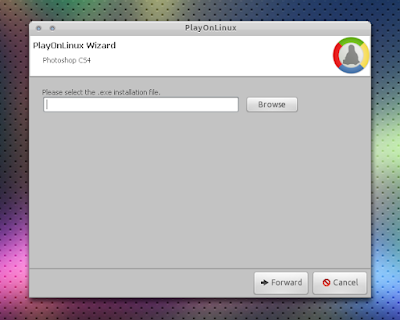
Photoshop CS4 playonlinux


Once selected, click "Forward" and the Photoshop setup window should be displayed - now simply install Photoshop like on Windows. When finished, PlayOnLinux will let you add a shortcut in the menu (or on your desktop) which you can use to run Photoshop CS4.


Thanks to SckyzO for the tip | via Le Blog de SckyzO

Jumat, 04 Juni 2010

PlayOnLinux 3.7.6 Released, Finally Compatible With Ubuntu 10.04 Lucid Lynx

playonlinux

PlayOnLinux 3.7.6 has been released, this version finally fixing an incompatibility issue with Ubuntu 10.04 Lucid Lynx which caused the install window to crash when the user clicked the Install button.

PlayOnLinux is an application based on WINE which allows you to install many games and apps designed for Windows.


Thanks to Czytelnia.ubuntu for the tip!

Senin, 02 November 2009

PlayOnLinux 3.7 Released [ Linux ]

PlayOnLinux is a free application that puts an easy to follow wizard style interface on top of WINE and contains some pre-installed scripts to help load a number of compatible applications and games.

playonlinux 3.7


Changes in PlayOnLinux 3.7:

- Right-clicking directly on the applications is now possible.
- The ability to change an application's icon.
- The ability to access very quickly to the installation directory of an application.
- The ability to stop all the applications run by PlayOnLinux at once.
- A new option: "playonlinux --debug" allows us to help you by providing more information so that we can understand why <Application> doesn't work for you.
- A much improved manual installation procedure (e.g. you can choose the version of Wine to be used).

The website now offers version 3.7.1 for download, but the changes in version 3.7.1 are not available, probably just a few bug fixes.

To install PlayOnLinux 3.7.1 in Ubuntu:

a) Download the .deb file

or:

b) Add the Ubuntu repository

- Ubuntu Karmic repository

Type the following commands :
sudo wget http://deb.playonlinux.com/playonlinux_karmic.list -O /etc/apt/sources.list.d/playonlinux.list
sudo apt-get update
sudo apt-get install playonlinux

- Ubuntu Jaunty repository

Type the following commands :
sudo wget http://deb.playonlinux.com/playonlinux_jaunty.list -O /etc/apt/sources.list.d/playonlinux.list
sudo apt-get update
sudo apt-get install playonlinux

- Ubuntu Intrepid repository

Type the following commands :
sudo wget http://deb.playonlinux.com/playonlinux_intrepid.list -O /etc/apt/sources.list.d/playonlinux.list
sudo apt-get update
sudo apt-get install playonlinux


For other Linux distributions and plug-ins, go to PlayOnLinux download page.