Powered By

Powered by Blogger

Tampilkan postingan dengan label themes. Tampilkan semua postingan

Rabu, 27 April 2011

ThemeSelector: GNOME Shell Extension To Change Themes (With Previews)

GNOME 3 (with GNOME Shell) is truly great and I especially like how easy it is to extend it through extensions like the new ThemeSelector extension.

ThemeSelector GNOME Shell extension is a new, unofficial GNOME Shell extension that adds a new tab in the Activities overview where all the GNOME Shell themes (not GTK themes!) installed under ~/.local/share/gnome-shell/themes show up. To change a theme, all you have to do is click it and you don't even have to reload GNOME Shell.


Here's a screenshot with the new ThemeSelector extension:

GNOME Shell Themeselector extension


The theme previews aren't exactly great, probably because of my large screen too, but the ThemeSelector GNOME Shell extension is still in beta.


To use the ThemeSelector extension, you need to install GNOME Shell Extensions and the GNOME Shell User Theme extension. But don't worry, despite a first look on the installation steps below, installing all of these is actually quite easy. Read on!


Install GNOME Shell Extensions and the User Theme extension in Ubuntu / Fedora


If you've compiled GNOME Shell using JHBuild (tested in Ubuntu):

cd ~/gnome-shell/source
git clone http://git.gnome.org/browse/gnome-shell-extensions
cd gnome-shell-extensions
./autogen.sh --prefix $HOME/gnome-shell/install/ --enable-extensions=user-theme
make && make install


If you use Fedora, you can probably find Gnome Shell Extensions and the User Theme extension in the repositories. If not, download the .rpm files from here (I'm new to Fedora so I'm unsure how the repositories work ... for now :D) : GNOME Shell Extensions Common and GNOME Shell Extension User Theme


If you've installed GNOME Shell from the GNOME 3 PPA in Ubuntu 11.04 (not tested):

A. Compile Gnome Shell Extensions:
cd
git clone http://git.gnome.org/browse/gnome-shell-extensions
cd gnome-shell-extensions
./autogen.sh --prefix=/usr --enable-extensions=user-theme
make && sudo make install

B. Convert Fedora .rpm to .deb (again not tested - thanks to ycDref for the tip!).

This is an option for those who can't get GNOME Shell extensions to compile for some reason. Using alien is not recommended.


Download the .rpms from here: GNOME Shell Extensions Common and GNOME Shell Extension User Theme

Install alien:
sudo apt-get install alien

Then convert all downloaded .rpm files to .deb:
sudo alien -d --scripts *.rpm

And install the resulting .deb files (you can also directly install them using "-i" instead of "-d").


Install the Themeselector GNOME Shell extension


The ThemeSelector extension already comes with 5 great GNOME Shell themes by half-left: Atolm, Smooth Inset, Elementaty, Dark Glass and Deviant Art GNOME Shell themes. Here's how to install it.


Download the Themeselector Gnome Shell extension, extract it and place "extension.js" and metadata.json under the /.local/share/gnome-shell/themeselector@fpmurphy.com/ folder (if it doesn't exist, create it). Then copy all the folders you've extracted to the ~/.themes/ folder (it's a hidden folder in your home directory; if some of those folders exists, merge the data).

Now restart GNOME Shell and you should have a new Themes tab in the Activities overview.


Post updated with a newer ThemeSelector version (0.9) - instructions for extracting the ThemeSelector changed!
GNOME Shell Themeselector info and the extension itself - thanks to blog.fpmurphy.com; Many thanks to Charles Bowman for the tip!

Senin, 25 April 2011

Adwaita Improved: Reduced Padding For Adwaita Combo Boxes / Nautilus Breadcrumbs [GNOME 3]

Adwaita improved


If you think the new GNOME3 default theme - Adwaita - uses too much padding, try "Adwaita Improved" by yes, Half-left again :)


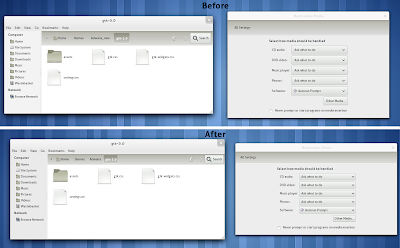
Adwaita Improved comes with reduced padding for combo boxes and Nautilus breadcrumbs bar as well as a tweak to the Nautilus sidebar to blend with the background color. Check out these before and after images by Half-left:

Adwaita improved


To use the Adwaita Improved theme:
  • extract the downloaded .zip and then move the "Adwaita" folder to the ~/.themes directory (if it doesn't exist, create it).
  • press ALT + F2 and type "r" to reload GNOME Shell


Download Adwaita Improved @ DeviantArt

Jumat, 22 April 2011

Install GNOME 3 (GNOME Shell Or Classic) GTK / Mutter / Metacity Themes

In the latest GNOME 3, changing the theme isn't as easy as you're used to. Using Gnome Tweak Tool you can change the GTK theme but how about the titlebar (Mutter/Metacity theme)? Read on!


How to install GNOME3 GTK themes


To change the GTK theme in GNOME 3 (with or without GNOME Shell), you can use Gnome Tweak Tool which is available in the GNOME 3 Ubuntu PPA, Fedora 15 official repositories, etc. If you're using Ubuntu 11.04 and the GNOME 3 PPA, run the following command to install it:
sudo apt-get install gnome-tweak-tool


To be able to use a GTK theme, make sure it's installed in /usr/share/themes/ and not in ~/.themes/ as Gnome Tweak Tool doesn't display the themes found in ~/.themes.

Then, to change the GNOME3 GTK theme, open Gnome Tweak tool and select the theme you want to use on the "Interface tab":

Gnome Tweak Tool

On the same tab in Gnome Tweak Tool you can also change the icon theme. But please note that the top panel icons in GNOME Shell will not change when chaging the icon theme (however, if you're using the classic GNONE 3 panels, the icons will change everywhere).


How to install Mutter (titlebar) GNOME Shell theme


To be able to change the GNOME 3 Mutter theme (I hope that's how it's called now) - that's the titlebar theme in GNOME Shell -, you need to install the theme under the ~/.themes folder. Yes it's weird, but that's how it works right now, hopefully this will change in future GNOME 3 releases.


Then, to change the GNOME Shell titlebar theme you need to edit some gconf settings so press ALT + F2 and enter: "gconf-editor" (if not installed, search for gconf-editor in your Linux distribution repositories) and navigate to desktop > shell > windows and change the "theme" value with the name of the theme you want to use:

Gconf editor gnome shell


The changes don't take effect immediately so you'll have to logout for the changes to take effect, or press ALT + F2 and enter: "r".

Important: for the "theme" value, enter the folder name of the theme you've copied to your ~/.themes folder. So if you've installed the Elementary theme under ~/.themes/egtk folder, use "egtk" for the "themes" key value.


How to change The Metacity theme in GNOME 3 (classic)


If you use the classic GNOME3 desktop, changing the titlebar (Metacity) theme is different then changing it for GNOME Shell. First of all, you don't have to copy the theme under ~/.themes/, it will work with /usr/share/themes/ too.

To change the Metacity theme in the GNOME 3 classic desktop (with GNOME panels), press ALT + F2, enter "gconf-editor", navigate to apps > metacity > general and change the "theme" value to the name of the theme you want to use:

Metacity theme change


Update: for switching GNOME Shell themes easily (not GTK themes - GNOME Shell themes are different), see: ThemeSelector: GNOME Shell Extension To Change Themes (With Previews)


The instructions in this post were tested on Fedora 15 beta (with GNOME Shell), GNOME Shell built using jhbuild in Ubuntu 11.04 and the classic GNOME3 session in VirtualBox.

Senin, 18 April 2011

GNOME Shell Atolm - Another Beautiful GNOME Shell Theme By Half-left

Half-left (who has created the amazing Smooth Inset Gnome Shell theme) has created yet another beautiful theme for Gnome Shell called Atolm (based on Atolm by SkiesOfAzel).

Check it out - firstly some screenshots from my computer:

GNome shell atolm

Gnome Shell Atolm

Gnome Shell Atolm


And a screenshot by Half-left:

Atolm Gnome Shell


Remember, Gnome Shell themes are not regular GTK themes - they only theme the top panel, the GNOME Shell "dock", ALT+TAB / ALT+F2 dialogs and so on, but not the application windows.


Install Atolm for Gnome Shell


GNOME Shell - Atolm is compatible with GNOME Shell beta, RC and 3.0 stable.

To install it, you must overwrite the GNOME Shell "themes" folder (I for one couldn't get the GNOME Shell themes extension to work). So extract the downloaded archive and depending on where you've installed GNOME Shell, replace the "themes" folder (make a backup first to be able to restore the original theme!) under:
  • if you've installed GNOME Shell from a PPA / use a Linux distribution that ships with GNOME Shell: /usr/share/gnome-shell/
  • if you've compiled GNOME Shell using jhbuild: ~/gnome-shell/source/gnome-shell/data

Then press ALT + F2 and enter "rt" (without the quotes) and press enter to reload the GNOME shell theme (or enter "r" to reload the whole GNOME Shell).


Download GNOME Shell - Atolm

Sabtu, 02 April 2011

3 New Equinox Themes Released: Equinox Evolution Dawn, Dusk and Midnight

The Equinox GTK themes is a pack of (now) 5 beautiful themes created by Tiheum (who's also the Faenza icons author). Check out our previous posts about the Equinox GTK themes: here and here.

An update to the Equinox PPA brings 3 new great looking themes: Equinox Evolution Dawn, Dusk and Midnight (which complete the Equinox Evolution series along with the regular Equinox Evolution and Equinox Evolution Light) as well as an updated Equinox GTK engine. The Equinox Evolution Midnight theme is experimental because "Gnome doesn't support dark themes well" says Tiheum.

Each GTK theme comes with a Metacity theme with either rounded or squared buttons.

The new Equinox Evolution themes:

Equinox Evolution Dawn
(Equinox Evolution Dawn)

Equinox Evolution Dusk
(Equinox Evolution Dusk)

Equinox Evolution Midnight
(Equinox Evolution Midnight)


Here are two more screenshots taken by Tiheum:

Equinox Evolution Dawn
(Equinox Evolution Dawn)

Equinox Evolution Dusk
(Equinox Evolution Dusk)

The themes support Nautilus Elementary breadcrumbs too, but not by default. If you want to enable the breadcrumbs for these themes, you'll have to edit the "gtkrc" file (in each Equinox Evolution theme folder the gtk-2.0 directory; you can find the themes in /usr/share/themes) and uncomment the following line (remove the "#" in front of it):
#include "apps/nautilus-elementary.rc"

If you don't want to do this manually, see the commands at the end of the post.


Install The Equinox Themes in Ubuntu


Add the Equinox PPA and install the latest Equinox Evolution Themes using the following commands:

sudo add-apt-repository ppa:tiheum/equinox
sudo apt-get update
sudo apt-get install gtk2-engines-equinox equinox-theme

To also install the Equinox Ubuntu themes, use the following command:
sudo apt-get install equinox-ubuntu-theme

The themes can also be downloaded via Gnome Look: Equinox Evolution themes | Equinox Original themes (but these are no longer maintained)


How to enable Nautilus Elementary breadcrumbs for the Equinox Evolution themes


Like I've told you above, to enable Nautilus Elementary breadcrumbs (and other Nautilus Elementary tweaks) for the Equinox Evolution themes, you need to edit the "gtkrc" file inside the "/usr/share/themes/THEME NAME/gtk-2.0" folder, where "THEME NAME" is each Equinox Evolution theme folder.

To make it easy, I've set up a command for each of the Equinox Evolution theme you can use to enable Nautilus Elementary breadcrumbs (including for Equinox Evolution and Equinox Evolution Light) - only use this if you have installed Nautilus Elementary and have enabled the breadcrumbs in the options (Edit > Preferences, on the "Tweaks" tab, check the "Show like breadcrumbs" box):
sudo sed -i 's/\#include\ \"apps\/nautilus\-elementary\.rc\"/include\ \"apps\/nautilus\-elementary\.rc\"/g' '/usr/share/themes/Equinox Evolution/gtk-2.0/gtkrc'
sudo sed -i 's/\#include\ \"apps\/nautilus\-elementary\.rc\"/include\ \"apps\/nautilus\-elementary\.rc\"/g' '/usr/share/themes/Equinox Evolution Dawn/gtk-2.0/gtkrc'
sudo sed -i 's/\#include\ \"apps\/nautilus\-elementary\.rc\"/include\ \"apps\/nautilus\-elementary\.rc\"/g' '/usr/share/themes/Equinox Evolution Dusk/gtk-2.0/gtkrc'
sudo sed -i 's/\#include\ \"apps\/nautilus\-elementary\.rc\"/include\ \"apps\/nautilus\-elementary\.rc\"/g' '/usr/share/themes/Equinox Evolution Light/gtk-2.0/gtkrc'
sudo sed -i 's/\#include\ \"apps\/nautilus\-elementary\.rc\"/include\ \"apps\/nautilus\-elementary\.rc\"/g' '/usr/share/themes/Equinox Evolution Midnight/gtk-2.0/gtkrc'

Selasa, 29 Maret 2011

Faenza 0.9.1 Released With Yet Another "Darker" Theme, Bug Fixes

Faenza

A new Faenza Icon theme version has just been released: 0.9.1. This is just a minor bug-fix release, but it does bring a new variant called "Faenza-Darker" which is great for dark themes (dark buttons / Gnome Panel) with a light toolbar.

That's pretty nice because now you don't have to manually tweak the default Faenza Icon theme or use unofficial variants if you just want to use the original Faenza but with various light/dark icon combinations.

Faenza-Darker is the third official "dark" Faenza, along with "Faenza-Dark" and "Faenza-Darkest". To understand the differences between them, take a look at the screenshots below (read the description in Gedit too):

Faenza Dark
(Faenza-Dark)

Faenza Darker
(Faenza-Darker)

Faenza Darkest
(Faenza Darkest)


Install the latest Faenza Icon Theme 0.9.1 (the PPA version says "0.9-ubuntu2" but that's 0.9.1) in Ubuntu using the following commands:
sudo add-apt-repository ppa:tiheum/equinox
sudo apt-get update
sudo apt-get install faenza-icon-theme

If you're not using Ubuntu, you can download Faenza via Gnome Look.

3 New Themes In The WebUpd8 Themes PPA: GAIA Sprout, Soothe And Dichotomy

To be able to install the themes below (well, you can also manually download and install them if you want), firstly add the WebUpd8 Themes PPA:

sudo add-apt-repository ppa:webupd8team/themes && sudo apt-get update

(Even if you've already added our Themes PPA, make sure you run "sudo apt-get update" so you get the latest packages as I've just uploaded these themes).


GAIA Sprout


Gaia Sprout:

GAIA Sprout
More screenshots on DeviantArt


This is a pack of two amazing Emerald themes which can be used with any GTK theme you want, but there's also a very simple GTK theme to go with the Emerald themes. Even though you can't see the titlebar, you can still drag the area where it used to be to move the window. Also, the minimize and maximize buttons are still there, but are only slightly visible when you move the mose over the area where they should be.

Install Gaia Sprout Emerald themes:
sudo apt-get install gaia-sprout-emerald-decorators

Install Gaia Sprout GTK theme:
sudo apt-get install gaia-sprout-gtk-theme

Important: the GTK theme will not show up as a regular theme as it doesn't have a Metacity theme. To apply it, go to System > Preferences > Appearence, on the "Themes" tab and select "Customize", then select "GAIA Sprout" under "Controls".


For how to use the Emerald themes, see the end of the post.


Soothe


Soothe:

Soothe
More screenshots on Deviantart

The pack comes with a GTK+Metacity theme as well as two Emerald themes. While Soothe is comes with a Metacity theme, I for one prefer using it with the Soothe SmoothGlass Emerald theme (like in the screenshot above). Just like with GAIA Sprout, the Soothe Emerald (Soothe SmoothGlass) can still be used to move the window but you just can't see it. Also, the minimize, maximize and close buttons are still there, but are only slightly visible when you move the mose over the area where they should be.

Install Soothe GTK theme:
sudo apt-get install soothe-gtk-theme

Install Soothe Emerald themes:
sudo apt-get install soothe-emerald-decorators


Dichotomy


Dichotomy:

Dichotomy
More screenshots on the Ubuntu wiki.


Dichotomy is quite an old theme - it was one of the themes proposed for Ubuntu 10.04 Lucid Lynx and I for one really like the way the menu looks so I decided to make it available via the WebUpd8 themes PPA.

Install it using the following commands:
sudo apt-get install dichotomy-gtk-theme


How to use Soother / GAIA Sprout (Gnome Panel / Emerald)


Booth Soothe and GAIA Sprout come with some custom Gnome Panel backgrounds you need to edit in GIMP. These can be downloaded via DevianArt (you'll have to download the whole theme) and there you'll also find exact instructions for setting up the custom Gnome Panel: GAIA Sprout | Soothe. If you think that's too hard (it's not!), you can use some already made regular Gnome panel backgrounds or tweak the font color using Gnome Color Chooser.


If you don't know how to use the Emerald themes (this includes applying a theme and using Emerald permanently or switching back to Metacity), we have a really really old post for that so check it out: How To Install Themes / Emerald (just skip to the Emerald part).

Want to move the Emerald decorator buttons to the left? We have a how-to for that too: Emerald: Move Minimize, Maximize And Close Buttons To The Left - but that won't look ok with GAIA Sprout (but should be ok with GAIA Sprout 2 Emerald theme which is also included in the package).

Senin, 28 Maret 2011

Bluebird Chrome / Firefox 4 Themes

If you like Bluebird, you may also want a Chrome / Firefox theme to match. Below you'll find a theme that matches Chrome perfectly and a Firefox 4 theme which isn't a perfect match for Bluebird but looks great nevertheless. The Firefox 4 theme actually integrates quite well with other themes too.


Chrome / Chromium


For Chrome there's a theme that matches Blubird perfectly . However, to get the full experience, you may want to check the "Use system title bar and borders" option in Chrome settings ("Personal Stuff") tab.

Here's how it looks like:

Bluebird Chrome


DOWNLOAD Bluebird for Chrome


Firefox 4


Bluebird already looks great with Firefox 4 but you can use a theme called "QSQ" to get nicer buttons and a "more integrated" overall look - even though it doesn't matches the Bluebird colors perfectly.

Here's how it looks:

Bluebird Firefox


Download QSQ for Firefox 4.


If you want to be able to move the Firefox 4 menu (button) to the right but have a blue icon like in QSQ and not orange, install the Movable Firefox Button extension, move the menu button then disable the Movable Firefox Button extension.


Rabu, 23 Maret 2011

Install The Beautiful Bluebird GTK + Metacity Theme In Ubuntu

Bluebird theme

After many comments about it, I've decided to make a separate post as it seems everybody wants to know what theme this is even though there was an announcement on ppa.webupd8.org.

The theme in the above screenshot is Bluebird GTK (the default Xubuntu 10.10 theme) and a new Bluebird Metacity theme - I've combined these two and created one package which you can use in Ubuntu (Gnome) by adding the WebUpd8 themes PPA.

I've also fixed a small bug in the GTK theme which made the Nautilus Elementary zoom slider to look broken.

Install Bluebird GTK + Metacity in Ubuntu


Bluebird is available for Ubuntu 10.04, 10.10 and 11.04. Add the WebUpd8 Themes Ubuntu PPA and install Bluebird GTK + Metacity using the following commands:
sudo add-apt-repository ppa:webupd8team/themes
sudo apt-get update
sudo apt-get install bluebird-gtk-theme

If you're not using Ubuntu, get the GTK theme from Github and the Metacity via Gnome-Look.

Senin, 21 Maret 2011

Download jDownloader Faenza Theme

jDownloader doesn't look too great and doesn't respect your GTK theme or icons. But luckily, if you use the Faenza icons, you can get jDownloader to use it (this is actually a jDownloader icon theme).

Here's a screenshot before and after applying the Faenza jDownloader theme:

jdownloader
(Before)

jdownloader Faenza
(After)

Yes, the UI is still not too pretty, but at least the icons look better.

To get Faenza icons for jDownloader, download the theme from Gnome Look, extract it, then copy the folder called "jd" to your ~/.jdownloader folder - this will overwrite some files so you may want to make a backup of the original "jd" file just in case.

Then, start jDownloader, head over to the Settings tab and under User Interface > Theme, select "Faenza" from the drop-down. You'll then have to restart jDownloader to see the new Faenza theme.

Download Faenza for jDownloader

[via LFFL.org]

Kamis, 17 Maret 2011

WebUpd8 Themes PPA: Updated Minty Freshness, New Additions: Divergence IV, Victory, Buuf

* To be able to install the themes in this post, you'll firstly have to add the WebUpd8 themes PPA using the following command:
sudo add-apt-repository ppa:webupd8team/themes && sudo apt-get update

If you've already added the WebUpd8 Ubuntu Themes PPA, make sure you run "sudo apt-get update" to be able to install the new packages / updates presented in this post.


Minty Freshness


Minty Freshness

Minty Freshness got an update, bringing an optional dark panel as well as many other improvements. Here's the complete changelog for the latest 0.6.5 version:
  • Panel improvements
  • Addition of a dark panel (replace 'include "Styles/panel.rc"' with 'include "Styles/panel-dark.rc"' in the gtkrc)
  • Nautilus elementary mode button redesigned
  • GtkScale slider is now round with all versions of murrine
  • Banshee toolbar fixes for newer versions (1.8 >=)
  • Banshee and synaptic button fixes now work for newer versions
  • GtkComboEntry no longer renders a grey line in the right side in non gtk applications
  • Scrollbars now have up and down arrows on non gtk applications
  • New style for statusbar on non gtk applications

Thanks to Skies Of Azel for the info!

To get a dark panel, press ALT + F2 and enter:
gksu gedit /usr/share/themes/Minty-Freshness/gtk-2.0/gtkrc


Then on line 371, replace:
include "Styles/panel.rc"
with:
include "Styles/panel-dark.rc"

Save the file, apply a different theme and then switch back to Minty Freshness to see the changes.


Install Minty Freshness from the WebUpd8 themes PPA using the following command (make sure you've added the PPA firstly as stated in the beginning of the post):
sudo apt-get install minty-freshness-theme


New themes in the WebUpd8 themes PPA


All the WoW themes (it's just one theme but it comes with quite a few variations) were uploaded soon after announcing the WebUpd8 themes PPA and today I've added more themes based on your suggestions:


Divergence IV: A New Hope


Divergence IV: A New Hope

* Divergence IV "A New Hope" - available for Ubuntu 10.10 and 11.04 only! Install the GTK theme using the following command:
sudo apt-get install divergence-iv-gtk-theme

There is also a package providing the Divergence IV Emerald decorations. Install it using:
sudo apt-get install divergence-iv-emerald-decorators

Once installed, you'll be able to tweak Divergence IV A New Hope GTK theme by going to System > Preferences > Divergence IV: A New Hope Settings Manager.


Victory GTK theme


Victory GTK theme

* Victory GTK theme - a very customizable theme - available for Ubuntu 10.04, 10.10 and 11.04. Install it using the following command:
sudo apt-get install victory-gtk-theme


Buuf Icon theme


Buuf icon themes

* Buuf icon theme - available for Ubuntu 10.04, 10.10 and 11.04. Install it using the following command:
sudo apt-get install buuf-icon-theme


Want a theme in the WebUpd8 Themes PPA? Suggest it in the comments!

Divergence IV: A New Hope, Victory and Buuf screenshot credits: their original authors (see links above).

Rabu, 16 Maret 2011

"A New Start" (Theme Pack) 1.2 Brings Updated GTK And AWN Themes, Lots More

A New Start

A New Start is a beautiful theme pack that was updated a few days ago. This is not just a GTK / Metacity theme - it comes with many customizations: Conky configuration, a coverGloobus theme, fonts, an AWN theme, Gnome panel and AWN backgrounds and even a Firefox Startpage.

A New Start 1.2 brings updated GTK and AWN themes, updated Conky files, a coverGloobus theme as well as an installation script for easy installation. By default, Conky starts with a minimalistic interface but clicking on various items in Conky will bring up a new pane with various extra info.

To install A New Start, download the package and check out the PDF file inside the downloaded archive - setting everything up is not as easy as installing a GTK theme and you'll need to tweak a few things manually.

Running the script ("./configure.sh install") will prompt you to enter your location code for the Conky script and will then set up Conky (including adding it to startup) and install the GTK theme. Anyway, all the info is available in the PDF I was telling you about so make sure you read it if you want to get a complete "A New Start" desktop.


Here's another screenshot of my desktop:

A New Hope theme

I know, it really doesn't look like the initial screenshot. That's because I didn't apply all the customizations (no Awoken icons, AWN theme, etc.). Also, I couldn't get the weather to work in Conky.


In case you're wondering: I can't upload A New Start to the new WebUpd8 themes PPA because of the many elements the package comes with; further more, the installation script requires user input so it cannot be packaged in its current state.


Download A New Start

[via Ubuntips; first image credits: alecive @ DeviantArt]

Selasa, 15 Maret 2011

Announcing The WebUpd8 Themes Ubuntu PPA

There are a lot of amazing GTK / Metacity / Emerald / Icon themes on Gnome-Look and Deviant Art but to get the latest version you must constantly check the site and manually download and install the new theme so I though it would be nice to set up an Ubuntu repository for the themes that I (and you) like and do not have a PPA.

So I've created the WebUpd8 Themes PPA. The PPA currently provides the following packages:


Fitts

* Fitts Metacity theme: packages in the PPA: fitts-theme, fitts-natural-theme, fitts-natural-adaptive-theme and fitts-theme-all (meta package that installs all the Fitts Metacity themes).


Faenza colors

* Faenza Colors - various Faenza-based icon themes that provide a different folder icon color which consists of: Mint-X Faenza Folders (package name in the PPA: faenza-mint-x), Faenza Mint (PPA package name: faenza-mint), Faenza Cupertino (package: faenza-cupertino), Faenza Blue Dark Panels (package: faenza-blue-dark), F-Dark and F-Dark Gnome with all the variations (package names: faenza-f-dark, faenza-f-dark-color and faenza-f-dark-gnome - each with 4 variations). There's also a meta package to install all the "Faenza Colors" themes: "faenza-colors".


Wow GTK themes

* Wow Themes: the Wow GTK themes (package names: wow-theme, wow-dark-theme, wow-dark-elementary-theme, wow-elementary-theme, wow-light-theme, wow-light-elementary-theme and wow-theme-all to install all the themes) - install one of the WoW Elementary themes (or all) if you use Nautilus Elementary -, and Wow Emerald themes (package name: wow-emerald-decorators).


Minty Freshness

* Minty Freshness (package name: minty-freshness-theme)


Mint X Icons screenshot

* Mint-X-Icons (package name: mint-x-icons)


This is just the beginning, the PPA will most probably get a lot more themes (as long as there are cool themes out there that don't have a PPA yet).

The PPA provides packages for Ubuntu 10.04 Lucid Lynx, 10.10 Maverick Meerkat and 11.04 Natty Narwhal. Add the PPA using the following:
sudo add-apt-repository ppa:webupd8team/themes
sudo apt-get update

To install a package from the PPA (after adding the PPA) simply search for its name (see the package names above) in Synaptic or Ubuntu Software Center or alternatively, copy the package name, open a terminal and type: "sudo apt-get install PACKAGE_NAME".

Important: to be able to install the Faenza Colors packages, you must firstly install the original Faenza Icon theme:
sudo add-apt-repository ppa:tiheum/equinox
sudo apt-get update
sudo apt-get install faenza-icon-theme


Want a theme in the WebUpd8 themes PPA? Let us know in the comments (I can't promise the theme will be uploaded to the PPA, but I'll consider it).

Senin, 14 Maret 2011

New Minty Freshness (GTK Theme) Version Brings Nautilus Elementary Support, Many Other Improvements

Minty Freshness theme screenshot

Minty Freshness is a new theme created by Skies Of Azel, the Orta theme developer, especially designed for Linux Mint Debian Edition (the theme could become the default LMDE theme).

A new Minty Freshness (an amazing theme similar to Orta but which uses Murrine) version was uploaded to its GIT page today bringing Nautilus Elementary support and invisible panel handles when the panel isn't expanded (that's how I use it - see the screenshot below -, so I'm pretty excited about this) as well as many other improvements:

Minty Freshness


Complete changelog:
  • Gdm improvements
  • Panel handles are now invisible when the panel isn't expanded
  • GtkPathBar now shares the nautilus style for breadcrumbs
  • New treeview highlight
  • New iconview highlight
  • New expanders
  • New check and radio box buttons
  • Some notebook fixes for non gtk applications
  • Gimp improvements
  • Inkscape improvements
  • Nautilus Elementary support
  • Banshee Wikipedia and LastFm toggle buttons are now properly skinned
  • Mintinstall pathbar now follows the window gradient

Install Minty Freshness in Ubuntu / Debian / Linux Mint


I've used Skies Of Azel's debianization to create a .deb for the latest Minty Freshness so it's now very easy to install it in Ubuntu / Debian / Linux Mint.

1. To be able to install the Minty Freshness deb, you'll firstly have to install Mint X Icons (this is a required dependency for the deb) - download Mint X Icons it from HERE.

2. Then you can download and install Minty Freshness.deb

If you're not using a Debian-based Linux distro, you can install Minty Freshness following the steps in our initial Minty Freshness post.

Update: Minty Freshness is now available in the WebUpd8 themes PPA.

Thanks to Skies Of Azel for the tip!

Jumat, 11 Maret 2011

Ubuntu Ambiance / Radiance Themes Are Now Borderless [Ubuntu 11.04] (Updated x2)

Light Themes borderless
(Click to enlarge)

Remember Borderless Elementary? It was quite a success and I'm not sure if that's where the Ubuntu devs got the idea from, but an update today in Ubuntu 11.04 removes the borders for the Ubuntu "Light" themes: Ambiance and Radiance, writes Neil Patel on his blog.

You can still easily resize the windows thanks to invisible window borders and state-dependant shadows and some theme tweaks:

Remember this is purely visual, there is still a nice big hit areas on the left, right and bottom edges for you to resize the window with, you just can't see them


Here is an image to understand the different between the old Light Themes and Borderless Light Themes:

Borderless Light Themes
(Click to enlarge)


So what else will Ubuntu remove next (don't get me wrong, most of these are a good thing)? For now, Ubuntu 11.04 will remove: the menus (available on the top panel and using autohide), the scrollbars (overlay scrollbars), the notification area and now the window borders.

Update (March 12th): well, that was quick. The Ubuntu Light themes have a border again after just a few hours due to an update requested by Mark Shuttleworth.

Update 2 (March 13th): in a new comment on the same bug report (see link above), Mark Shuttlewroth seems to have changed his mind so the Light Themes will probably be updated to "borderless" again:

Oh alright, let's fix the issues for Unity-2D and get the 0px theme looking stunning for release ;-)

Mark


Screenshot credits: Neil Patel

Rabu, 09 Maret 2011

Minty Freshness: New LMDE Theme Based On Orta, Created By SkiesOfAzel

It appears that SkiesOfAzel, the Orta theme developer was contacted by a LMDE (Linux Mint Debian Edition) developer to create a similar theme for LMDE and the initial result can already be tested (not just on LMDE - you can use it on any Linux distribution obviously). If you thought Orta is amazing, wait until you see the new Minty Freshness (that's the name of the new Orta modified for LMDE):

Minty Freshness


The result, even though shares a lot of similarities with Orta, it "uses a lot less pixmaps and lets murrine do its thing" says SkiesOfAzel.

The theme is still work in progress so there is no configuration tool like for the original Orta (so you can't modify how the tabs look, change the panel color and so on) but it looks great already!


Install Minty Freshness


Minty Freshness Orta

Just because the theme was created for Linux Mint Debian Edition, it doesn't mean it won't work in other Linux Distributions. Simply follow the installation steps below.


To install Minty Freshness, you'll need to get it via GIT as it's not available in any repository yet.

1. Install GIT:

sudo apt-get install git-core

2. Download Minty Freshness via GIT:

cd
git clone http://github.com/SkiesOfAzel/mint-x-theme.git

3. Install the theme - you can install it either system-wide (available for all users - including applications you open as root, or for your own user only):

- system-wide:
cd
sudo cp -r mint-x-theme/usr/share/themes/Minty-Freshness /usr/share/themes/

- your user only:
cd
cp -r mint-x-theme/usr/share/themes/Minty-Freshness ~/.themes/

Update: Minty Freshness is now available in the WebUpd8 themes PPA.

Thanks to LinuxMint Life for the news; Second screenshot credits: SkiesOfAzel

Selasa, 08 Maret 2011

Smooth Inset: The First Real Theme For The New Gnome Shell

Half-left has released what's probably the first "real" theme for the new Gnome Shell (with the new automatic workspaces, overview re-layout and so on). Gnome Shell already looks pretty cool but check out Half-left's theme called "Smooth Inset":

Gnome Shell Smooth Inset theme


The theme only works with the latest Gnome Shell from GIT (at least version 2.91.90) - check out or Gnome Shell Ubuntu 10.10 installation post if you want to build the latest Gnome Shell from GIT. 

Unfortunately there are no built-in settings in Gnome Shell to allow changing the whole Shell theme so to install it you'll have to manually copy some files to the ~/gnome-shell/source/gnome-shell/data/ folder. Hopefully this will change soon.

I expect to see a lot more amazing themes for Gnome Shell once Gnome 3 will be released because anyone with CSS knowledge can do it: it's all CSS and images.


Minggu, 06 Maret 2011

Orta "Theme" (User Style) For Firefox 4

If you're using the beautiful Orta GTK theme, you've definitely noticed that Firefox looks odd and doesn't exactly follow the Orta style. But you can get Firefox 4 to look better with Orta GTK theme by using Stylish and an userstyle which will make Firefox 4 look like this:

Orta Firefox 4.0 style

Here's another screenshot taken by arzali @ Ubuntuforums:

Orta Firefox


To use this user style (only works with Firefox 4!), firstly install Stylish, then get the user style from HERE (once you have Stylish installed, all you have to do is click the "Install" button on the user style page).

Sabtu, 05 Maret 2011

Elementary GTK Theme 2.1 Released

Elementary GTK theme 2.1

Elementary GTK theme version 2.1 was released today, bringing support for GTK3. Other changes include: dropped Aurora engine, the panel is now dark by default and bug fixes as well as a new Xfwm4 theme.

Here is another screenshot via DeviantArt (credits: DanRabbit):

Elementary GTK theme


To install the latest Elementary GTK theme 2.1 in Ubuntu 10.10, use the following commands:
sudo add-apt-repository ppa:elementaryart/elementarydesktop
sudo apt-get update
sudo apt-get install elementary-theme

For other Ubuntu versions you can download the .deb.

You can also download the latest Elementary Icon theme (2.5) via Deviantart - it was released in October but unfortunately it's not available in the PPA.


How to revert to the old grey panel instead of the new dark panel


To use the old panel style, press ALT + F2 and enter:
gksu gedit /usr/share/themes/elementary/gtk-2.0/gtkrc

Then at the bottom of the file, replace:
include "Apps/panel-dark.rc"
with:
include "Apps/panel.rc"


Download Elementary Theme 2.1 for other Linux distributions.

Thanks to Pixibuntu for the news!

Selasa, 01 Maret 2011

Fitts Is An Interesting "Big Buttons" Metacity Theme

Fitts Metacity theme

Fitts is a new Metacity theme created by albyrock87 (Alberto) who's also behind the cool new Avant Window Navigator Lucido style and also a Synapse developer. The theme is based on a mockup by rAX and is designed to use big buttons so they are easy to click.

The theme reminds me of Gnome 3's new theme called "Adwaita", except well, Adwaita lost its minimize and maximize buttons a few days ago.


Fitts comes with 3 variations as you can see in the screenshot below (and supports any color - set the color by going to the Appearence dialog, on the "Themes" tab, then click on "Customize" - obviously after you have applied the Fitts Metacity theme):


To install the themes, simply drag and drop the downloaded .tar.gz files to the Appearance dialog box ("Themes" tab).

Download Fitts