Powered By

Powered by Blogger

Tampilkan postingan dengan label office. Tampilkan semua postingan

Rabu, 23 Februari 2011

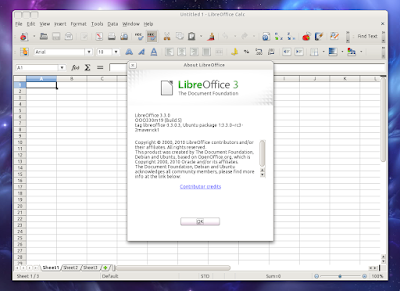
LibreOffice 3.3.1 Has Been Released

LibreOffice

A quick update: LibreOffice 3.3.1 has just been released, bringing new colored icons and eliminates various problems to improve stability. This is a minor release so that's about everything that's new in this release.

And also related to LibreOffice: the Document Foundation tries to collect donations worth of 50,000 euros required to establish The Document Foundation in Germany. Well, you'll be glad to know that the donations already reached 40,000 euros in just one week so it seems the goal will be achieved since the closing date is March 21st.

Note for Ubuntu users: the LibreOffice PPA currently provides LibreOffice 3.3.0 for Ubuntu 10.04 and 10.10 and LibreOffice 3.3.1 RC1 for Ubuntu 11.04. It will probably be updated shortly with the latest LibreOffice 3.3.1 for all three Ubuntu versions. For instructions on installing LibreOffice from the PPA, see our post on LibreOffice Ubuntu PPA


Download LibreOffice 3.3.1

Selasa, 25 Januari 2011

LibreOffice 3.3.0 Stable, Released

The Document Foundation launched LibreOffice 3.3.0 today, the first stable release of the community developed free office suite.

LibreOffice 3.3 brings some very interesting new features such as bundled extensions (which provide PDF import, a slide-sow presenter console and more), import and work with SVG files, an easy way to format title pages and their numbering in Writer, a more-helpful Navigator Tool for Writer, improved ergonomics in Calc for sheet and cell management and Microsoft Works and Lotus Word Pro document import filters.

LibreOffice 3.3
(working with SVG images in LibreOffice)

Libreoffice 3.3 screenshot
(bundled extension - Presenter View in Impress)


Download LibreOffice 3.3.0 | Official LibreOffice 3.3.0 release announcement

Note for Ubuntu users: You can install LibreOffice from an Ubuntu PPA; the LibreOffice PPA currently holds LibreOffice 3.3.0 RC4 for both Ubuntu Lucid and Maverick (LibreOffice is default in Natty) - but that's "bit-for-bit identical" to the final LibreOffice version (according to the release notes - thanks to Luigi Pezzotta for the info) so basically installing it you'll have the final version.


Image credits: libreoffice.org

Rabu, 19 Januari 2011

LibreOffice 3.3.0 RC3, Finally Uploaded To The LibreOffice PPA

LibreOffice 3.3.0

A quick update: LibreOffice 3.3.0 RC3 which was released last week has finally been uploaded to the LibreOffice PPA. Unfortunately the Ubuntu Lucid packages were not updated so only Ubuntu Maverick and Natty users will receive this update.

For LibreOffice installation instructions, see the following post: Install LibreOffice In Ubuntu from PPA Repository

Selasa, 18 Januari 2011

More LibreOffice Mockups: Citrus UI

Speaking of LibreOffice, WebUpd8 reader Nathan Moos mentioned some refreshing mockups called Citrus UI (please note that these are not official mockups!).

Citrus tries to remain somewhat familiar while brining more logic by reorganizing things differently - such as the File menu which currently holds commands that are in no way related to the current file. Further more, the menus are contextual meaning you won't get any grayed-out menus and instead, they are hidden by default.

But you won't really understand until you see some actual mockups so here goes:

Libreoffice Citrus mockups

LibreOffice citrus mockups

LibreOffice Citrus mockups

Libreoffice citrus mockups

LibreOffice
(LibreOffice Home)


Citrus tries to cover every little detail: from minor interface elements to the to how and when everything should be implemented, proposing even a gradual implementation so that it doesn't cause "any power user to get frustrated and leave".


But Citrus is not just about the mockups in this post! There's a whole website with many mockups and ideas which explain how things should work. Check it out at http://clickortap.wordpress.com/


What do you think? Does Citrus make more sense or is the Blender-ish sidebar we've just posted more user-friendly?


Thanks to Nathan Moos for the tip! Mockups via Clickortap.

Kamis, 13 Januari 2011

How To Install Microsoft Office 2007 In Ubuntu (Under Wine)

Microsoft Office 2007 Ubuntu

Today I had to install Microsoft Office 2007 at work. I don't like it but I had to install it because I work with storyboards (created in MS PowerPoint) and apparently these look differently in OpenOffice/LibreOffice and Microsoft Office 2007+. Since some of you are probably in the same situation as me (one way or another) and have to use Microsoft Office, I though I'd let you know how to install and get it to work in Ubuntu - the process is fairly easy but it involves a little "trick" to get PowerPoint to work.


Install and get Microsoft Office 2007 to work in Ubuntu

1. Firstly make sure you're running the latest WINE:
sudo add-apt-repository ppa:ubuntu-wine/ppa
sudo apt-get update
sudo apt-get install wine1.3

2. Go to Applications > Wine > Configure Wine and on the "Applications tab" select "Windows XP" under "Windows Version" and click "Apply".


3. Now install Microsoft Office 2007 - to be able to run the "setup.exe" installer, right click it, select "Properties" and on the "Permissions" tab check the "Allow executing file as program" box. Now double clicking setup.exe should open it using WINE. If it doesn't, right click it and select "Open with Wine Windows Program Loader". Now you can easily install Microsoft Office 2007.


4. At this point, PowerPoint will fail to start. To fix it, go to Applications > Wine > Configure Wine and on the "Libraries" tab, under "New override for library" type: "riched20.dll", then click "Add". Now click the newly added "riched20" file, click "Edit" and select "Native (Windows)".

Wine configuration

Microsoft Office 2007 PowerPoint should now work.


See also: Fix The "Open With" Menu When Using MS Office Under Wine [Quick Tip].

Senin, 03 Januari 2011

Install LibreOffice In Ubuntu From A Launchpad PPA Repository

libreoffice

LibreOffice finally got an Ubuntu PPA so it's now a lot easier to install and stay up to date with the latest LibreOffice versions.

While the LibreOffice website does offer .deb files for download, it's usually better to use a PPA for this since you'll always get the latest LibreOffice version automatically, like any other update. Further more, the LibreOffice packages in this official LibreOffice Ubuntu PPA are backported from Natty so they come with all the patches/optimizations applied to LibreOffice for Ubuntu.

Important notice: to install LibreOffice you must remove OpenOffice so you cannot have both in the same time!

To remove OpenOffice, add the LibreOffice Ubuntu PPA and install it in Ubuntu 10.04 Lucid Lynx, 10.10 Maverick Meerkat and 11.04 Natty Narwhal, use the following commands:
sudo apt-get remove openoffice*.*
sudo add-apt-repository ppa:libreoffice/ppa
sudo apt-get update
sudo apt-get install libreoffice

The LibreOffice PPA currently provides LibreOffice 3.3.1 for Ubuntu 10.04, 10.10 and 11.04.

Please note that it takes a while until the latest LibreOffice versions are added to the LibreOffice PPA but they eventually are uploaded so please be patient - it takes a while to update the patches for Ubuntu and so on.


To integrate Libreoffice with your desktop environment, also install the following package:

GNOME:
sudo apt-get install libreoffice-gnome

KDE:
sudo apt-get install libreoffice-kde


When removing OpenOffice, the spellchecker and the language support package are also removed. Get these packages back to use with LibreOffice by installing the following package (thanks to Paul for the tip!):
sudo apt-get install language-support-en

You can replace "-en" with your language in the above command.


Thanks to red-blue.it for the LibreOffice PPA and instructions

Sabtu, 25 Desember 2010

Fix The "Open With" Menu When Using MS Office Under Wine [Quick Tip]

MS Office wine open with

This is a tip sent by WebUpd8 reader Bhaismachine. He writes:

On installing MS Office using Wine on Ubuntu, the "open with" menu produces more than one instance of the MS Office apps. I have been solving this issue since really long time on my each fresh install of Ubuntu by opening 'main menu' app and then removing all those entries from 'other' section of main menu.

MS Office menu fix

This is not an issue just with MS Office but with other applications too. To clean the "Open with" menu, right click the Ubuntu menu, select "Edit menus" and on the "Other" section you should find all those Wine applications that show up in the "Open with" menu - delete (forever - don't just uncheck them) those that you don't want to show up on the "Open with" menu anymore.


Thanks to Bhaismachine for the tip and screenshots!

Kamis, 23 September 2010

Synchronize Your OpenOffice Documents With Google Docs, Zoho And WebDAV Servers Using Ooo2gd

Ooo2gd is an OpenOffice addon which you can use to keep your documents synchronized with Google Docs, Zoho and WebDAV servers. You can either manually select to upload a file to Google Docs / Zoho when you're done editing it or you can select to automatically synchronize it.

Besides keeping the local files you're working on synchronized with these web services, the extension also allows you to import files which already exist on the server (Google Docs, Zoho, WebDAV) and either open them in a web browser or directly edit them via OpenOffice.

google docs sync openoffice


Install ooo2gd in Ubuntu


To be able to install Ooo2gd, you need Java installed and working. For Ubuntu 10.10, see this post: How To Install Java (JRE And Java Plugin) In Ubuntu 10.10 Maverick Meerkat. To check if you have Java installed correctly, visit this link: http://www.java.com/en/download/installed.jsp


1. Firstly, make sure you have openoffice.org-java-common installed:
sudo apt-get install openoffice.org-java-common


2. Download ooo2gd and place the file on your Desktop, then use the following commands in a terminal (important: close any OpenOffice window before proceeding!!):

a) If you've installed OpenOffice from the official Ubuntu repositories (or a PPA):
cd ~/Desktop
sudo /usr/lib/openoffice/program/unopkg add gdocs_2.2.0.oxt

b) If you're using OpenOffice or Go-OO downloaded from their respective websites (not using native packages and thus the installation location is /opt/), use this command:
cd ~/Desktop
sudo /opt/openoffice.org3/program/unopkg add gdocs_2.2.0.oxt

Once installed, open an OpenOffice document. A new addon window should pop up - use it to sync your files with Google Docs, Zoho and WebDAV servers:

google docs zoho sync openoffice ubuntu


You can also select File > Google Docs & Zoho for import/export options:

Google docs zoho openoffice


For the Google Docs username, enter your email address as it seems only using your username fails sometimes.


Notes: Ooo2gd works with OpenOffice.org 2.0.4+ or StarOffice 8+ and requires Java 5 SE or newer. I've tested it on Ubuntu 10.04 Lucid Lynx with OpenOffice 3.2.1 and the Ooo2gd import/export is working properly with Google Docs and Zoho (WebDAV server not tested). Update: it also works in Ubuntu 10.10 (I've just tested it).


Also see: TradutorOOoNote: OpenOffice.org Google Translate Plugin

Selasa, 13 April 2010

Online Office In Ubuntu With Zoho Webservice

zoho presentation ubuntu 10.04 screenshot

Canonical developer Jamie Bennett presented a new project 2 days ago: Zoho Webservice, which is basically the online office suite Zoho (which comes with tools such as: Presentations, Spreadsheet and Word Processor), but with Ubuntu integration.


Zoho was chosen over Google Docs because it does not require the user to log in to use it, so using Zoho Webservice in Ubuntu, all you have to do is double click a file and read / edit it online. You can get online storage with Zoho if you do register, but if you choose not to you can still get a full featured experience.


For now, Zoho integration with Ubuntu includes:
  • Open, read, edit and save email document attachments.
  • Open, read, edit and save local documents.
  • Open, read, edit and save remote documents linked to with a url.
  • Launch the required application, Writer, Show or Sheet (Word Processor, Presentations, Spreadsheets) which will present the user with an empty document of that type ready to edit.


Zoho Webservice package will get a lot more features in Ubuntu 10.10 Maverick Meerkat.


Install Zoho Webservice in Ubuntu


zoho

Zoho Webservice has been in the Ubuntu 10.04 Lucid Lynx official repositories for quite some time, but it didn't actually work until yesterday. You can install it by simply pasting this into a terminal:
sudo apt-get install webservice-office-zoho


If you're not using Ubuntu 10.04, you can download Zoho Webservice from HERE - it should work in older Ubuntu versions since it doesn't have any dependencies, however please note that I've only tested it in Ubuntu 10.04 Lucid Lynx.

Sabtu, 20 Februari 2010

How To Install Go-OO 3.2 In Ubuntu Linux

go-oo 3.2 ubuntu


Like you probably know, there are no official OpenOffice.org packages in the Ubuntu repositories for the latest version (3.2) and also no packages in the OpenOffice.org Scribblers PPA (for now at least).

We wrote about installing OpenOffice 3.2 in Ubuntu from it's official website but that's not the same OpenOffice.org as the one in the Ubuntu repositories because Ubuntu uses Go-OO, an optimized version of OpenOffice. Well, here is how to install this optimized version called Go-OO. You can learn more about Go-OO @ it's official website.


Before installing, please note:
  • Even though Ubuntu uses Go-OO, the version you will install by following the instructions in this post is still not 100% the same as the one in the Ubuntu repositories (obviously)
  • There are no Go-OO .deb files for Ubuntu so you will have to convert the .rpm files to .deb. This is not an exactly proper way of installing Go-OO, but it will work fine anyway.


This being said, you can proceed to installing Go-OO 3.2 in Ubuntu:


1. Remove the OpenOffice.org packages:

sudo apt-get remove openoffice.org*


2. Install alien to convert the .rpm files to .deb:

sudo apt-get install alien


3. Download Go-OO 3.2:
mkdir go-oo && cd go-oo
wget http://go-oo.org/download/download-go-oo.py
sudo chmod +x download-go-oo.py
./download-go-oo.py

The commands above will create a folder called "go-oo" and download a script from the Go-OO website which will fetch all the Go-OO 3.2 .rpm files for you.

Before running the last command above, please note that you can customize it to download packages for a certain architecture or localisation (language):

Usage: ./download-go-oo.py [--localization=] [--distribution=]
[--system= version=]

Options:
--localization - language to download (default: en_US)
--distribution - distribution for which the menus are dowloaded
(default: freedesktop)
--system - architecture to dowloaded (default: linux-i586)
--version - version to download (default: 3.2)

Supported languages:
af, ar, as, be, bg, bn, bn_BD, bn_IN, bo, br, brx, bs, by, ca, cs, cy, da, de, dgo, dz, el, en_GB, en_US, en_ZA, eo, es, et, eu, fa, fi, fr, ga, gd, gl, gu, gu_IN, he, hi, hr, hu, is, it, ja, ka, kid, kk, km, kn, ko, kok, ks, ku, ky, lo, lt, lv, mai, mk, ml, mn, mni, mr, ms, my, nb, ne, nl, nn, nr, ns, oc, om, or, pa, pap, pl, ps, pt, pt_BR, ro, ru, rw, sa, sat, sc, sd, sh, si, sk, sl, sr, ss, st, sv, sw, sw_TZ, ta, te, tg, th, ti, tn, tr, ts, ug, uk, ur, uz, ve, vi, xh, zh_CN, zh_TW, zu

Supported distributions:
freedesktop, mandriva, redhat, suse

Supported systems:
linux-i586, linux-x86, linux-x86_64


For Ubuntu 32bit and English language, you can just run the script as the default options are enough.


4. Install Go-OO 3.2 in Ubuntu

You can either directly install the .rpm files using alien, or convert the .rpm files to .deb so you can directly distribute them, etc.

method 1 -> directly install Go-OO 3.2
sudo alien -i *.rpm


method 2 -> convert the Go-OO 3.2 packages to .deb and then install them:
sudo alien -d *.rpm
sudo dpkg -i *.deb


Update: The OpenOffice Packagers PPA now has OpenOffice 3.2 for Ubuntu Karmic

Kamis, 11 Februari 2010

OpenOffice 3.2.0 Officially Released

A couple of days ago we posted a link with some ftp link which already had the latest stable version of OpenOffice 3.2.0 but some were doubtful. Well, OpenOffice 3.2.0 has now been officially released and you can download if from it's website. For a full list of changes in OOo 3.2, see this page.

This is great news and means Ubuntu Lucid will come with the latest OpenOffice 3.2.0. Hopefully there will be an Ubuntu PPA available soon to allow Karmic users to install the latest OpenOffice.org.

Selasa, 09 Februari 2010

IBM Lotus Symphony 3 Beta 2 Is Available For Download (Office Suite)

IBM Lotus Symphony 3 Beta 2


IBM is working intensively on their free office suite called Lotus Symphony. The current stable version (which we reviewed HERE) is based on an obsolete OpenOffice.org 1 code, but the forthcoming version 3 will use the up to date code of OpenOffice.org 3. Recently, IBM has released the second beta of the new Lotus Symphony 3.

Lotus Symphony 3 Beta 2 offers a lot of new features, most notable being the support for Visual Basic Macros, OLE Objects, and embedded audio/video as well as delivering business card and label templates commonly used.

If you plan on using the new IBM Lotus Symphony, you'll be glad to know that version 3 beta 2 brings enhanced support for and interoperability with Microsoft Office 2007 files and OpenOffice.org file formats.

Improvements have also been made to: file fidelity, user interface, support for nested tables, presentation masters and Digital Signatures, as well as commonly used features such as comments and DataPilot tables for pivoting on large datasets.


Download IBM Lotus Symphony 3 Beta 2 for Windows, Linux (packages available for openSUSE, RedHat and Ubuntu) and Mac OS X | via abclinuxu.cz


Note for Ubuntu users: don't worry about the package name saying "hardy", it will work on any Ubuntu version (I've tested it on Karmic)!

Sabtu, 19 Desember 2009

Giveaway: Get SoftMaker Office 2008 For Free Until December 31 [Windows and Linux]

softmaker office 2008 linux

Until December 31, SoftMaker is giving away full versions of SoftMaker Office 2008 for Linux and Windows, permanently usable and entitled to future upgrades. For every download, SoftMaker donates EUR 0.10 to charity. The normal SoftMaker Office 2008 price is $80 for the Windows or Linux version and $100 for both.

You will probably think "I have MS Office or OpenOffice.org, why would I need SoftMaker Office?" but if you are looking for speed, you should really try SoftMaker Office. It starts in about a second on my PC and I can't wait to try it on my work computer which is very old and OpenOffice takes forever to start.

Also, SoftMaker Office 2008 reads and writes all your MS Word, Excel, and PowerPoint files seamlessly. The same for OpenOffice formats.


SoftMaker Office for Linux comes in .deb, .rpm and .tgz archive with install script. There are no 64bit files, but you can either force the .deb (dpkg -i --force-all) or .rpm installation or simply use the install script which should work on 64bit too.

Download your free SoftMaker Office 2008 copy for Windows or Linux | More about SoftMaker Office

Rabu, 28 Oktober 2009

Trying Out IBM Lotus Symphony Office Suite In Ubuntu Karmic Koala

IBM Lotus Symphony Office Suite

Not so long ago, IBM teamed up with Canonical to create an application which contains an office suite featuring word processing, spreadsheet and presentation applications based on IBM Lotus Symphony, an e-mail client that is based on IBM Lotus Notes, the social networking and collaboration cloud-based tools provided by LotusLive.com and the underlying Ubuntu operating system. Alternatively, companies can opt to use the cloud-based LotusLive iNotes application instead of IBM Lotus Notes.

Mark Shuttleworth, founder of Ubuntu and Canonical CEO, said that:

"Canonical is proud to partner with IBM to help open up the American corporate desktop through Ubuntu. [...] IBM's smart client package running on Ubuntu will allow U.S. organizations the financial freedom to redistribute the costs of expensive software licenses into IT projects that will innovate and drive critical growth."


[via softpedia]

Because of this, I decided to test the IBM office suite called Lotus Symphony. From what I've understood, Symphony is available in Ubuntu Jaunty repositories, but I couldn't find it in Karmic so I downloaded a copy (comes in Ubuntu .deb package) from the IBM website. You can, however, search for in in Synaptic Package Manager if you use Jaunty or older Ubuntu versions.

Download IBM Lotus Symphony [works on Windows, Linux and Mac OSX]

Please note that although the application is free, it does require an account to be able to download it (which is also free). Also, there are no packages available for 64bit.

The package available on the website (version 1.3) was released on September 10, 2009, yet the Ubuntu .deb package name point out that it would be for Ubuntu Hardy Heroen. Don't worry about this, it does work on other Ubuntu versions, as I've just installed it in Ubuntu Karmic Koala (due to be released tomorrow).

After installing IBM Lotus Symphony, you can find it in Application > Office (for Gnome). Upon opening the application, we are presented with an interface which allows us to choose the type of document we want to create: Presentations, Spreadsheet or text Document:

IBM lotus symphony ubuntu


All of these open in tabs, Firefox-style - even if the document types are different. This seems pretty straight forward and intuitive, even useful I might say. But unfortunately, this is where the useful part ends. The Spreadsheet, Presentation and Document interface seems like an old version of Microsoft Office:
ibm lotus symphonylotus symphonylotus symphony office suite

But don't get me wrong, competition is always good and OpenOffice will have to prove itself better with something other than the ribbon interface they will offer in version 3.2.

One really strong point of IBM Lotus Symphony office suite is that it opened all the documents created with MS Office I could find on my computer (although I didn't have too many). This includes word processor documents and Power Point presentations.

I do not have a final verdict for IBM Lotus Symphony, but like I said, it does have some pros and cons. I'll test it for a couple of days to see exactly what it can an cannot do.

Note: this post is only my view on things, others might see things differently. What do you think of IBM Lotus Symphony? Have you tried it?

Credits for the idea of this post: ubuntizando el planeta

Senin, 21 September 2009

Start Using Microsoft Office Web Apps Right Away

"Office Web Apps", created by Microsoft will include online versions of Microsoft Word, Microsoft Excel and Microsoft PowerPoint and you will be able to access it via any web browser. This new Microsoft product should be available once Microsoft Office 2010 is out but you can already use the Technical Preview. Here is how:

Go to skydrive.live.com and sign in with your Windows Live ID, click the Documents folder and upload a dummy Word, Excel or Power-Point file to this folder though "Add Files". You will be then asked to join the Office Web Apps Preview:

Image and video hosting by TinyPic

Then you just have to click on "Accept":

office web office accept

And that's about it. Now you can edit Excel, Word and Power-Point files just like on Google Docs:

microsoft web office


[via labnol]

Rabu, 16 September 2009

How To Upgrade To KOffice 2.1 Beta 2 In (K)Ubuntu

koffice 2.1 beta 2

KOffice 2.1 Beta 2 was released today, and it features lot of changes which you can see HERE.

To upgrade to KOffice 2.1 Beta 2 in (K)Ubuntu, open a terminal and follow the steps below:

1. Add the Kubuntu Beta PPA:

-For Ubuntu Jaunty:
sudo sh -c "echo 'deb http://ppa.launchpad.net/kubuntu-ppa/beta/ubuntu jaunty main' >> /etc/apt/sources.list"

-For Ubuntu Karmic:
sudo sh -c "echo 'deb http://ppa.launchpad.net/kubuntu-ppa/beta/ubuntu karmic main' >> /etc/apt/sources.list"


2. Add the GPG signature:
sudo apt-key adv --keyserver keyserver.ubuntu.com --recv-keys 8AC93F7A


3. You can now upgrade to KOffice 2.1 Beta 2:

If you alread used Beta 1 of KOffice 2.1
sudo apt-get update && sudo apt-get upgrade
or, if not:
sudo apt-get update && sudo apt-get dist-upgrade

Minggu, 13 September 2009

Cross-Platform Google Docs Batch Uploader Lets You Upload All The Files In a Folder To Google Docs

If you want to upload a lot of documents to Google Docs, it's difficult to upload them one by one. You can send the documents by email, but this option is not very reliable and not all the formats are supported.

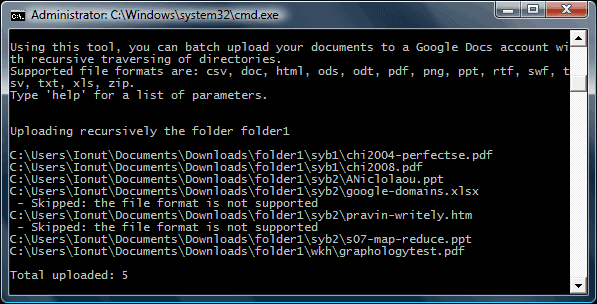
Google Docs Batch Upload, developed by Anton Beloglazov is a command-line Java application, so it should work in Windows, Mac, Linux, as long as you have JRE 1.6 and you can use it to upload multiple files at once to Google Docs.


Use the following command to upload all the files from a folder and all its subfolders (unfortunately, the application doesn't recreate the folder structure in Google Docs):
java -jar google-docs-upload-1.0.jar <path> --recursive

(replace <path> with the path to the folder you want to upload)


[via googlesystem]

Senin, 31 Agustus 2009

OpenOffice.org 3.1.1 Released [Downloads for Windows, Linux - .DEB, .RPM and Mac OSX]

openoffice.org 3.1.1 final

OpenOffice.org 3.1.1 has been released. You can find full release notes, HERE.

You can download Windows files, Linux - .DEB and .RPM and Mac OSX files for OpenOffice 3.1.1 from HERE.

For Ubuntu Jaunty users: if you prefer to install OpenOffice from a PPA instead of the above .deb download, you can add the PPA for OpenOffice.org Scribblers. The OO 3.1.1 packages are not ready, but should be packed soon:

OpenOffice.org 3.1.1 - Only for JAUNTY (being prepared)


Details on how to add the OpenOffice.org Scribblers PPA (for Ubuntu)