Powered By

Powered by Blogger

Minggu, 21 November 2010

Poll Results: Best Linux Twitter Client

Our "Best Linux Twitter Client" poll ended today. And the winner is.... (no surprise here): Hotot (40%), followed by Gwibber (29%) and Choqok (13.7%).

Here are the exact poll results:

Best Linux Twitter Client


Pino would have probably gotten a lot more votes if it worked with OAuth (even though it does work without OAuth with a trick, but most people probably don't know that). Either way, it's amazing how an application (Hotot) which until 2 months ago nobody knew it exists now takes the first spot of the Best Linux Twitter Client poll.


If you have an idea for a poll we didn't have on WebUpd8, let us know in the comments!


Window Applets 0.2.9 Finally Gets Emerald Support, Comes With 4 New Themes

Window applets


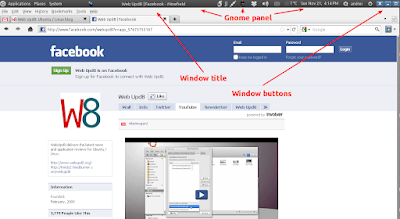
Window Applets are 2 Gnome panel applets that display the window tile and buttons.

Because we got a lot of comments from people not understanding what Window Applets does, here's a short description (and a new screenshot - hopefully it's clear now): 

You can set Window applets to control only maximized windows (but Window Applets can control non-maximized windows too) and remove the maximized windows titlebar, thus gaining some extra vertical space, but still see the window title and control the windows using the Window Applets. Ubuntu 10.10 Netbook edition has something similar by default, but what's so great about Window Applets is that the Window Title and Window Buttons are 2 separate applets so you can place each wherever you want (like for instance: the Window Title in the middle of the panel and Window Buttons on the right, after the Session Indicator applet). 

Also, unlike the Ubuntu 10.10 Netbook Edition applet, "Window Applets" supports themes for the buttons on the panel - and comes with a lot of themes by default, as well as many other customizations.


Window Applets 0.2.9

Window Applets 0.2.9 was released yesterday, adding 4 new themes: Blubuntu, Equinox Glass, Plano and New Hope. Also, starting with the latest version, Emerald is finally working with Window Applets.


Here are the complete Window Applets 0.2.9 release notes:
  • Major code cleanups, rearangements and optimizations
  • Added plaintext settings backend (enable by setting PLAINTEXT_CONFIG to 1)
  • Fixed desktop detection (+ got rid of potential segfaults)
  • Bugfix: hide_on_unmaximized causes buttons to not reappear if disabled when currentwindow not present
  • Changed theme model from 16 to 24 images (added 2 new unfocused states) and made it backwards compatible
  • Fixed Compiz detection for maximized windows. Coincidentally this also makes Emerald work
  • Added new themes: Blubuntu, Equinox-Glass, Plano, New-Hope
  • Bugfix: Ensure the title gets truncated if it runs out of space
  • Forced the Expand option due to GTK+ bugs. It can be disabled in gconf-editor, but then you should also set a fixed title_size
  • Bugfix: Icon padding wrong on different panel orientations


Install Window Applets 0.2.9 in Ubuntu

I've been waiting for T. Scott Barnes's Misc PPA to get an update with the latest Window Applets but unfortunately the update didn't came (yet) so I've uploaded the latest Window Applets 0.2.9 in the WebUpd8 PPA.

To add the WebUpd8 PPA and install Window Applets 0.2.9 (available for Ubuntu 10.04 and 10.10), use the following commands:
sudo add-apt-repository ppa:nilarimogard/webupd8
sudo apt-get update
sudo apt-get install gnome-window-applets

Then, right click the Gnome Panel, select "Add to panel" and add "Window Title" and "Window Buttons". The applets are set to only be displayed for maximized windows so for chaging their settings, maximize a window so you can actually see the applets, then right click each of the two applets and select "Prefereces", then set everything to suit your needs.

If the Window Buttons applet doesn't show up on the panel after the installation even when maximizing a window, run the following command:
killall gnome-panel

And it should then work.


For other Linux distributions, see Window Applets page @ Gnome Look.


Thanks to Hadret for the debianization! You can install Window Applets in Debian by using Hadret's repository.

Jumat, 19 November 2010

Use MintMenu In Avant Window Navigator [AWN Applet]

MintMenu Avant Window Navigator

Avant Window Navigator already has some menu applets, but none as good as MintMenu.

But now you can use MintMenu in AWN, thanks to Neelance who maintains a PPA for MintMenu AWN applet which you can install (Ubuntu Lucid and Maverick; should work in Linux Mint) using the following commands:
sudo add-apt-repository ppa:neelance/awn
sudo apt-get update
sudo apt-get install awn-mintmenu

You'll also need the regular MintMenu installed (<-- click for installation instructions) to be able to use this!

Then add the MintMenu applet to AWN. If it takes too long for the menu to load, quit AWN and start it again (this is a known issue that occurs sometimes as noted in the PPA description).


A big thanks to Kevin McDole for sending us the tip!

Faenza Icon Theme 0.8 Brings Lots Of New Icons, Reworked Icons For Chrome, Firefox And More

Faenza icons 0.8

The well known Faenza Icon theme was updated today (version 0.8), bringing icons for some applications which were missing such as: adobe air, deadbeef, devede, devhelp, dia, facebook, flickr, frostwire, glade, gnucash, gnumeric, homebank, jdownloader, kupfer, netbeans, openbravo, openerp, openshot, phatch, picasa, qtcreator, radiotray, soundconverter, terminator, vim, wordpress, wxbanker, xbmc and xournal.

But that's not all. The latest Faenza 0.8 also brings reworked icons for Gwibber, Firefox, Chromium and Google Chrome, a whole new set of emblems and weather icons and new monochromatic icons for applications.


Ubuntu users can install Faenza Icon theme using a PPA (available for Ubuntu Karmic, Lucid and Maverick):

sudo add-apt-repository ppa:tiheum/equinox
sudo apt-get update
sudo apt-get install faenza-icon-theme


You can also install the folowing packages:

  • "faenza-icons-mono" to replace 22x22 squared icons for Deluge, Exaile, Fusion Icon, iBus and Kupfer by their monochromatic versions
  • "faenza-extras" or "faenza-dark-extras" to override some icons displayed in system tray by Faenza monochromatic ones. This affects Liferea, LastFM and RadioTray.


The same PPA also hosts the amazing Equinox themes.


If you're not using Ubuntu, you can download Faenza Icon Theme via Gnome-Look.

DockBarX 0.40 Has Been Released

DockBarX

DockBarX 0.40 has been released last night, bringing the following changes:
  • The default theme has changed. The new default theme DBX is made by BigRZA. It's made to look good with Radiance and Ambiance. (The old default theme is still included under the name Old.)
  • Another theme by BigRZA, Sunny Colors is also included by default
  • The theme Human bar is removed since it was pretty much an older version of the new default theme.
  • Number of entries in recent and most used menus are increased to eight (for real this time).
  • A few new languages and updates to translations.


Dockbarx 0.40 new default theme
(The new default theme in DockBarX 0.40)


For those who are not familiar with DockBarX: it's a taskbar with grouping and group manipulation which works as an applet for both the GNOME Panel (see the images above) and Avant Window Navigator (image below):

DockBarX Avant Window Navigator


As usual, I've uploaded the latest DockBarX 0.40 in the WebUpd8 PPA, along with an updated extra themes package (it's required to upgrade to the latest dockbarx-themes-extra version if you've ever installed it or else you'll get an error when installing DockBarX) and the AWN applet. With this update, I've also uploaded packages for Ubuntu 11.04 Natty Narwhal (for all the DockBarX related packages).

To add the WebUpd8 PPA and install DockBarX and the extra themes, use the following commands:
sudo add-apt-repository ppa:nilarimogard/webupd8
sudo apt-get update
sudo apt-get install dockbarx dockbarx-themes-extra

To also install the Avant Window Navigator applet:
sudo apt-get install awn-applet-dockbarx

Kamis, 18 November 2010

Fix Pidgin (MSN) Omega.contacts.msn.com Certificate Errors

I said I won't be posting "fixes", but this one is way too annoying not to help you fix it.


If you're using Pidgin with MSN, you probably got lots of "omega.contacts.msn.com" certificate errors today. Here is how to fix it.


1. Download this omega.contacts.msn.com certificate.

2. In Pidgin, go to Tools > Certificates and remove the existing "omega.contacts.msn.com" certificate. Then select "Add" and add the certificate downloaded under step 1 and when prompted to enter the hostname, enter: "omega.contacts.msn.com":

Pidgin omega.contacts.msn.com fix


Now click OK and that's it!


Update: Pidgin 2.7.6 has been released, bringing a fix for this issue. See: Install Pidgin 2.7.6 in Ubuntu (With MSN Certificate Fix And Multiple MSN Logins)

Thanks to Lazonakf for the fix!

Alternative To The "200 Lines Kernel Patch That Does Wonders" Which You Can Use Right Away

Phoronix recently published an article regarding a ~200 lines Linux Kernel patch that improves responsiveness under system strain. Well, Lennart Poettering, a RedHat developer replied to Linus Torvalds on a maling list with an alternative to this patch that does the same thing yet all you have to do is run 2 commands and paste 4 lines in your ~/.bashrc file. I know it sounds unbelievable, but apparently someone even ran some tests which prove that Lennart's solution works. Read on!

Basically, Lennart explains you have to add this to your ~/.bashrc file (important: this won't work on Ubuntu. See instructions for Ubuntu further down the post!):

   if [ "$PS1" ] ; then  
mkdir -m 0700 /sys/fs/cgroup/cpu/user/$$
echo $$ > /sys/fs/cgroup/cpu/user/$$/tasks
fi

And run the following commands as super user:
mount -t cgroup cgroup /sys/fs/cgroup/cpu -o cpu
mkdir -m 0777 /sys/fs/cgroup/cpu/user

Further more, a reply to Lennart's email states that his approach is actually better then the actual Kernel patch:

I've done some tests and the result is that Lennart's approach seems to work best. It also _feels_ better interactively compared to the vanilla kernel and in-kernel cgrougs on my machine. Also it's really nice to have an interface to actually see what is going on. With the kernel patch you're totally in the dark about what is going on right now.

-Markus Trippelsdorf

The reply also includes some benchmarks you can see @ http://lkml.org/lkml/2010/11/16/392

Use it in Ubuntu


Update (November 24): because many people had trouble following the instructions below, there is now a script that automatically does everything for you. See: Script To Automatically Apply the "200 Lines Kernel Patch" Alternative In Ubuntu


To use Lennart's solution in Ubuntu (not tested - thanks to Lsh for this), you have to replace "/sys/fs" with "/dev". So you would have to add the following commands in your /etc/rc.local (open it with: sudo gedit /etc/rc.local) file, above the "exit 0" line:

mkdir -p /dev/cgroup/cpu
mount -t cgroup cgroup /dev/cgroup/cpu -o cpu
mkdir -m 0777 /dev/cgroup/cpu/user
echo "/usr/local/sbin/cgroup_clean" > /dev/cgroup/cpu/release_agent

and make it executable:
sudo chmod +x /etc/rc.local

And then add the following to your ~/.bashrc file (to open it: gedit ~/.bashrc):

if [ "$PS1" ] ; then  
mkdir -p -m 0700 /dev/cgroup/cpu/user/$$ > /dev/null 2>&1
echo $$ > /dev/cgroup/cpu/user/$$/tasks
echo "1" > /dev/cgroup/cpu/user/$$/notify_on_release
fi

Run the following command:
sudo gedit /usr/local/sbin/cgroup_clean

And paste this:

#!/bin/sh
if [ "$*" != "/user" ]; then
rmdir /dev/cgroup/cpu/$*
fi

then save the file and make it executable:
sudo chmod +x /usr/local/sbin/cgroup_clean

And finally, restart the computer or manually run the /etc/rc.local file ("sudo /etc/rc.local").


Update November 19: The above instructions have been updated again to "really" automatically remove empty cgroups (thank to Ricardo Ferreira using the instructions he sent.).


Update 2: if you don't want to follow the manual steps above, you can use some patched kernels (Warning: use these at your own risk!!!) for Ubuntu 10.10:

If you want to go even further and install a patched Kernel, you can download a "200 lines" patched Kernel (for 64bit only!) from HERE (thanks to accumulator @ Phoronix forums).

Also, WebUpd8 reader Scott Franke shared a Kernel he patched with bfs with which he says he gets better performance then with the "200 lines patch". Download (also 64bit only!): 1 and 2 (both .deb files required).

Both of the above 2 Kernels are for Ubuntu 10.10 only! Use them at your own risk!


Read the discussion @ http://lkml.org/lkml/2010/11/16/392 | via Habrahabr.ru (thanks to Lsh)


More on this topic: