Powered By

Powered by Blogger

Tampilkan postingan dengan label distro. Tampilkan semua postingan

Sabtu, 02 April 2011

Pinguy OS 11.04 Alpha 1 Is Available For Testing

Pinguy OS 11.04

Pinguy OS alpha 1 has been released yesterday, bringing some new default applications and some other interesting changes.

Even though it's based on Ubuntu 11.04, Pinguy OS 11.04 will use the classic Gnome (panels) 2.32.x as the default interface and the final release should be a lot like this alpha 1. What could change is removing the Global Menu with the AppMenu but for the moment there's a memory leak in the AppMenu so that's not an option yet.

Also, Pinguy OS alpha 1 comes with various PPAs for the applications it ships with but the final version will use just one Pinguy OS branded PPA that will have all the packages mirrored from the other PPAs, but tested firstly so this should bring more stability and control over the updates.


Changes in Pinguy OS 11.04 alpha 1


Ultracopier has been added as a default application. It can be used to copy things faster and comes with a resume option for the copy process, speed limitations and more. Also, Oracle Java is now default instead of OpenJDK because "openjdk-6-jre is not allowed with some bank sites".

Other new default applications are: Rapid Photo Downloader, XBMC, Vino, Vineyard and more. The old default applications are there too: Nautilus Elementary, Deluge, Firefox, Thunderbird, Rhythmbox, LibreOffice, MintMenu and so on (basically the same as 10.04.2) but updated to the latest version.

There are of course a lot of other minor new tweaks which you'll discover once you give Pinguy OS 11.04 a try. For example, there's a new Firefox theme:

Pinguy OS Firefox


Also, the latest Pinguy OS 11.04 alpha 1 comes with new ConnMan which has replaced the regular Network Indicator:

Connman


Besides the applications, there are some other changes. For instance, because Unity has been disabled, you can't drag a window to the side to move it to another desktop (so says Pinguy, I didn't try this and I'm not sure what are the implications of disabling Unity but still using Compiz). Instead, when draging a window to the sides, the behavior will be the same as in Unity: the window will be resized to half of the desktop and dragging it to the top will maximize the window.

Important note: Compiz has been turned off by default, at least in this first Alpha 1, but you can turn it on from the Startup Applications dialog.


OEM


In Pinguy OS 11.04 you can install it as usual with the username "oem" and the same "oem" for password and once you customize everything on the computer you can run:
sudo oem-config-prepare

Then restart the computer and on the next boot it will ask the user for to setup his account and will delete the original "oem" account.


Download Pinguy OS 11.04 alpha 1


Pinguy OS 11.04 alpha 1 is only available for 64bit. Starting with the beta there should be 32bit ISO images available for download too.

Download Pinguy OS 11.04 alpha 1

If you find bugs, report them @ Pinguy OS forum.

Thanks to Pinguy for the info!

Sabtu, 12 Februari 2011

Pinguy OS LTS Update: 10.04.2 [Ubuntu Remaster]

Pinguy OS 10.04.2

An update for Pinguy OS 10.04 LTS was released today: 10.04.2. For those who are not familiar with Pinguy OS: it's an Ubuntu remaster with a lot of useful default applications "built to have eye candy (Gloobus Preview, GNOME Do, Docky, Nautilus Elementary) and for every part of it to be user-friendly". It comes with a lot of applications we've featured on WebUpd8 so if you want a ready-to-use Linux distro, you should really try Pinguy OS. I like to call it "Ubuntu after a week of customization" but lately it's getting way past "a week".


Pinguy OS 10.04.2 comes with some of the features from 10.10 that were missing in 10.04 like the Sound Menu applet or the new Ubuntu Software Center. Pinguy OS also comes with a new default application: TeamViewer 6, a popular application for remote control, desktop sharing and file transfer between computers.

Pinguy OS TeamViewer


True Long Term Support


Pinguy OS 10.04.2 LibreOffice

But that's not all! The latest 10.04.2 shows that Pinguy OS is serious about LTS (Long Term Support) and brings all the new features from 10.10 to 10.04. Even though released as an update can be considered a new stand-alone version due to the huge improvements it received: native ZFS file system support, the 200 lines kernel patch as well as new default / updated applications which include: DJL (Game Manager), LightScribe Software, LibreOffice instead of OpenOffice, VirtualBox 4, Calibre, LuckyBackup, lxDBPlayer and so on. Further more, Docky now has 3D effects even without Compiz.

Oh, and Conky - an application which always manages to draw attention -, now has a new layout:


Conky


The old layout is still available (.conkyrc.old) so you can use that if you don't like the new layout. This is how the old Conky layout looks:

Conky Pinguy OS


Download Pinguy OS 10.04.2


Pinguy OS 10.04.2 is available for both 32bit and 64bit: Download Pinguy OS 10.04.2


See also: Pinguy OS 10.04.2 release announcement | Pinguy OS Homepage

Selasa, 08 Februari 2011

Lubuntu 11.04 Alpha 2 Released, Removes Cheese And Xarchive

Lubuntu 11.04 alpha 2 screenshot

Lubuntu is an unofficial LXDE Ubuntu flavor designed to run on old hardware.

Lubuntu 11.04 alpha 2 was released today with a bit of a delay due to some issues with the hardware on the computer that generates the ISO.

There aren't major changes since alpha 1 except for two default packages which have been removed: Cheese is no longer in the default Lubuntu 11.04 install and Xarchive has been replaced with file-roller.

Ozone, a theme proposed to become default in Lubuntu 11.04 is not default in the latest alpha 2 and its status regarding Lubuntu is still unknown.


Since we didn't cover Lubuntu 11.04 alpha 1, there's one more really important change since Lubuntu 10.10 that I have to mention (this change came with Lubuntu 11.04 alpha 1): Aqualung has been replaced with Audacious:

Audacious Lubuntu 11.04

Both Aqualung and Audacious are great, lightweight music players but Audacious was probably the Lubuntu developers choice thanks to its plugins and versatility.

Since there is no changelog available for the latest Lubuntu 11.04 alpha 2, I'm not aware of any under-the-hood changes but we'll continue to watch the Lubuntu development and let you know of any major change that may happen.


Download Lubuntu 11.04 alpha 2 (remember, this is alpha software so do not use it on production machines): direct download | torrent

Also, if you plan on installing Lubuntu 11.04 alpha 2, read the following warning from the Lubuntu mailing list:

A quick warning, be careful if you install it. Ubiquity (the installer) will ask you for keyboard configuration. Be sure to say No, so you will be able to configure properly your keyboard and select your layout. Otherwise, you may not be able to use your keyboard after the reboot.

Minggu, 23 Januari 2011

Pardus 2011: KDE SC 4.5.5 With A Pinch Of GNOME In One Of The Best KDE-Based Linux Distros

Pardus 2011 screenshots

Pardus is a Linux distribution funded by the Scientific & Technological Research Council of Turkey. Even though it uses KDE, Pardus tries to make every user - including those who come from a GNOME Linux distribution - feel like home and in which the user is in control of how his desktop looks like right from the start.

Pardus 2011 comes with its own original tools: YALI (installer), Kaptan - an first boot configuration tool, PiSi (package manager) as well as many tweaks to some already existing tools. Read on to find out more!


First impressions


Pardus 2011 screenshots
(Pardus login screen)

When you first boot the Pardus 2011 Live CD, YALI installer (which now has LVM/RAID and UUID support) will guide you through the installation process. Everything is intuitive and easy to use for both novice and advanced users (the following screenshot is just one of the YALI installation steps):

Pardus 2011 screenshots


While most major Linux distributions impose their own style (theme, icons and so on), in Pardus you're in complete control of how everything looks from the beginning: when you first boot Pardus you'll meet Kaptan, an original Pardus tool that runs when you boot Pardus for the first time and lets you customize the user interface and other settings (you can choose the theme, menu, wallpaper and so on):

Pardus 2011 screenshots

Pardus 2011 screenshots


If you've never tried Pardus before, I'm sure the first impression will be "wow" for most of you like it was for me!


Default applications


Pardus 2011 screenshots
(Clementine)

Pardus 2011 screenshots
(Firefox 4.0 beta 9)


Pardus 2011 is not your regular KDE Linux distribution - you won't find KOffice (now Calligra Suite) by default but LibreOffice. Further more, Mozilla Firefox 4.0 beta 9 is the default web browser. Other default applications: SMplayer as the default video player, Clementine as the default music player, KsCD is now the default player for Audio CDs and of course most of the popular KDE applications like digiKam, Kdenlive, Kopete, Dolphin, Ktorrent, Kget, Choqok, Konqueror and so on.


Pardus 2011 screenshots
(GIMP)

Even though Pardus is a KDE Linux distribution (Pardus 2011 comes with KDE SC 4.5.5), it features some of the best GNOME applications too such as GIMP or GNOME NetworkManager 0.8.2:

The reason for using GNOME Network Manager as the default network manager application is to make it easy for its users to set up CDMA, HSPA and VPN networks.

But you don't have to worry about integrating GNOME applications with the KDE look - Pardus has this covered and the latest Pardus 2011 uses KDE's Oxygen style for all the GTK apps. This is great for those who use GNOME and want to try a KDE Linux distro as they can keep using some of the applications they've got used to while trying out some of the best KDE applications too.


For a package manager, Pardus comes with its own "PiSi":

Pardus 2011 screenshots


But of course, there's also a graphical package manager too:

Pardus 2011 screenshots


Panda (Pardus alternative driver administration) is a new System Settings module which allows users to change the driver between Open Source and proprietary one for NVIDIA and ATI display adapters.


Pardus 2011 comes with KDE SC 4.5.5, Linux Kernel 2.6.37, Python 2.7.1, xorg-server 1.9.4 RC1 with improvements to the automatic driver configuration mechanism done by the Pardus developers.


Download Pardus 2011


There's much more to Pardus 2011 then I could ever cover in a post so you really need to try it out for yourself to see why Pardus is considered one of the best KDE-based Linux distributions of the moment.

Pardus 2011 is available for both 32bit and 64bit and you can download it from HERE | Pardus 2011 release notes

Minggu, 09 Januari 2011

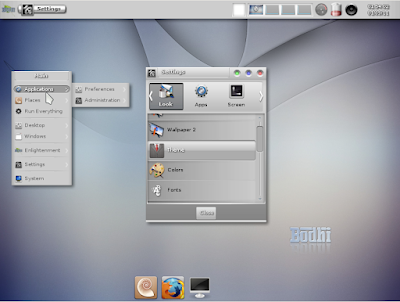
Bodhi Linux Reaches Beta (0.1.4), Gets New Themes And Layouts

Bodhi Linux is a fast, minimalistic Enlightenment (E17) Linux distribution based on Ubuntu. Bodhi 0.1.4 beta was released yesterday bringing two different themes (light and dark) and four different custom Enlightenment configurations to choose from:

The most important change in this release is how the default theme for Bodhi is now handled. After listening to the complaints of people more than a few times, I realized I needed to do with Bodhi's theme what we had done for applications - let the user make their own choice.

- Jeff Hoogland, Bodhi Linux developer

When you first boot Bodhi, a configuration window will be displayed where you can select your language as well as the theme color and layout:

Bodhi Linux


Here are the two new themes with different layouts:

Bodhi fancy light
(Fancy Light)


Bodhi laptop dark
(Laptop Dark)


Bodhi laptop light
(Laptop Light)


BOdhi linux desktop dark
(Desktop Dark)


Other changes in Bodhi Linux 0.1.4 beta


Bodhi 0.1.4 changelog:
  • Added acpi-support package so suspend function now works
  • Added itask-ng and calendar modules to base system
  • Added broadcom firmware to core system
  • Updated network manager to 0.8.1
  • Updated Firefox to 4.0 beta8
  • Update lxterminal to 0.1.9
  • Updated E Packages
  • Changed plymouth back to black theme
  • Created 4 E profiles, each in two colors, to choose from
  • Added user selection of E profile at first system startup
  • Added symlink so flashplugin-installer works with FF 4.0 beta


Online Software Center


Bodhi Linux online software center

But that's not all: in our initial Bodhi Linux post we were telling you that Bohdi will gen an online software center that will use apturl so its users can easily install applications. Well, the Bodhi online software center is live for some time and besides being able to install applications using apturl, it also features offline installers. The online software center can be found at http://software.bodhilinux.com/


To install an application using a Bodhi (.bod) offline installer, simply download it from the Bodhi online software center, copy it to the computer with no (or limited) Internet connectivity, make it executable and double click it:

Bodhi offline installer


Download Bodhi Linux


For more info on this release, check out Jeff's post | Thanks to Jeff for the tip!

Rabu, 05 Januari 2011

DouDouLinux: A Linux Distribution Especially Designed For Kids

DoudouLinux provides tens of applications that suit children as soon as 2 years old and tries to give them an environment as easy to use as a gaming console. Kids can then learn and have fun but... without Dad and Mum watching!

“Doudou” is a French word that means wubby, the teddy bear or the cloth that children carry everywhere and hug very strongly in their arms before falling asleep.


DouDouLinux is, maybe, the greatest aid for parents who don't have enough time to spend with their children while they have fun on the computer but who also don't want to come back and find out that their operating system kind of crashed or that some important document was accidentally erased. That's because you don't have to install DouDouLinux to be able to use it, all you have to do is boot it from an USB stick (and when booting you can choose if you want the changes to be saved or not) or a CD/DVD and the kids don't have to log in to be able to play!

Further more, you don't have to worry that while your child plays Internet games he will get to see unsuitable pictures or games for his age thanks to a smart built-in web page access filter (starting with version 2010-11).


Educational and fun!


DouDouLinu

But let's just start with the beginning. When you boot DouDouLinux, it looks just like you can see in the above picture. A friendly drawing background and only seven sections you can choose from. Four of them come with educational games as well as a few others that will familiarize your child with the way the mouse or the keyboard works. TuxPaint is there too in case your children want to exercise their painter abilities.

DouDouLinux Tux Paint
(Tux Paint)

I have found that all the games on DouDouLinux are educative and violence free. But be careful, some of the games are very addictive! I might not admit, but after writing the review I will play Pingus all day.

In the educational games section kids will get to play and learn games with numbers, letters, how to use the keyboard and the mouse, a geography game (another one of my favorites). It's just nice they have plenty of options.


More than just games


Whole DouDouLinux
("Whole DouDoLinux" section)


But DouDouLinux has more than just games: in the "Whole DoudouLinux" section which is designed for parents you'll find categories such as Learn, Work, Enjoy, Multimedia and Tune (system settings) that have the usual applications that you might need: a video player, IM client (Empathy), a web browser (Epiphany), an French-English dictionary, text editor and so on. Some more advanced games are also available in the Enjoy section - here you can find adventure, arcade, board, cards, logic and sports games; among the games are SuperTux Cart, Pingus and more. In the multimedia section the little ones will clearly love the Piano Keyboard - this as well as the games under "Enjoy" are also available in the "Mini DouDouLinux" section so your kids can play them without having access to the other tools (and no login is required).


Pingus game
(Pingus game)


The future

DouDouLinux has a release cycle of 3 months and in the future it might get improvements such as an option to install DouDouLinux inside a Windows system without repartitioning, online CD customizations, a tool to limit the time spent on the computer and much more. See this page for more on the DouDouLinux future and see if you can help!


Download

Because DouDouLinux doesn't require an installation, there are both ISO and IMG files available to download in several languages such as English, Arabic, English, French, Romanian, Russian, Spanish and more.


Download DouDouLinux (note: in my test, the Ubuntu Startup Disk creator failed to create a bootable USB so I recommend UnetbootIn for creating a bootable USB - it's available in the Ubuntu repositories and you can also find Windows executable at its homepage).


Thanks to WebUpd8 reader inameiname for the tip!

moonOS 4 "NEAK" Released With File Hierarchy System, AppShell

MoonOS

moonOS is a Linux distribution based on Ubuntu. moonOS 4 codenamed "NEAK" has been recently released, replacing E17 with GNOME for the main edition and is currently available for 32bit only. While it provides a new stylish interface by default, the most interesting new feature in moonOS 4 is the use of a new File Hierarchy System which aims to make the filesystem more user-friendly. Read on!

First impressions

On a first look, moonOS is not very different from Ubuntu: there are many obvious changes from Ubuntu, other then Docky instead of the bottom Gnome panel.


Overall, the desktop looks very clean and polished thanks to a modified Clearlooks Revamp theme (download it from HERE), Faenza icons and Droid font which are set as default.

The green seems a bit too much and unfortunately there aren't many themes installed by default (Ambiance and Radiance are missing for instance) but that's because moonOS doesn't try to cover everyones taste and instead it provides only the basic stuff you'll need - for everything else there's Ubuntu Software Center which you can use to further customize moonOS.

Moon OS

Default applications

While it is designed to look good by default, moonOS is still pretty light and doesn't come with many applications installed by default - it only tries to cover the basic needs.

Most of the default applications are the same as in Ubuntu, however there are some changes: Pidgin is default instead of Empaty, Banshee instead of Rhythmbox, GIMP and Cheese are installed by default and Nautilus Elementary replaces the upstream Nautilus. Other default applications include: Workspace Switcher Appindicator, Gloobus Preview, Synapse and of course Docky which you can see throughout all the screenshots in this post.


Further more, moonOS comes with Linux Kernel 2.6.35 with the "200 lines" patch applied for a speed boost.


New File Hierarchy System, AppShell


moonOS

moonOS hierarchy system

moonOS uses its own file hierarchy system: all the system files are available under /System (the executables are under /System/Executables, the Libraries under /System/Libraries, the settings under /System/Settings and so on), /tmp is available under /Temporary and so on. However, the normal file system hierarchy is still there. The new file system hierarchy is created with "mount --bind" (ex. mount --bind /usr/bin /System/Excutables).

In moonOS there is no /home partition, the users folders are available under /Users so if you want a separate "home" partition, create it under /Users when installing moonOS.


moonOS appshell

Another rather unique feature in moonOS 4 is the use of Appshell, a new applications framework:

Software that use Appshell Framework will be standalone so everyone can download a single package then install it in anytime, anywhere, offline, online and easy to share with friends via Flash driver.

Appshell is currently in an experimental state so only 3 applications use it for now: Cheese, GIMP and Pidgin. You can find them under /AppFiles.


Download moonOS 4 (Warning: Chrome and Firefox display a warning that the website where the moonOS ISO is hosted may have malware so browse with care!)


Thanks to WebUpd8 reader Rajit for the tip!

Selasa, 28 Desember 2010

AriOS: Light Interface And Heavy Application Base In A Ready To Use Ubuntu Remaster

AriOS

AriOS is the successor of mFatOS, an Ubuntu remaster we talked about a while back. AriOS 2.0 was released today and it's based on Ubuntu 10.10 - the new version tries to replicate Unity but as opposed to Unity, it's customizable thanks to Avant Window Navigator. In AriOS, everything works out of the box and most popular applications are installed by default which I'm sure those with a limited Internet connection will appreciate.


First impressions / looks

The AriOS interface is inspired by Unity but instead of the Unity "dock" it uses Avant Window Navigator which is a lot more customizable, with DockBarX for the launcher / task manager. Using AWN, you get all the amazing applets that come with it and DockBarX offers window previews, fancy menus and more.

No, it's not Wingpanel on the top-right corner but another instance of Avant Window Navigator designed to replicate a floating appindicator, but unlike Wingpanel (and unlike Unity), there's also a notification area (systray) available. When maximizing a window, the top-right AWN appindicator/notification area nicely covers the application which gives both a slick look and more screen real-estate.


AriOS themes

The default AriOS theme is a customized blueish Ambiance and the icons are a mod of MeliaeSVG theme. For those who prefer dark themes, AriOS provides a dark version of it's default theme - you can change it from the Appearence Preferences. But that's not all - AriOS comes with all the popular GTK themes installed by default: Orta, Lucidity (and variations), Equinix (and variations), Elementary and of course, icon themes such as: Elementary, Candy and Faenza.

Switch between Avant Window Navigator and classic Gnome panels in seconds


AriOS

AriOS comes with a somewhat unique feature (it seems Ubuntu 11.04 will also have something that will let you chose): by default, it uses Avant Window Navigator instead of the classic Gnome panels but if you open a terminal and type "gpanel", then log out and log back in, AWN will be replaced by the Gnome panels. If you want to go back to using Avant Window Navigator, open a terminal again and type "awn", then log out and log back in.


Default applications


AriOS

Because AriOS is designed to be a Linux distro / remaster that you can use right away, it comes with all the cool applications that most blogs write about these days: Synapse, Nautilus Elementary, Kazam (screencast tool), Ubuntu Tweak, Grub Customizer, PhotoFilmStrip, Gloobus Preview, Granola as well as two browsers: Firefox and Chrome and Clementine for the music player (but Rhythmbox is also available). Other default applications include: gThumb, Shutter, TrueCrypt, Thunderbird, Empaty, Uget, Transmission, NTM, Geany, Cheese, Brasero, Arista Transcoder, Wine, our very own Y PPA Manager and more.

Since now everybody uses Twitter / Identi.ca, AriOS has this covered too by including the most popular Twitter client for Linux: Hotot.

For a video player, AirOS comes with the application everybody uses (yet it's not default in any Linux distribution): VLC (but Totem and Smplayer are also available). Image editing is also covered for both the novice and advanced: GIMP, Inkscape and Pinta are all installed by default.

And since no OS is ready to use out of the box without codecs, you'll be glad to know AriOS comes with everything you need to play almost any audio or video files. Further more, for those who don't have full internet access, AriOS comes with offline installer for proprietary Nvidia and ATI (AMD) graphics drivers (simply double click the icon on the desktop).


Tweaks


AriOS

I was telling you about a tweak easily switch to Gnome panels - that's not the only one included in AriOS. Some other tweaks can be applied manually - these are usually things only advanced users do, but thanks to AriOS, everyone can fix the Plymouth for restricted graphics drivers or install a "200 lines" patched custom kernel.


Included "manual" tweaks:

- Install the "200 lines patch" Linux Kernel without downloading it: simply open a terminal and type "magic".
- Fix the Plymouth for proprietary Nvidia and ATI graphics drivers: the script we've written about a while back is included in AriOS - to apply it, open a terminal and type "fixplymouth".
- Gimpbox (single window Gimp for the stable Gimp version) is yet another script included by default - to run it, type "gimpbox".

Some further tips and tricks can be found inside the "Tips.pdf" file in the Help folder (you can find it on the desktop). Here, you'll also find some further info on AriOS as well as some video tutorials.


Those are of course tweaks that you can apply by yourself but many tweaks are already applied by default. For instance, since the default interface uses AWN without any Gnome Panels, the Gnome Run dialog can't work but AriOS has Synapse binded to the ALT + F2 keys (as well as ALT + SPACE) so only the looks change, the functionality is the same. To discover all the tweaks in AriOS, try it for yourself!


Downsides? There's only one to AriOS: the large number of default applications, many of which serve the same purpose. While that's great for those with no / limited internet connection, it might be annoying for the rest. On the other hand, if you only want some basic applications installed by default, you would install Ubuntu and not AriOS so the large number of default applications does make sense in a way.


Download AriOS

AriOS comes in two editions: International (English) and Iranian, both for 32bit only for now.

Download AriOS | AriOS website (work in progress)


Update (important!): to be able to use non-english language packs, run the following command:
sudo apt-get install --reinstall locales localechooser-data

Then you can go to the Language Support in the administration menu, install your language and press "Apply System-wide".

Selasa, 14 Desember 2010

Create A Bootable ISO With Multiple Linux Distributions Using MultiCD [Version 6.2, Released]

MultiCD

MultiCD is a shell script designed to build a multiboot ISO containing multiple Linux distributions and/or utilities, which you can then burn on a DVD or use it to create a live USB memory stick. As an example, you can use it to create DVD ISO with Gparted, Clonezilla, Ubuntu and Kubuntu. There are a lot of supported live CDs - a complete list if available @ MultiCD website.


MultiCD 6.2 was released a couple of days ago with support for archiso-live, AVG, 64-bit fedora and opensuse network installers. Further more, MultiCD now supports all Ubuntu versions.

How to use MultiCD

MultiCD - how to use

Important: the ISO files (or symbolic links) must be named as described on the MultiCD website. It's easier for Ubuntu - starting with version 6.2 - you don't have to change the ISO name if you've downloaded it from the Ubuntu website. Alternatively you can name any Ubuntu ISO to *.ubuntu.iso (* = anything).


1. Create a folder which you will then use to add the ISO files and MultiCD script.
2. In the folder created at step 1, download the MultiCD script archive and extract it.
3. Copy or create a symbolic link to the ISOs you want to use in your multiboot ISO, to the folder created on step 1. Remember to name the files as described on the MultiCD website (as noted above). Also, make sure the actual MultiCD script files are in the same folder as the ISO files, or else MultiCD will not detect them!
4. Open a terminal, navigate to the folder you've created on step 1 (cd /path/to/your/folder) and run the following commands:
chmod +x multicd.sh
sudo ./multicd.sh

At this point, MultiCD will detect the images present in the folder it's ran from and will make an ISO for you which you can then use to burn a CD / DVD.


Please note that in my test, there was an error when running MultiCD to build an ISO with Pinguy OS, Ubuntu 10.10 and openSuse, however the Live DVD worked just fine (I've posted a comment about this on its thread at Ubuntuforums so hopefully it will be fixed soon).


Download MultiCD | For feedback, bugs and so on, visit the MultiCD Ubuntuforums thread.

Sabtu, 11 Desember 2010

Fuduntu Continues To Improve, Reaches Version 14.7

Fuduntu, a Fedora 14 Remix optimized for netbooks and laptops (but works on desktops too) has reached version 14.7, getting some further improvements which make it stand out, like Firefox cache moved to /tmp to improve flash performance out of the box (Fuduntu already had /tmp and /var/log moved to RAM disk). The new version also comes with Adobe Flash, ntfs support and Fluendo MP3 codec installed by default along with other tweaks.

But the above changes are just for the latest 14.7, however since our last Fuduntu post there have been many other changes, including a new default minimalistic theme and icons (Faenza Cupertino):

Fuduntu 14.7


The default application selection has been changed a bit too: Nautilus Elementary is now default (see screenshot above), Thunderbird has been added, Empathy is now default instead of Pidgin and Inkscape is no longer default.


But as always, Fuduntu is mostly about under the hood tweaks and since out last Fuduntu post, it got BFS scheduler and the deadline IO scheduler has been made default which should give Fuduntu a further speed boost.


Download Futuntu 14.7 (available for both 32bit and 64bit) | Fuduntu developer (Fewt) blog

Senin, 06 Desember 2010

Bodhi Linux Is A Fast, Minimalistic Enlightenment (E17) Linux Distribution Based On Ubuntu

Bodhi Linux

Bodhi Linux is a new minimalistic Linux distro that uses the Enlightenment (E17) desktop. It's based on Ubuntu 10.04, however some packages have been backported from Ubuntu 10.10 - such as the 2.6.35 kernel. Also, the Enlightenment packages are updated weekly with new builds from SVN.


First impressions


The default Bodhi Linux theme looks very geekish, using black and green which at first I thought it would be annoying but I quickly got used to it and further more I ended up loving it by the time I've finished writing this post. Don't worry though, it can be easily changed if you don't like it from the Enlightenment menu.

Even though it is minimalistic, Bodhi Linux tries to cover every little aspect to make your desktop experience enjoyable. And for everything else, the new online software center (which should be available soon - read on for more info) will allow you to install any extra packages you may need to further tweak or enhance Bodhi with minimum effort.

Another aspect worth mentioning is the desktop effects which, having not used Enlightement for a long time, I forgot how cool they are. Don't compare it with Compiz - these are some simple transition effects but nevertheless very cool, especially since they can run on very low specs computers. However, if you want Compiz, you can have it in Enlightenment as long as your hardware supports it - see the following post: HOWTO: Enable Compiz under Bodhi (Enlightenment).


Default packages


Bodhi

To use Bodhi Linux, you need at least 128mb of RAM, a 300mhz processor and 1.5gb of hard disk space. The ISO itself is also very small - just 344mb.

Because Bodhi was built to be a minimalistic Linux distribution, there are only a few applications installed by default such as Firefox 3.6, LX Terminal, Network Manager (it's using the Gnome Network Manager because the Enlightenment network manager wasn't working properly for everybody), Nautilus Elementary and Synaptic. But you can easily install extra applications from the repositories. Plymouth and NotifyOSD are also available in the default Bodhi installation.

ntfs-config was added to the latest Bodhi Linux 0.1.2 which resolves mounting issues with removeable media. Also, thanks to it, the new 0.1.2 automatically mounts all internal media on system start.

Initially, Bodhi Linux was using SLiM but because it didn't play well with Enlightenment, the recent Bodhi versions come with LXDM for a display manager.

If you want to use Bodhi Linux on a laptop or netbook, you'll be glad to know Enlightenment has a built-in CPU scaling module that adjusts the processor speed based on system load to save some battery life (this only applies to processors that support it), similar to Battery Status or Jupiter.


Extra packages / repositories


Bodhi Linux

Bodhi Linux comes with its own repository which includes Handbrake, XCAS, and Geogebra to name a few packages in addition to a current build of the Enlightenment desktop. The Enlightenment packages are updated once or twice a week to ensure you'll always have up to date packages.

Besides the Bodhi Linux repository, you'll also find the Ubuntu Partner, Medibuntu and GetDeb repositories added by default which allow you to install / upgrade packages that are not available in the official Ubuntu repositories.


The future

Bodhi Linux will feature an online software center that will use apturl so its users can easily install applications. For this reason, apturl is already enabled by default.

The online software center should be live by the end of the year and it should include packages such as: extra Enlightenment modules, Dropbox, Thunderbird, Filezilla, XChat, Transmission, Chromium, GParted and so on.

Another cool feature that Bodhi should get by the time it reaches version 1.0 is "offline installers" - these will pack everything (all the dependencies) you need to install a given application in a single package which you can then install on the computer with limited or no internet connectivity.


The Offline Installers and Online Software Center are not yet available in Bodhi Linux.


Download and install Bodhi Linux

The installer is hidden for the moment and you can find it under Settings > All > System > Install Bodhi Linux. This should be fixed soon.


Download Bodhi Linux (32bit only for now - currently in alpha)


Many thanks to Jeff Hoogland (one of the main Bodhi Linux developers) for the tip, info and patience to answer all my questions!

Jumat, 12 November 2010

Linux Mint 10 "Julia" Has Been Released

Linux Mint 10 Julia screenshot

Linux Mint 10 "Julia" has been released today. "Julia" is based on Ubuntu 10.10 and among the significant changes in this version, are:


New version of the Mint Menu (available in the MintMenu WebUpd8 PPA for Ubuntu users) that highlights newly installed applications, finds and installs software from the repositories, includes search engines, now supports GTK themes and more.


The Update Manager comes with an ignore feature which allows you to ignore future updates of that package. 


Linux Mint 10 Mint-x theme

New artwork: Linux Mint 10 comes with a new default GTK theme called Mint-X and Mint-X icons based on Elementary and Faenza. If you want to use these in Ubuntu, download them below:


And many other changes you can read about @ Linux Mint blog (since on each release they make a post with a complete list of changes (including screenshots), there's nothing much I could add).


Download Linux Mint 10 "Julia"


Screenshots via Linux Mint website

Pinguy OS 10.10 Has Been Released [Ubuntu Remaster]

Pinguy OS 10.10

Pinguy OS 10.10 final - a popular Ubuntu remaster - has just been released. There are a few changes worth mentioning since Pinguy OS 10.10 beta 2:
  • new wallpapers
  • replaced Vinagre with Remmina
  • added a script to fix Synaptics Multitouch
  • turned the Firewall on by default
  • added Nautilus Easy Union
  • added giver
  • lock keys (Caps Lock, Num Lock and Scroll Lock) NotifyOSD notifications (pictured in the screenshot below)
  • added Nautilus Columns (extra EXIF and FLAC/mp3 metadata in Nautilus)
  • Granola has been added for better battery life on netbooks and laptops. Should save you around 10 to 15% power consumption.


notifyosd lock keys notifications
(NotifyOSD lock keys notifications)


You can read more about it @ Pinguy OS forum. We've already covered Pinguy OS 10.10 (beta 2) so read that post for a lot more info: Tired Of Tweaking Ubuntu? Try Pinguy OS 10.10 Beta 2! [Ubuntu Remaster].


Download Pinguy OS 10.10