Powered By

Powered by Blogger

Tampilkan postingan dengan label google reader. Tampilkan semua postingan

Kamis, 23 Desember 2010

Google Reader Indicator For Ubuntu

Google Reader Indicator Ubuntu

Lorenzo @ atareao.es has created yet another Ubuntu indicator: Google Reader Indicator, which you can use to take a quick look at your unread Google Reader items.

There is another indicator for displaying your Google Reader number of unread items - Cloudsn, but Google Reader Indicator does more than that: it displays the headlines with direct links to those articles (so clicking a headline in the Google Reader Indicator will open that article in your default browser); further more, Google Reader Indicator also displays NotifyOSD notification bubbles with the title and an excerpt of the articles as well as the number of unread items.

The time between the unread items checks as well as the time of the notifications can be configured from its settings.

In my test, the notifications were displayed for a very short period of time (even though I've set the maximum amount of time in the settings) - but that might have something to do with the very large number of subscriptions I have in Google Reader. Since I couldn't take any screenshots of the notifications, here are 2 from Atareao:

Google Reader Indicator notifications - unread items

notifications - google reader indicator


Install Google Reader Indicator

Add the Atareao PPA (warning: the repository has changed so if you added the Atareao PPA before, you can remove it and add this one instead) and install Google Reader Indicator (available for Ubuntu Lucid, Maverick and Natty):

sudo add-apt-repository ppa:atareao/atareao
sudo apt-get update
sudo apt-get install google-reader-indicator

Launch it from Applications > Accessories.


See also: "My Weather Indicator", another Ubuntu indicator created by Atareao.


Thanks to Atareao for yet another great Ubuntu Indicator and last 2 screenshots in the post.

Minggu, 03 Oktober 2010

CloudSN: Google Reader, Identi.ca, Facebook Or Any RSS Feed Notifier (And More) With Messaging Menu Integration

CloudSN Ubuntu

CloudSN (Cloud Services Notifications) is an application similar to Specto (which is not maintained anymore): it can display notifications when you have new emails (POP3 and IMAP), new Identi.ca messages, Google Reader unread items or it can watch any RSS feed for changes. It used to also work with Twitter but since Twitter introduced OAuth for all apps, CloudSN stopped working with Twitter (hopefully it will be fixed soon).

Since CloudSN supports any RSS feed, it can be used for many services, not just regular websites. You could for instance add your Facebook RSS feeds (<-- click to read on how to get various Facebook feeds to use in CloudSN or any RSS feed reader; once you have the Facebook RSS feed URL you want to receive notifications for, add it using the RSS News option in CloudSN) and instantly get an Facebook RSS notifier with Ubuntu Messaging Menu integration.


CloudSN notification notifyosd


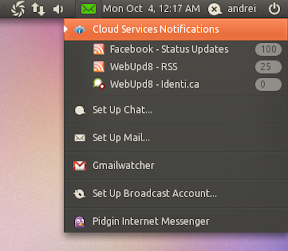
The notifications are displayed by using NotifyOSD and the number of unread items for each account is available in the Ubuntu Messaging Menu:

Messaging Menu Cloudsn ubuntu


You can also set CloudSN to use a normal notification area icon instead of the Messaging Menu:

cloudSN


CloudSN PPA updated; version 0.8.0 available for Ubuntu 10.10

Today, the CloudSN PPA has finally been updated with Ubuntu 10.10 Maverick Meerkat packages and along with this update, a new version has been released (0.8.0 - for Ubuntu 10.10 only for now) which adds an option to play a beep when you get a notification, IMAP labels support, RSS cache, a "clean" button which marks RSS feeds as read and Gmail bug fixes.

Install CloudSN in Ubuntu

CloudSN comes with an Ubuntu PPA for Karmic, Lucid and Maverick, however the latest version - 0.8.0 is only available for Maverick for now.

To add the CloudSN and install it in Ubuntu, run the following commands in a terminal:
sudo add-apt-repository ppa:chuchiperriman/cloudsn
sudo apt-get update
sudo apt-get install cloudsn

Once installed, you can access it by going to Applications > Internet > Cloud Services Notifications.

Selasa, 01 Juni 2010

Watch Any Website For Changes With Specto (Updated Ubuntu .deb) [Including Facebook, Google Reader And Twitter]

specto notifications

Specto is a desktop application that will watch for events (website updates, emails, file and folder changes) which we covered a long long time ago.

The latest version of Specto* can be used to notify you about events on websites such as Facebook, Google Reader, Twitter, Last.fm and also email accounts including Gmail, any IMAP or POP3 email account, Evolution and even Google Wave and of course, any website you want to watch for changes.

Specto also supports applications such as: music players (Amarok, Banshee and Rhythmbox), Pidgin and even a port, process, folder or BAZAAR branch.


The Facebook notification only tells you how many new messages, status updates and so on you have in a notifyOSD bubble and Indicator Applet, but the Specto dialog also specifies what the updated items are actually about:

specto

But what I like the most about Specto is that you can basically use it for any website - I for one have always searched for a desktop application that can notify you when the content on a website changes.

Also, the Gmail notification module allows you to only check for new mail from a Label you select - something I've been missing in a lot of Gmail notifiers - just make sure you don't have spaces in the label name! (if you find a fix for using spaces in the label names, please let us know in the comments!)


*Specto is available in the official Ubuntu repositories, however the latest BAZAAR branch has some nice new features and tweaks. Even the version in Maverick Meerkat is older than this package.


Here are the improvements in the latest BZR version:
  • DBUS watches (including Pidgin, Evolution, Rhythmbox, and a bunch of others)
  • Integration with Ubuntu's indicator applet
  • Use GStreamer for playing sounds
  • Fix the Google Reader watch
  • Various other enhancements

To install the latest Specto from BZR in Ubuntu Karmic, Lucid or Maverick, run the following commands in a terminal:
sudo add-apt-repository ppa:nilarimogard/webupd8 && sudo apt-get update
sudo apt-get install specto

Rabu, 07 April 2010

Newsbeuter Cli Feed Reader Gains Google Reader Sync Support [Ubuntu PPA]

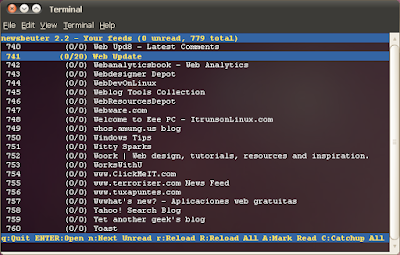
newsbeuter 2.2

Newsbeuter is an open source command line feed reader for Linux, FreeBSD, Mac OS X and other Unix-like operating systems. We already covered Newsbeuter a while back (including a video) but the greatest feature in Newsbeuter only came in the latest 2.2 version which was released last month: Google Reader support - meaning that your feeds will stay synced with Google Reader.

Newsbeuter already had Bloglines support among other great features.


Here are all the changes in Newsbeuter 2.2:

  • Added Google Reader support.
  • Implemented article highlighting in article list based on the article content
  • Extended "ignore article" functionality with different ignore modes
  • Added "hard quit" key to immediately quit from newsbeuter
  • Added "download status" format specifier for feedlist-format
  • Added HTML table renderer
  • Added "open-in-browser-and-mark-read" key
  • Many many fixes


Install Newsbeuter 2.2 in Ubuntu


You can either directly download the .deb files or add the WeBupd8 PPA for easy Newsbeuter 2.2 installation:

A.

Add the WebUpd8 PPA and install Newsbeuter 2.2 (Ubuntu 9.10 Karmic and 10.04 Lucid only):
sudo add-apt-repository ppa:nilarimogard/webupd8
sudo apt-get update && sudo apt-get install newsbeuter


B.

Or you can just download the .deb files:

- Ubuntu 9.10 Karmic Koala:

- Ubuntu 10.04 Lucid Lynx:


If you're not using Ubuntu, you can download Newsbeuter 2.2 source files from HERE.


The, to set up Google Reader integration with Newsbeuter, enter this in a terminal:
gedit ~/.newsbeuter/config


And paste this:
urls-source "googlereader"
googlereader-login "your-googlereader-account"
googlereader-password "your-password"


Where "your-googlereader-account" is your Google login email (youraddress@gmail.com) and "your-password" is your Google Reader password.


[Special thanks to Fausto23 and Mostly CLI for mentioning the new Google Reader feature in Newsbeuter 2.2]

Rabu, 10 Maret 2010

Google Reader Play: New GReader Feature

google reader play

Google Reader Play is a new Google Reader feature to browse interesting stuff on the web that’s easy to use and personalized to the things you like.

I don't really know what they've done to personalize it for me as I didn't see a single interesting article (well, almost) in my tests, but maybe that's just me.

Give Google Reader Play a try, here: http://www.google.com/reader/play


Selasa, 26 Januari 2010

Google Reader Now Allows You To "Subscribe" To Feedless Websites

google reader custom feed

Google Reader, probably the most used feed reader finally adds a feature that was missing for many of it's users: the option to subscribe to websites which do not provide a feed. Basically, you can now subscribe to any website using Google Reader:

Today we're rolling out a change in Google Reader that lets you create a custom feed to track changes on pages that don't have their own feed.

These custom feeds are most useful if you want to be alerted whenever a specific page has been updated. For example, if you wanted to follow Google.org's latest products, just type "http://www.google.org/products.html" into Reader's "Add a subscription" field. Click "create a feed", and Reader will periodically visit the page and publish any significant changes it finds as items in a custom feed created just for that page.


There are already different services which allow you to create a feed for a feedless website, but all have their glitches and are not always reliable. It's really nice to see Google Reader adding features many of us were waiting for.

And a final note: site owners can chose to opt-out, and not allow Google Reader to create a feed for their website. More info on the link below.

[via GReader blog]

Senin, 18 Januari 2010

Enhance Google Reader In Chrome With Google Reader Plus Extension

Firefox users have Better GReader extension, but there is now something similar for Google Chrome users too: Google Reader Plus.

google reader plus chrome

Google Reader Plus extension for Google Chrome brings a lot of enhancements, such as themes (skins), missing favicons, fixing missing images in enclosures, better unread counter, better viewing on wider screens, fullscreen, preview, colored list view, filtering, column display, jump top bottom, close entry, read by mouse, share news on Facebook or Twitter, shortcuts for mark as read, simple advertising remover and more.

I especially like it for the easy theme switching and that it includes Mac OS X Snow Leopard Black theme, which I've always used in Firefox.

Google Reader Plus

[via bitelia]

Jumat, 27 November 2009

Googsystray: Unified Google Services Notifier [Windows, Linux]

Googsystray is a Google Voice, Gmail, Google Calendar, Google Reader and Google Wave checker application for Windows and Linux. The idea is to be able to keep track of all that stuff without having to keep a bunch of browser tabs open, or constantly checking them.

Googsystray

It notifies on new messages, alerts, etc., and provides basic services quickly (Reading or sending a new SMS message, or marking an email read, for example.)


Installing it in Windows is as easy as any other application, just download the installer.

To install Googsystray in Linux, firstly make sure you have Python and pygtk installed, then download the .tar.gz archive and extract it. Open a terminal, navigate to the folder where you have extracted Googsystray, and run the following command:
sudo python ./setup.py install

Then, go to the bin subfolder from your googsystray folder, and double click the googsystray file.

To configure Googsystray, right click it's icon on your systray and select "Preferences":

Googsystray preferences

To open an unread message, left click the service icon (Gmail, etc) in your systray (notification area). And finally, to quickly see what's new, right click a service icon.

[via gulp]

Selasa, 24 November 2009

Google Reader Finally Adds Feeds Favicons To Your Subscriptions

greader


Google Reader has finally added feed favicons support, something for which you had to use Greasemonkey up until now.

The option is not enabled by default but you can turn it on by going to Settings, on the "Preferecens" tab and checking the "Show favicons for subscriptions" option:

google reader favicons option

Feedly Now Works On Google Chrome

Feedly google chrome


Feedly is a magazine style feed reader which integrates with Google reader and used to work only on Firefox, as an extension. A Feedly extension for Google Chrome has been released, so Chrome users can finally enjoy the great feed reading experience provided by Feedly.

We've covered Feedly a while ago so you should read that if you are not familiar with Feedly.

To add the Feedly extension to your Google Chrome browser, simply click THIS link and install the extension. You will then see a new button, to the right of the omnibar.

Please note that you need the latest development version of Google Chrome in order to use this extension!

Senin, 23 November 2009

Sync Google Reader With Twitter

Even though now you can use the "Send to" option in Google Reader to post something to Twitter, I was still using the old Google Reader feed in Twitterfeed trick for that, mostly because it's easier and fewer clicks. But that takes a about 30 minutes (at least - depending on your settings) for something to be posted to Twitter.

Today I stumbled upon a great tool called Reader2Twitter which synchronizes your shared items in Google Reader with Twitter.

Why using Reader2Twitter is better


First of all, Reader2Twitter uses the new pubsubhubbub protocol to make the sync real-time.

Another really nice feature is that you can use the "Share with note" option to add a comment to something you're sharing on Twitter, and that's going to be posted to Twitter also. For instance, you could add a #hashtag to a post, your opinion on it, etc.

Reader2Twitter uses bit.ly for shortening the urls, and you can also add your bit.ly API to get some stats for what you post on Twitter.


How to use Reader2Twitter


To start using Reader2Twitter you must firstly go to your Google Reader account, click on your shared items:

greader shared


Then click on "View full profile" on top of the page:

google reader shared

Now click on your "My shared items in Google Reader" link:

My shared items in Google Reader

The number in the URL to which you were redirected, are the ones you need to use in Reader2Twitter. So copy this number into Reader2Twitter (after you have previously logged in into Reader2Twitter with your Twitter account):

reader2twitter

And click the "Submit" button in Reader2Twitter. Now each time you share something in Google Reader, it should be posted to your Twitter account just a moment (share something in Google Reader and check your Twitter account - what you shared is already posted to Twitter!).

Minggu, 20 September 2009

PostRank Enhancements For Google Reader

AideRSS provides 2 tools for enhancing Google Reader in Firefox, through PostRank post score, which you can use to filter and track the performance of any RSS feed.

Features:

-Identify best content with PostRank in GoogleReader:


-Adjust and filter any RSS feed - reclaim your time:


-Find the needle in the haystack and boost your productivity:


-Visually group stories by source and Thematic PostRank:


This Google Reader enhancement can be installed in 2 ways: through a Greasemonkey script or a Firefox add-on.

Selasa, 15 September 2009

Readtwit: Amazing Tool For Reading Your Twitter Stream Inside Your Favourite Reader

Readtwit is a free service you can use to filter your twitter feed to links only, which then resolves link destinations and publishes the content as an RSS feed. You can then use any feed reading software / service to read twitter posted content along with the rest of your feeds. Basically, you can read your Twitter stream in Google Reader, but you get both the tweet and the post, plus display control, filter out users, or ban hashtags.

Duplicate links in the same time-frame are grouped together. No more retweets overwhelming your link browsing activity. Read on for some more info and screenshots!


I've tested Readtwit in Google Reader and well, found it to be amazing. Take a look at the following screen shot to see the options available while reading the feed:

Readtwit

And here's a look at ReadTwit's filters and display options in action:

The tool was developed by @erangalperin and designed by @talzu. @adambn was also around. Although I've only used it for a few minutes now, I find it to be an extremely useful service, great for reading the posts behind the tweets.

Senin, 07 September 2009

Feedly: A Great Way To Read Your RSS and Social Media Feeds

Feedly currently works as a Firefox extension only, but there is already and experimental Safari version and also rumours about a Google Chrome version.

After you install Feedly, you’ll see is a neat page that asks you if you want to synchronize with your Google Reader, Twitter, FriendFeed and other web 2.0 accounts. If you ask Feedly to connect with Google Reader or Bloglines, it will then load a copy of your OPML file that contains a list of RSS feeds you read from there. If you’ve got it integrated with Twitter, it lets you tweet about articles on your start page. Similarly, many other services can be integrated.

The Cover and Digest views are the most popular start pages, both offering different layouts of the following:

  • Featured articles from your favorite feeds at the top
  • Selected list of unread articles from all feeds
  • Your latest Twitter stream, Twitter mentions, and Karma (more below)
  • A view of your Friends, Twitter trending topics, etc.
When you read an article in Feedly, you can easily email it, and share it on several social networks like Twitter, Facebook, Delicious, etc:

feedly share

A very interesting feature is that Feedly shows you the number of times that article has been Tweeted, shared on FriendFeed, number of Diggs, and comments on the original post:

feedly stats

Feedly Mini is a little pop-up that shows up at the bottom of your browser window when you’re browsing the web, even when you have not opened Feedly which you can use to Email, Tweet, Share and Star in Google Reader/Feedly any article on the web, even if you are not subscribed to that page’s feed. It is incredibly powerful compared to the Google Reader bookmarklet:

Image and video hosting by TinyPic


Overall, Feedly is a great alternative to Google Reader which also synchronizes all the feeds you read so you can always go back to using Google Reader without much of a fuss if you want but after a couple of hours with Feedly, I am almost sure you won't want to go back!

Jumat, 21 Agustus 2009

Create Your Own Google Reader RSS Feed Bundle

I read a lots of feeds every day and if I want to share some of may favourite websites with my friends or blog readers, I have to export my OPML from Google Reader and then delete a lot of feeds which takes an awful lot of time, effort, etc. due to my large number of feeds.

But I recently discovered on MakeUseOf that you can make your own Google Reader feed bundle which you can share with whomever you want and in quite a few interesting ways (including a clip which you can embed into your blog). Read on!

How to create a RSS Feed Bundle for Google Reader


First go to Google Reader and log in. Then go to this page where you can add a title and brief description to your feed bundle, and then you can start adding some feeds, dragging and dropping them from the left into the bundle area. If you want to remove a feed from the list, just drag it to the bottom, where it says "Drag a subscription here to delete it from the bundle".

google reader subscription bundle

After you are done, click the "Save" button. You will then find your Feed Bundle, under All Items > Browse for stuff > View your Bundles (bottom right corner)

feed bundle

Then, you can either save the OPML file and send it to your friends, get a link for your website or blog (here's mine), email your new feed bundle to someone or even create a clip to embed to your blog, which will look like this:


This clip even comes with themes, you you can choose which color combination you like. With something like this, you can put it in your blog sidebar and people can instantly subscribe to all your favourite feeds simply by clicking the “subscribe” button at the bottom.

Kamis, 13 Agustus 2009

Google Reader Updates

Today, the Google Reader team has unveiled a bunch of new updates to the product, including the ability to easily tweet any item.

new google reader
But that’s hardly all this update contains. You can also now easily send feed items to a number of places including Facebook, MySpace, Digg, StumbleUpon, Blogger, and others. To enable any of these, simply go to the “Settings” area of Google Reader and enable the ones you want to use. If the services you want aren’t listed, you can even customize the “Send To” feature to enable sending items just about anywhere.

Another new feature allows you to easily subscribe to feeds owned by people you are contacts with. This is an obvious, but nice addition, as it makes it easier to locate feeds you may be interested in — assuming, of course, that you’re actually interested in the people you follow on Google Reader. This feature also includes Twitter updates, so you can easily import all of those and see that person’s tweets through Google Reader if you don’t feel like scanning Twitter all day.

But the best feature of the bunch may be the ability to have more control over the “Mark all as read” functionality. We all use the “Mark all as read” button when we’re too far behind on our feeds to possibly catch up. But now you can just mark items that older than a day, a week, or two weeks as read, saving the newest ones for you to still be able to read. That’s a great idea.