Powered By

Powered by Blogger

Tampilkan postingan dengan label dropbox. Tampilkan semua postingan

Sabtu, 16 April 2011

Unity Launcher Icon To Share Files Using Dropbox [Drag'n'Drop]

Unity Dropbox Share

After seeing a simple script on ubuntu.onego.ru to share files on Dropbox using an icon in the Unity launcher, I though I'd update the Dropbox Share script I've created a while back to do something similar, but more advanced: just like the regular Dropbox Share, you'll be able to share both files and folders and also you can share multiple files at once.


So Unity Dropbox Share was born, a simple drag'n'drop Dropbox share icon for the Unity launcher (it's just a script written in Bash). Here's a video with Unity Dropbox Share in action:


Even though this was created for the Unity launcher, it should probably work with other docks like Avant Window Navigator, Docky, DockBarX or Cairo Dock too (I've only tested it with AWN).


How it works:
  • The shared files do not take extra space on your computer since only a symbolic link is placed in your Dropbox public folder
  • It works with both files and folders (including multiple files and folders at once)
  • An emblem is placed on the files / folder you share and a NotifyOSD notification is displayed when the files you've shared have been uploaded to Dropbox.
  • Links to the files you share are automatically copied to your clipboard.
  • To unshare the files you need to remove the links from your Dropbox public folder (Or use Dropbox Share which also comes with an Unshare script) - I couldn't figure a way to do it from the icon.


Tip: if you remove some files you've shared from the Dropbox public folder, you can update the emblems by simply clicking the Unity Dropbox Share icon (you may need to refresh Nautilus using CTRL R).


Install Unity Dropbox Share


Unity Dropbox Share is available in the WebUpd8 PPA for Ubuntu 11.04 only. Add the PPA and install it using the commands below:
sudo add-apt-repository ppa:nilarimogard/webupd8
sudo apt-get update
sudo apt-get install unity-dropbox-share

The Unity Dropbox Share icon isn't automatically added to your Unity launcher (I couldn't figure for a way to do this - no, using Gsettings doesn't work as it can't be ran with "sudo") so you'll have to add it manually it: open Nautilus and navigate to /opt/unity-dropbox-share/, then drag and drop the icon to the Unity launcher.


If you have a suggestion / bug to report, let me know in the comments! You can also submit bugs @ Launchpad.


Credits for Dropbox Index which is used by Unity Dropbox Share: kosciak1.

Kamis, 31 Maret 2011

Get The Dropbox AppIndicator To Work In Ubuntu 11.04 Natty Narwhal

Dropbox Ubuntu 11.04

Those of you that run Ubuntu 11.04 Natty Narwhal already probably know that the Dropbox application indicator doesn't work in Natty - not using the official Dropbox build.

But you can get the Dropbox AppIndicator to work in Ubuntu 11.04 Natty Narwhal by using the latest script below:


1. Install Dropbox the regular way - using the .deb provided on its download page.

2. Run the commands below:
cd
wget http://webupd8.googlecode.com/files/fixdropbox
chmod +x fixdropbox
./fixdropbox

What the script does is remove the Dropbox daemon files and prompts you to download it again, then modifies the Dropbox startup script to start with a delay of 20 seconds and then modifies it so that Dropbox doesn't change it automatically (dropbox automatically overwrites this file on each start without this tweak).

So when you log in, Dropbox will start with a 20 seconds delay! That's the only way to get the Dropbox AppIndicator to work in Ubuntu 11.04 with the latest Dropbox version. For now anyway. If it doesn't start after 20 seconds, you may want to add more seconds to the script so edit it:
gedit ~/.dropbox.sh

And modify the delay to a bigger value.


Post updated April 29, 2011.

Jumat, 17 Desember 2010

Dropbox 1.0 Stable Released With Selective Sync, Huge Performance Enhancements, More [How To Upgrade To 1.0 In Ubuntu]

Dropbox 1.0 Ubuntu

Dropbox 1.0 (actually 1.0.10) has finally been released! The new stable version finally brings selective sync, Ubuntu appindicator, huge performance enhancements and hundreds of bugs fixed. These features were already present in the Dropbox experimental builds for quite some time but only now they've "graduated" into the stable Dropbox 1.0 version.

Performance enhancements - The client-side sync engine has been re-architected to optimize the response time and resource consumption. Dropbox 1.0 reduces the memory usage by 50%.


Selective Sync - you can now choose which folders to sync:

If you have a netbook or a computer with a tiny hard drive, syncing your entire Dropbox isn’t always a great idea. You also might not want certain files on your home computer to pop up on your work computer. Selective Sync solves these problems! You now can choose which folders get downloaded to which computers. This saves you time so you don’t have to sync stuff you don’t need.


Dropbox appindicator

Ubuntu AppIndicator - the Ubuntu version of Dropbox now comes with an AppIndicator which makes it consistent with the whole Ubuntu look. Further more, Dropbox now supports custom AppIndicator icons.


Upgrade to Dropbox 1.0 stable in Linux


To upgrade to the latest stable Dropbox in Ubuntu (and other Linux distributions), firstly close Dropbox, then run the following command:
mv ~/.dropbox-dist ~/.dropbox-dist.OLD
The above command will move the old Dropbox installation folder to ~/.dropbox-dist.OLD as a backup.

Then, simply run Dropbox from Applications > Internet > Dropbox - doing so, the latest stable Dropbox version will be automatically downloaded and installed (and your old settings won't be removed):

Dropbox


Thanks to Nicolas for the tip!

Jumat, 10 Desember 2010

PPA Updates: Minitube, gThumb, Launchpad Getkeys, Dropbox Share

This post is just a short summary of some updated packages in the WebUpd8 PPAs.


Minitube


Minitube

Minitube stopped working yesterday due to some changes to the YouTube website. The update broke all applications for playing / downloading YouTube videos, but luckily Minitube has been updated (version 1.3) to include a fix. The new version also comes with a new icon and is available as always in the main WebUpd8 PPA, for Ubuntu Lucid and Maverick:
sudo add-apt-repository ppa:nilarimogard/webupd8
sudo apt-get update
sudo apt-get install minitube

Unfortunately this version also comes with a regression: the Linux version has lost its seeking functionality. Hopefully it will be re-added in a future version.


gThumb


I've also updated gThumb (2.12.1) which is now in sync with Debian unstable. This is not a new version of the application but a new version of the packaging which fixes some pretty important bugs. As usual, gThumb is available both in the WebUpd8 gThumb PPA and in the main WebUpd8 PPA.


Install it from the gThumb PPA:
sudo add-apt-repository ppa:webupd8team/gthumb
sudo apt-get update
sudo apt-get install gthumb


Launchpad Getkeys

Late last night I've updated Launchpad Getkeys to work with non-English Ubuntu. Initially, the script only worked if you had installed Ubuntu in English.

Install Launchpad Getkeys:
sudo add-apt-repository ppa:nilarimogard/webupd8
sudo apt-get update
sudo apt-get install launchpad-getkeys

Unfortunately the script does not work if you need a proxy.

Dropbox Share

Dropbox Share has been updated to use "dropbox-index.html" instead of "index.html" file name when sharing a folder (an .html file is created when sharing a folder so you can easily navigate all the subfolders in a web browser). The new version also removes these dropbox-index.html files automatically when unsharing a folder (and when the script notices you've removed the link from the Dropbox Public folder).

Install Dropbox Share:
sudo add-apt-repository ppa:nilarimogard/webupd8
sudo apt-get update
sudo apt-get install dropbox-share

Selasa, 07 Desember 2010

Dropbox Share (Nautilus Script) 0.3, Released

Dropbox Share

Today I'm releasing a new version of the Dropbox Share Nautilus script. There's only one new feature in this version (which was asked in the comments of our previous Dropbox Share post): the emblems for the files you've previously shared and then manually removed from the Dropbox Public folder are now automatically removed when you perform a new share / unshare.

Here is an example: let's say you have files A and B on your desktop and you share them using Dropbox Share - in this case, an emblem (small Dropbox icon) is added to these files on your desktop so you know they have been shared. Then, if you right click file A on your desktop and select "Dropbox Unshare", the file is unshared and the emblem is removed, but if you remove file B from your Dropbox Public folder without using the Unshare script, file B on your desktop would still have the emblem. The new version released today fixes this in a semi-automatic way: now if you manually delete file B from your Dropbox Public folder, the next time you'll share on unshare a file using Dropbox Share, the emblems for all the files you've manually removed from the Dropbox Public folder will be removed.


If that doesn't make too much sense, just try out the latest Dropbox Share and you'll see what I mean.

To install the latest Dropbox Share 0.3 in Ubuntu, use the following commands:
sudo add-apt-repository ppa:nilarimogard/webupd8
sudo apt-get update
sudo apt-get install dropbox-share

If you spot a bug, report it @ Launchpad.

Kamis, 25 November 2010

Dropbox Share 0.2.3 Gets Emblems For Shared Files And Folders [Nautilus Script]

Dropbox Share file emblems

Thanks to theradioboy's tip, I've implemented emblems for the shared files and folders in the latest Dropbox Share Nautilus script (v0.2.3).

Dropbox Share now automatically adds emblems to the files you've shared (even though these files are not in your Dropbox folder) and removes them when you unshare the files. Please note that you need to unshare the files via the Dropbox Unshare script (it's also included in Dropbox Share package - all you have to do is select the files you want to unshare, right click them and under "Scripts" you'll find both "Dropbox Share" and "Dropbox Unshare") or else the emblems won't be removed!

Because there is no way to refresh Nautilus by directly calling it via command line, I've used a "hackish" way to do it: the script will send "F5" to the window (just as if you've pressed it) which should instantly make the file emblems show up. If for some reason the emblems are not updated automatically, simply press F5.


Here is a video demoing the new emblems feature in Nautilus Share 0.2.3:


Install Dropbox Share in Ubuntu:
sudo add-apt-repository ppa:nilarimogard/webupd8
sudo apt-get update
sudo apt-get install dropbox-share


Dropbox Share is now available on Launchpad so you can easily submit bugs: https://launchpad.net/dropbox-share

Selasa, 23 November 2010

Nautilus Dropbox Share Script, Now Available In An Ubuntu PPA

A while back I wrote a Nautilus script for easily sharing any file or folder using Dropbox, via right click. But scripts get lost, especially since most people do a clean Ubuntu install every 6 months. Also, I guess it's easier to simply install it from a PPA / .deb then having to manually install the dependencies and moving the script to the right folder and so on. For this reason, I've packaged my Dropbox Share script in a .deb and uploaded it to the main WebUpd8 PPA.

A little recap on what Dropbox Share does: using it, you can right click any file or folder (!) on your computer and share it via Dropbox. The script creates a link to the file / folder you want to share, in your Dropbox Public folder and automatically copies the link(s) to the clipboard so you can paste it in an email, IM window and so on.


Why using this script is better then copying some files in your Public Dropbox folder:
  • because the script uses symbolic links, the files aren't actually copied to your Dropbox public folder, so they won't take the double amount of space
  • all the links are automatically copied to the clipboard
  • you can even share folders, even though Dropbox doesn't allow this by default (the shared folder will have an "index.html" file and thus opening its link in a web browser, it can be easily accessed via a web browser)

But since explaining all this is wrather difficult, here's a video I've recorded back when I've released version 0.2:


Install Dropbox Share in Ubuntu

Before installing Dropbox Share, make sure you remove any previous versions of the script (both Dropbox Share and Dropbox Unshare) you may have in ~/.gnome2/nautilus-scripts:
rm ~/.gnome2/nautilus-scripts/"Dropbox Share"
rm ~/.gnome2/nautilus-scripts/"Dropbox UnShare"

Dropbox Share is available for Ubuntu Karmic, Lucid, Maverick and Natty, but has only been tested on Lucid and Maverick. To add the PPA and install Dropbox Share, use the following commands:
sudo add-apt-repository ppa:nilarimogard/webupd8
sudo apt-get update
sudo apt-get install dropbox-share


If you're not using Ubuntu, you can get the script from our previous post: Share Any File Or Folder With Dropbox Via Right Click (Nautilus Script) - New Version


The .deb package also comes with the Dropbox Unshare script - thanks to Nicolargo. Credits for Dropbox Index which is used by Dropbox Share: kosciak1.


And since this is a post about Dropbox, here's a tip for you: you can grab up to 768 MB free dropbox space through social media connections - click HERE (don't worry, I don't win anything if you click that link).

Selasa, 12 Oktober 2010

Easily Install Google Earth, TeamViewer, Dropbox, IBM Lotus Symphony And Many More In Ubuntu 10.10 Using The Super OS Repository

Super OS 10.10, a modified version of Ubuntu has been released today and with it, the Super OS repository I was telling you about a while back has also been updated to support Ubuntu 10.10 Maverick Meerkat.

You can use the Super OS repository in Ubuntu (without installing Super OS) and you'll get access to a lot of applications, all in just one repo. Among the applications available in the Super OS repository are: Amazon MP3 Downloader, Adobe AIR, Flash and Reader, Boxee, FrostWire, Dropbox, IBM Lotus Symphony (Office suite), Google Chrome, Google Desktop, Google Earth (which has been removed from the Medibuntu repository in Ubuntu 10.10), GoogleCL, Hulu Desktop, Nero Linux, Opera, PeaZip, Google Picasa, Real Player (also removed from Medibuntu in Ubuntu 10.10), Remastersys, Skype, SpiderOak, TeamViewer, TrueCrypt, UCK, VirtualBox (non-free) and others - all in a single repository (so to use them all, you don't have to add a huge list of repositories but only 1). A complete list of applications available in the Super OS repository can be found HERE.


Add the Super OS repository to Ubuntu 10.10 Maverick Meerkat

To add the Super OS repository to your Ubuntu sources.list, simply download and install this .deb file - it will add the repository and also install the key. Then, update the software sources using the following command:
sudo apt-get update

The note I made the last time I wrote about the Super OS repository, stands: there is no guarantee that this repository is safe to use. But just like it is with the PPAs, you can choose to trust the maintainer or not, it's up to you.


If you want, you can of course directly install Super OS instead of Ubuntu 10.10.


Thanks to Ubuntips for the heads up on the new Super OS release.

Rabu, 06 Oktober 2010

Share Any File Or Folder With Dropbox Via Right Click (Nautilus Script) - New Version

Remember the script I've created a while back to share any file from your filesystem with Dropbox via a simple right click? Well, it only supports files - in fact, Dropbox itself doesn't allow you to share folders meaning that if you copy a public folder URL and paste it into your web browser, it won't work. But you can share folders by using Dropbox Index, a Python script which creates an "index.html" file in each folder and links all the files in that folder from the index.html file - if you then share this file via Dropbox and open it in a web browser, you'll be able to access all the files in that folder.

Confusing? A little bit, but let's get to the point: I've combined my Nautilus script with Dropbox Index so you can now use it to share both files and folders from anywhere on your system. Still confusing? This video should make everything clear:


How does sharing files and folders work?


My script creates a symbolic link for any file and/or folder when you right click and select "Dropbox Share" and places this symlink into your "Public" Dropbox folder. Once the files and folders are uploaded to Dropbox, their public links are automatically copied to the clipboard and you can simply "Ctrl + V" to share those links via instant messaging, forum, email or whatever.

This script works with Gnome (Nautilus) and has been tested under Ubuntu 10.04 and 10.10.


Under the hood (technical stuff)


Firstly, let's get this straight: I'm not a programmer or anything like that. I just occasionally make some scripts for my own use and share them. The code may not be pretty but it works. If something doesn't, let me know!

The script can use NotifyOSD for notifications (such as what files you're sharing and when the files have finished uploading). This is enabled by default, but it can be disabled by modifing line 5 of the script from "USENOTIFYOSD=yes" to "USENOTIFYOSD=no"

The first time you run the script, it will download the Dropbox Index script (credits go to osciak1 for this script) and extract it into your ~/.scripts folder. This is required for sharing folders.

Script dependencies: libnotify-bin (optional - enabled by default), wget, xclip (for copying the URLs to the clipboard), Dropbox Index which I told you about above and obviously, Dropbox. There's one more one time dependency for unzip - required to unzip the Dropbox Index script files but if you manually enter the path to the Dropbox Index directory, the script will see it already exists and will skip downloading it (and thus the unzip dependency is not required anymore). 

The script also includes a few checks: it will check if you've installed libnotify-bin (if you've selected to use it), xclip and if Dropbox is running (and if it's not running, it starts Dropbox).

Install Dropbox Share

1. Firstly, let's make sure you don't have the older Dropbox Share script on your system:
rm ~/.gnome2/nautilus-scripts/Dropbox\ Share

2. Install the dependencies:
sudo apt-get install libnotify-bin xclip unzip wget

3. Download the script, make it executable and restart Nautilus:
cd ~/.gnome2/nautilus-scripts/
wget http://launchpadlibrarian.net/57198833/Dropbox%20Share
chmod +x Dropbox\ Share
nautilus -q

Now select any files / folder from your system, right click them and select Scripts > Dropbox Share.


I remind you to always check the contents of a script before running it on your system (even if you don't have to run it with "sudo")!


Credits for Dropbox Index which is used by Dropbox Share: kosciak1.

Minggu, 26 September 2010

Nautilus Script To Easily Share Any File With Dropbox And Copy The Public Links To The Clipboard [Updated]

Update: a new version of this script with folders support and NotifyOSD notifications is available. See: Share Any File Or Folder With Dropbox Via Right Click (Nautilus Script) - New Version.

Usually to share a file using Dropbox, you have to manually copy it into the Dropbox public folder, then when it's uploaded you have to right click it and select Dropbox > Copy Public Link. Here is a tiny Nautilus script which allows you to right click any file from your computer (so it doesn't have to be in your Dropbox public folder) and instantly get a Dropbox public link so you can easily share it.

What the script does is create a symbolic link to the file (or files - it works with multiple files at once too) you've selected and place that link into your Dropbox Public folder. Once the file has been uploaded to Dropbox, the public link is copied to your clipboard using xclip (a command line clipboard utility) so all you have to do is paste the link in an email, IM window or whatever.

Also, since it only creates a symbolic link to the file, you don't use the double amount of space for that file.


Sounds complicated? Well, it's not. Here's is a video with this script in action:


(Video available in HTML5 if you've enabled it on YouTube)


Download and install

1. Install xclip:

sudo apt-get install xclip

2. Create a new file called "Dropbox Share" in your ~/.gnome2/nautilus-scripts/ folder (copy/paste the following command):
gedit ~/.gnome2/nautilus-scripts/Dropbox\ Share

And inside the this file, paste the following code:
#!/bin/bash

LOCATION="`cat ~/.dropbox/host.db | sed -n 2p | base64 -d`/Public/"

IFS=$'\n'
for FILENAME in $NAUTILUS_SCRIPT_SELECTED_FILE_PATHS
do
DROPBOXFILE=`echo $FILENAME | awk -F/ '{print $NF}'`
ln -s "$FILENAME" "$LOCATION"
list="$list `dropbox puburl "$LOCATION"/"$DROPBOXFILE"`"
echo -n $list | xclip -selection clipboard
done

Then save the file.


3. Make it executable and restart Nautilus:
chmod +x ~/.gnome2/nautilus-scripts/Dropbox\ Share
nautilus -q


Now you're ready to use it: right click any file(s) and select Scripts > Dropbox Share. Then in a browser tab, select "Paste" - the public link of the file you've selected should now be ready for sharing. Of course, you'll have to wait a bit for the file to be synchronized with Dropbox.


Note: the script works on multiple files but does not work on folders - it will create links for them in your Dropbox public folder and even copy the folder share link but entering the link in a browser will result in a "404 not found" error since Dropbox does not allow folder sharing! There is however a way to share folders with Dropbox. See: Share An Entire Dropbox Folder With Dropbox-Index.


Update: initially the script didn't support spaces in filenames. Now it does.


Optional: Unshare Script

Update2: Nicolas @ Nicolargo blog has created an Unshare script which is basically like the Dropbox Share script, but can be used to right click any file on your system and select Scripts > "Dropbox Unshare" and the symbolic link will be removed from your Dropbox public folder. To install it, use the following command:

gedit ~/.gnome2/nautilus-scripts/Dropbox\ UnShare

And paste this:
#!/bin/bash

LOCATION="`cat ~/.dropbox/host.db | sed -n 2p | base64 -d`/Public/"

IFS=$'\n'
for FILENAME in $NAUTILUS_SCRIPT_SELECTED_FILE_PATHS
do
DROPBOXFILE=`echo $FILENAME | awk -F/ '{print $NF}'`
rm -f "$LOCATION"/"$DROPBOXFILE"
list="$list $LOCATION/$DROPBOXFILE"
done
zenity --info --title="UnShared from Dropbox" --text="The following file have been unshared:\n\n"$list"\n"

Then make it executable:

chmod +x ~/.gnome2/nautilus-scripts/Dropbox\ UnShare

And finally, also make sure you have Zenity installed as this unshare script needs it (though you can remove Zenity by deleting the last line in the UnShare script):
sudo apt-get install zenity

Done!


Update: a new version of this script with folders support and NotifyOSD notifications is available. See: Share Any File Or Folder With Dropbox Via Right Click (Nautilus Script) - New Version.

Selasa, 20 Juli 2010

Script To Install 9 Different Dropbox Indicator Icon Sets In Ubuntu

dropbox monochrome icons ubuntu

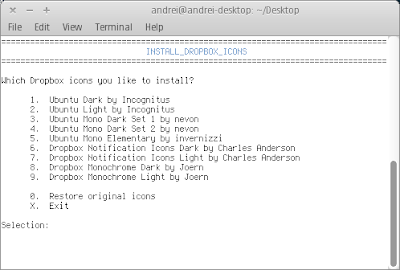
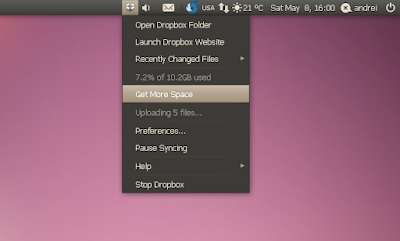
Voltron43 created a bash script for downloading and installing 9 icon sets for Dropbox. In case you don't know, the experimental Dropbox version comes with Ubuntu indicator applet support and also allows you to use custom icons.

To use it, firstly make sure you're using the latest Dropbox experimental, which you can download from here. There is also a script which automatically downloads and installs each new Dropbox experimental version in Ubuntu.

dropbox icons download script


Then, to use Voltron43's script and download/install some nice Dropbox icons, run the following commands:
wget http://dl.dropbox.com/u/16428/scripts/install_dropbox_icons.tar.gz && tar -xvf install_dropbox_icons.tar.gz
chmod +x install_dropbox_icons
./install_dropbox_icons

Don't run the script with sudo! That's not required.

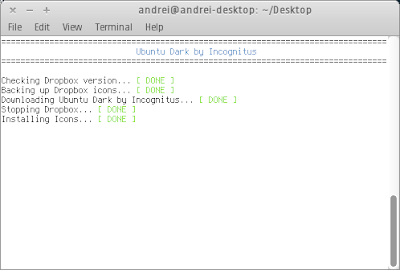
Once you run the script, to download and install a Dropbox icon set, simply enter the number next to the icons you want to use. If you want to restore the original Dropbox icons, the script has an option for that so all you have to do is run the script again and select "Restore original icons".


dropbox icons download script


Screenshots with each icon set can be found @ new2ubuntu.wordpress.com.


Credits for the script (and many thanks!): Voltron43

Jumat, 28 Mei 2010

Dropbox (Experimental) Finally Gets Selective Sync


The latest experimental Dropbox build finally adds selective sync support.

So what is selective sync?

Selective sync allows you to choose the folders you want synced to your computer. Selective Sync gives you the ability to have more control over what is synced to your devices through the Dropbox Desktop Application.

Here's an example: imagine your Dropbox folder is about 10 GB in size (you can get up to 10 GB for free only by referring people to use Dropbox) and you want to sync some files with your netbook where you only have 5 GB of space left on the HDD. Here's where selective sync kicks in: using the latest version of Dropbox (experimental) you can select which folders to sync for each computer where Dropbox is running. That means that you can choose to only sync a folder you need on your netbook, and not all the folders you have in your Dropbox. Obviously this feature is not just for when you don't have enough space, but for a lot more various reasons - that was just an example.

More info on selective sync, HERE.


Other 2 great features which are not present in the stable Dropbox are available in the experimental builds for quite some time: AppIndicator support for Ubuntu as well as customizable notification area icons.


You can download the latest Dropbox Experimental from HERE. For Linux, you can simply paste this in a terminal to upgrade to the latest Dropbox experimental build:

32bit:
dropbox stop && cd ~
wget http://dl-web.dropbox.com/u/17/dropbox-lnx.x86-0.8.64.tar.gz
tar -xvf dropbox-lnx.x86-0.8.64.tar.gz
dropbox start


64bit:
dropbox stop && cd ~
wget http://dl-web.dropbox.com/u/17/dropbox-lnx.x86_64-0.8.64.tar.gz
tar -xvf dropbox-lnx.x86_64-0.8.64.tar.gz
dropbox start


In case the above links don't work anymore, manually download the latest experimental Dropbox from HERE.

There's also a bash script for Linux you can use to stay up to date with the latest Dropbox experimental builds.

Kamis, 13 Mei 2010

New Dropbox Experimental Build Fixes AppIndicator Issues In Ubuntu

dropbox appindicator ubuntu 10.04 screenshot

A few days ago we were telling you about a new experimental Dropbox version which adds AppIndicator support for Ubuntu as well as customizable notification area icons. But that build (0.8.55) had a bug: once you restarted your computer, Dropbox would revert to the old behavior: no AppIndicator and the old icons. But yet another experimental build fixes this issue.

Also, reading the changelog it seems Dropbox now supports KDE too (I'm not 100% sure so a confirmation would be nice!).


Update to the latest Dropbox experimental build (0.8.57):

32bit:
dropbox stop
cd ~
wget http://dl-web.dropbox.com/u/17/dropbox-lnx.x86-0.8.57.tar.gz
tar -xvf dropbox-lnx.x86-0.8.57.tar.gz


64bit:
dropbox stop
cd ~
wget http://dl-web.dropbox.com/u/17/dropbox-lnx.x86_64-0.8.57.tar.gz
tar -xvf dropbox-lnx.x86_64-0.8.57.tar.gz

Then you can start Dropbox:
dropbox start


In case the above links don't work anymore, manually download the latest experimental Dropbox from HERE.


If you want to stay up to date with the latest Dropbox experimental builds, there is a script which will upgrade to each new version automatically. See: Automatically Upgrade To The Latest Experimental Dropbox Build [Linux Script]


You can find a changelog for Dropbox experimental 0.8.57, manual download for the Linux builds as well as Windows and Mac OSX binaries @ Dropbox forum.


Also check out this Dropbox icon theme: Dropbox Monochrome / Elementary Notification Area Icons

Minggu, 09 Mei 2010

Dropbox Monochrome / Elementary Notification Area Icons

Like we told you yesterday, the latest Dropbox experimental allows you to change the notification area icons. If you didn't like the icons in that post, here is another set created by invernizzi @ gnome-look (unfortunately only for mono-dark for now):

dropbox monochrome notification area icons

dropbox monochrome


You can download these Dropbox monochrome / elementary icons from HERE.

To install the icons, extract the archive to the ~/.dropbox-dist folder, replacing the original icons. Also, this icon pack comes with a small bug so after extracting the icons, rename the icon called "busy1.png" to "busy2.png".

You can find another icon set in the Latest Experimental Dropbox Adds AppIndicator Support And Customizable Notification Area Icons [Ubuntu] post.

Sabtu, 08 Mei 2010

Latest Experimental Dropbox Adds AppIndicator Support And Customizable Notification Area Icons [Ubuntu]

dropbox appindicator ubuntu


The latest Dropbox experimental version adds AppIndicator support as well as finally allows Linux users to change the notification area icon. The customizable icons may have been added in an older experimental Dropbox build because there isn't anything related to this in the changelog, but only now I've noticed it.


Here is the complete list of changes in the latest Dropbox experimental 0.8.55:

- Yet another tray menu reorganization.
- New Ubuntu Application Indicator support (ubuntu versions 10.4 and higher)
- Fixed regression on Windows that would unnecessarily ask for firewall permissions.
- Fixed regression on Mac that would prevent startup. (stuck on Starting...)
- Fixed rare sync bug that would require a restart to force an upload.
- Other small fixes.


To upgrade to the latest Dropbox experimental (presuming you already have Dropbox installed):


Ubuntu 32bit:
dropbox stop
cd ~
wget http://dl-web.dropbox.com/u/17/dropbox-lnx.x86-0.8.55.tar.gz
tar -xvf dropbox-lnx.x86-0.8.55.tar.gz


Ubuntu 64bit:
dropbox stop
cd ~
wget http://dl-web.dropbox.com/u/17/dropbox-lnx.x86_64-0.8.55.tar.gz
tar -xvf dropbox-lnx.x86_64-0.8.55.tar.gz


Then start Dropbox:
dropbox start


You can also manually download the latest Dropbox experimental from HERE.


Dropbox notification area (tray) icons


If you want to change the icons, navigate to /home/your_username/.dropbox-dist/icons or paste this in a terminal to open the folder
nautilus ~/.dropbox-dist/icons


You can find some interesting icons HERE (but they are not for the notification area).


dropbox tray icons

I've cropped some of the icons in the .svg file above (so all credits go to domore) to use in the notification area and uploaded a package which you can download from HERE. To use them, go to the Dropbox icon folder I was telling you about above, back up the original icons and then replace them with the newly downloaded icons.


Update: it seems the issue below with the old icons and behavior being used has been solved in an even newer Dropbox experimental version.


There is a bug causing the old Dropbox to show up in the notification area after a computer restart. That means it will use the old icons and won't use the App Indicator. Here is a fix for this:

1. Create a new file somewhere and paste this inside the file:
#!/bin/bash
sleep 20; dropbox start -i

Then make the script executable:
chmod +x /path/to/dropbox_script

The "sleep" time might be different for you so you can use a different value (most probably Dropbox needs to be ran after all applications)

2. Run the following command in a terminal:
gedit ~/.config/autostart/dropbox.desktop &

And edit the "Exec" line to the exact path to your script (created in step 1), like so:
Exec=/exact/path/to/dropbox_script


3. Dropbox rewrites the dropbox.desktop file after each restart so we have to change its permissions so it can only be read and executed, but not written. For that, simply paste this in a terminal:
chmod 555 ~/.config/autostart/dropbox.desktop


Hopefully this will be fixed soon.


See also: Automatically Upgrade To The Latest Experimental Dropbox Build [Linux Script]


Many thanks to Daniel Rodrigues for this tip!

Script To Close Dropbox After The Synchronization Is Done [Linux]

jarlath @ Ubuntuforums has created a nice Dropbox script which closes Dropbox after the synchronization finishes.

Why would you want Dropbox to close when it finishes syncing:
  • de-clutter the notification area
  • the Dropbox icon doesn't match the new monochrome icons in Ubuntu anyway, and the Dropbox notification area cannot be changed (in the stable version because the experimental version has this. New post coming in a few minutes).
  • some people only use Dropbox for syncing once when they power up the computer, yet Dropbox continues to run which is useless. However if you want Dropbox to continue the synchronization later on, you can add a crontab for this script which will run Dropbox at a given interval, check if there's any syncing needed to be done and exit when finished


If you want to use the script here's what you need to do.


1. Download the script to your home folder (of course, you can copy it somewhere else if you want):
cd && wget http://webupd8.googlecode.com/files/.check-dropbox.sh

Note: the filename begins with a "." which means the file will be hidden so it doesn't clutter your home folder.

The script can also be downloaded from the Ubuntuforums.


2. Add the script to your statup applications and / or make it run on a given interval using crontab


startup applications ubuntu

To add the script to your startup applications, go to System > Preferences > Startup Applications, click "Add" and add the script (remember, it's called .check-dropbox.sh). If you saved it to your home folder, browse for it, click Ctrl + H to show hidden files and select .check-dropbox.sh, then give it a name and that's it.


crontab

To make the script run at a given interval, open a terminal and type:
crontab -e

Then enter a line like this:
*/45 * * * * /home/andrei/.check-dropbox.sh


Where:
  • */45 means the script will run every 45 minutes
  • /home/andrei/.check-dropbox.sh is the exact path to the script (so replace it with the path where you've saved it. If you've used the commad to save it into your home folder, it should be in /home/YOUR_USERNAME/.check-dropbox.sh)

After you're done editing crontab, press Ctrl + O, ENTER, Ctrl + X (write out the changes and then exit)

You can of course customize the interval the script runs. For help with Cron, see:

Minggu, 02 Mei 2010

KDropbox 0.2.0 Adds Option To View Recently Changed Files

kdropbox 0.2.0


KDropbox is an application which offers almost the same features as the official Dropbox Linux application, but works on KDE. We already wrote about KDropbox not so long ago and if you didn't like the lack of "recently changed files" option, you should reconsider giving KDropbox another chance because version 0.2.0 (released a few days ago) adds a "Last changed files" option as well as an option to start and stop Dropbox daemon and double click on icon opens Dropbox folder.


A complete how-to on installing KDropbox can be found @ kdropbox.deuteros.es | Download KDropbox 0.2.0 (includes .rpm, .deb and source files).


[Thanks to Ubuntronics for the update]

Senin, 19 April 2010

KDropbox - Use Dropbox In KDE (.rpm And .deb Available)

KDropbox

KDropbox is an application which offers almost the same features as the official Dropbox Linux application, but works on KDE.

KDropbox features:
  • Dropbox status
  • Open Dropbox folder
  • Preferences editor
  • Open help URLs
  • English, Polish (by Mateusz Piekos) and Spanish translations

KDropbox comes with .rpm and .deb packages for Mandriva, Fedora, OpenSuse, Debian and Ubuntu (and derivates).

KDropbox requires the official Dropbox daemon to run. Step by step installation instructions for both the official Dropbox daemon as well as KDropbox (and KDropbox download) can be found @ KDropbox website.


Note: I didn't test this application since I don't use KDE.


[Special thanks to UbuntizandoElPlaneta for the tip; Image credits: KDropbox website]

Rabu, 31 Maret 2010

Dropbox Increases Referral Additional Space To 8GB (For Free)

dropbox 8gb referral

Up until now, Dropbox offered 2 GB of space for free, as well as an additional 3 GB maximum for referring people to signup for Dropbox.

But Dropbox wants to eliminate all of its competition (UbuntuOne, SpiderOak, etc.) by offering it's users the option to get an additional 8GB of space for free, by referring new users to sign up for Dropbox using their referral link (250 MB per referred user).

If you're not using Dropbox yet, you can use my referral link and get 250 MB for free when signing up.

In case you don't know what Dropbox is, see THIS article. You can also browse all our Dropbox posts.

[Thanks to Linux und Ich for the heads up]

Selasa, 23 Maret 2010

Gnome And KDE Might Collaborate Into Creating A FLOSS Alternative To Dropbox

There is an ongoing discussion on a Gnome mailing list which points out that Gnome and KDE might collaborate for a new project: a FLOSS alternative to Dropbox.

One might think: well, we have Ubuntu One - but that's only for Ubuntu (even though work is done to port it to other Linux distributions too - or it was done at some point) and also it's KDE integration is still experimental (and not official as far as I know). And finally: many will agree that Ubuntu One is not the best implementation of this great idea so there is room for some competition. And also, the Ubuntu One server is not open source (only the client is) and it seems there are no plans to open-source it.

The Gnome and KDE approach is more towards an collaboration tool, but which is very close to Dropbox. The DE independent FLOSS Dropbox alternative idea came because Google Summer of Code is approaching and both Gnome and KDE have a collaboration tool on their list:

  • GNOME has ideas for the front-end:
http://live.gnome.org/SummerOfCode2010/Ideas#Other_Ideas (Collaboration server/client)

  • KDE focuses more on the back-end:
http://community.kde.org/GSoC/2010/Ideas#ownCloud


Digging deeper into this discussion, we find out that the KDE front-end called ownCloud is intended to be something more than Dropbox:

Please note that ownCloud is much more than just a DropBox replacement.

We already have a KDE frontend for the syncing client for KDE GSoC planed. It would be fantastic if somebody from GNOME would write the GNOME frontend.

It would be great if we could make this a shared KDE/GNOME project.

[quote from here]

I think it would be awesome to have a free software equivalent to Dropbox and even more awesome to have one created by a KDE/GNOME team.

The GNOME Foundation would be interested in hosting the services part. We'd need to talk about requirements.

[quote from here]


The ownCloud idea is that everybody can host it individually but a hosted solution will also be possible. In the beginning it will allow file hosting like Dropbox, but then add a lot more features like an individual music server or photo gallery.


How will it work? How much space will the users get? Those and many other questions will remain unanswered for now but it's great to know a GNOME + KDE FLOSS alternative to Dropbox might be on it's way. Don't you think?

Message from Testking: If searching for up to date study material to prepare for 70-647 exam then join our 70-290 online training program and get guaranteed results using 642-436 dumps and other resources.