Powered By

Powered by Blogger

Tampilkan postingan dengan label image editor. Tampilkan semua postingan

Minggu, 03 April 2011

Install Pinta 0.8 In Ubuntu, Now Available For Natty Too

Pinta 0.8

Pinta 0.8 was released last week and seeing that its PPA still provides version 0.5, I've uploaded it to the WebUpd8 PPA. For some reason, even the Ubuntu 11.04 repositories haven't been updated since Pinta 0.6 so starting today I'll also be providing Natty packages for Pinta.

Pinta 0.8 is a bug-fix release and it's most probably the latest release before 1.0. Here's the changelog:
  • "Crop to selection" can enlarge image
  • Unable to select desired pixels
  • Layer - Import from file - Exception
  • After cropping transparent border appears at left and top site of image
  • Pinta crashes at startup - Error reading file '/home/[user]/.recently-used.xbel': Invalid argument.
  • Tool panel is too wide in Russian locale
  • Opening more then one image at the time
  • Text outline leaves behind marks when the outline size is reduced
  • Ubuntu task bar icon is default window icon, not new pinta icon
  • Screenshot does not work when no config

Add the WebUpd8 PPA and install Pinta 0.8 in Ubuntu 10.04, 10.10 and 11.04 using the commands below:
sudo add-apt-repository ppa:nilarimogard/webupd8
sudo apt-get update
sudo apt-get install pinta


I probably should have posted this on our new PPAs Status site (ppa.webupd8.org) but since this release solves some pretty important bugs, I thought you may want to know.

Selasa, 08 Maret 2011

gThumb 2.13.1 Released With 'Find Duplicates' Extension, More [PPA]

gThumb 0.13.1 screenshot

gThumb is an image viewer and photo manager for GNOME. It comes with options to edit photos, transfer photos from digital cameras and upload photos to popular websites such as Facebook, PicasaWeb, Photobucket, Flickr and more.

A new gThumb version (2.13.1) was released recently, bringing quite a few improvements. There are two new tools: contact sheet creator (creates an index image displaying the thumbnails of the selected files) and an extension that finds and removes duplicates and there's also a new histogram program.


Here are some other interesting changes in the latest gThumb 2.13.1:
  • Re-added ability to view file comments in the file list
  • Added ability to drag files with the middle mouse button to allow the user to choose the action to perform
  • Added ability to move catalogs with drag&drop
  • Change date tool: added the ability to shift dates by any offset
  • Crop tool: added a new grid mode to view the center lines of the current selection
  • Added ability to search and filter files with a single tag
  • New thumnail style: round corners; Another change to the thumbnails which will now use thr same height - this allows to avoid
  • scroll jumps when loading the thumbnails listed before the currently
  • visible ones
  • Added a comment filter that ignores automatic camera comments such as "SONY DSC", "OLYMPUS DIGITAL CAMERA", etc
  • Re-added the 2.10 semi-trasparent property box in fullscreen mode. The 'i' key shows/hides the property box
  • Print: allow to specify the number of rows and columns; allow to specify the header and the footer of the pages
  • Allow to rename the files in a catalog
  • Many other minor tweaks and bug fixes

Install gThumb 2.13.1 in Ubuntu


As usual, the latest gThumb is available in the WebUpd8 gThumb PPA (for those who only want to install gThumb) as well as in the main WebUpd8 PPA (along with other packages we maintain). Add the gThumb PPA and install gThumb 2.13.1 in Ubuntu 10.04 and 10.10 using the following commands:
sudo add-apt-repository ppa:webupd8team/gthumb
sudo apt-get update
sudo apt-get install gthumb

To enable the new extensions, start gThumb and go to Edit > Extensions and enable "Find Duplicates" and "Contact Sheet".

Minggu, 06 Maret 2011

Install Pinta 0.7 (Drawing / Image Editing Application) in Ubuntu

Pinta 0.7

Pinta is a cross-platform drawing / image editing application inspired by Paint.NET designed to be very easy to use.

Pinta 0.7 was released with mostly bug-fixes such as: crop selection only crops to a rectangle, transparency doesn't work, paintbrush size 1 doesn't work and more. There's also a new feature: Pinta now supports outlined text.

A complete Pinta 0.7 changelog can be found HERE.

As usual, the latest Pinta is available in the WebUpd8 Ubuntu PPA so to install it, use the following commands:
sudo add-apt-repository ppa:nilarimogard/webupd8
sudo apt-get update
sudo apt-get install pinta


Download Pinta 0.7 for other Linux distributions, Windows and Mac OS X.


Thanks to Grof Aty for the Pinta 0.7 tip!

Sabtu, 26 Februari 2011

G'MIC For GIMP Ubuntu PPA

G'MIC GIMP

G'MIC (GREYC's Magic Image Converter) is a tool that comes with a lot (more than 190) of pre-defined image filters and effects for GIMP and is available for Window, Linux and Mac OSX.

The G'MIC Sourceforge page offers .deb files for download, but because new G'MIC versions are released very frequently, it's a good idea to use a PPA to stay up to date with the latest versions in Ubuntu. Roberto @ LFFL has created such a PPA so you can easily stay up to date with the latest G'MIC for Ubuntu 10.04 Lucid Lynx and 10.10 Maverick Meerkat.

Add the PPA and install G'MIC for GIMP in Ubuntu using the following commands:
sudo add-apt-repository ppa:ferramroberto/gimp
sudo apt-get update
sudo apt-get install gmic gimp-gmic


G'MIC is very easy to use! You don't need any experience to apply some cool effects to your photos. Simply select a photo, run G'MIC and apply an effect. That's all!

To use G'MIC once installed, open a photo in GIMP and go to Filters > G'MIC and a dialog will pop-up where you can select the effect you want to apply. Each effect is of course customizable and you can see a live preview in the G'MIC window.


For tutorials and help, you can visit the G'MIC group on Flickr.


More GIMP resources:


Thanks to Roberto @ LFFL.org for the PPA!

Kamis, 20 Januari 2011

How To Install Photoshop CS4 In Ubuntu (Using Wine And PlayOnLinux)

Photoshop CS4 Ubuntu

If for whatever reason you need to install Adobe Photoshop CS4 in Ubuntu, here's the easy way of doing this:


1. Install Wine:

You can install Wine from the official Ubuntu repositories however from my experience I can say the Wine version in the Wine PPA, even though is not officially "stable" works very good. So to add the Wine PPA and install Wine, use the following commands:
sudo add-apt-repository ppa:ubuntu-wine/ppa
sudo apt-get update
sudo apt-get install wine1.3

PlayOnLinux will use an older version for installing and running Photoshop CS4 so it doesn't matter what Wine version you install.


2. Install PlayOnLinux:

- Ubuntu 10.10 Maverick Meerkat:
wget -q "http://deb.playonlinux.com/public.gpg" -O - | sudo apt-key add -
sudo wget http://deb.playonlinux.com/playonlinux_maverick.list -O /etc/apt/sources.list.d/playonlinux.list
sudo apt-get update
sudo apt-get install playonlinux

- Ubuntu 10.04 Lucid Lynx:
wget -q "http://deb.playonlinux.com/public.gpg" -O - | sudo apt-key add -
sudo wget http://deb.playonlinux.com/playonlinux_lucid.list -O /etc/apt/sources.list.d/playonlinux.list
sudo apt-get update
sudo apt-get install playonlinux

3. Now let's install Photoshop in Ubuntu: open PlayOnLinux (Applications > Games > PlayOnLinux), click "Install" and search for Photoshop CS4, select it and click "Apply" - this will install all the required .dlls for installing and using Photoshop under Wine:

Photoshop CS4 Wine playonlinux


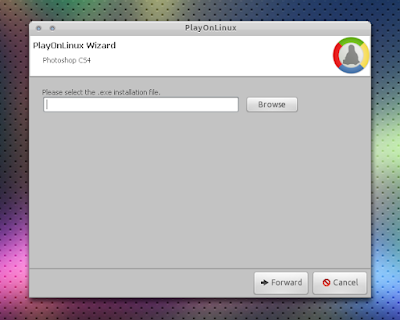
Here you'll be asked to install some additional libraries and the old Internet Explorer 6 - yes, that's required for it to work. Once this is over, a new window will pop-up in which you'll have to browse for the Photoshop setup.exe:

Photoshop CS4 playonlinux


Once selected, click "Forward" and the Photoshop setup window should be displayed - now simply install Photoshop like on Windows. When finished, PlayOnLinux will let you add a shortcut in the menu (or on your desktop) which you can use to run Photoshop CS4.


Thanks to SckyzO for the tip | via Le Blog de SckyzO

Senin, 17 Januari 2011

Install Pinta 0.6 In Ubuntu [PPA]

Pinta 0.6

Pinta is a simplified image editor based on Paint.NET (and thus it uses Mono), designed to serve as an alternative to GIMP for casual users.

Pinta 0.6 was released about a week ago and includes a huge list of bug fixes but the latest Pinta is not available in its PPA so I've decided to backport the Natty package to Lucid and Maverick.

For a complete list of bug fixes in Pinta 0.6, see the release announcement.

Install Pinta 0.6 in Ubuntu 10.04 Lucid Lynx and 10.10 Maverick Meerkat

To add the WebUpd8 PPA and install Pinta 0.6 in Ubuntu Lucid or Maverick (I've only tested it on Maverick!), use the following commands in a terminal:
sudo add-apt-repository ppa:nilarimogard/webupd8
sudo apt-get update
sudo apt-get install pinta

Since Pinta 0.6 is 100% identical to the package in Natty, if you encounter any bugs please report them at Launchpad.


If you're not using Ubuntu, you can download the Pinta source files or Windows binaries from HERE.

Rabu, 03 November 2010

Pinta 0.5, Released With Clone Stamp Tool, Multiple Image Support And More [PPA]

Pinta 0.5

Pinta is a simplified image editor based on Paint.NET (and thus it uses Mono), designed to serve as an alternative to GIMP for casual users. Pinta 0.5 has been released yesterday with new features, such as multiple image support, procedural brushes (painting effects with new procedural paint brushes, such as splatter, squares, circles, and grid) and a clone stamp tool which you can use to easily remove unwanted objects from photos:

Pinta 0.5 clone stamp tool


Other smaller enhancements have been added to Pinta 0.5, like save/load color palettes, TGA file support or support for choosing the JPEG compression level.


The latest Pinta 0.5 is not available in its PPA so I've uploaded it to the main WebUpd8 PPA. Update: Pinta PPA has been updated so I've replaced the WebUpd8 PPA in the instructions above with the official Pinta PPA.

To install Pinta 0.5 in Ubuntu 10.04 Lucid Lynx or 10.10 Maverick Meerkat, use the following commands:
sudo add-apt-repository ppa:moonlight-team/pinta
sudo apt-get update
sudo aptitude install pinta

Kamis, 07 Oktober 2010

The GIMP Plugins In Ubuntu 10.10 Could Become 1000 Times Faster Thanks To OpenCL

A post on the GIMP users website points out that Ubuntu 10.10 comes with OpenCL support which means that multimedia or image processing applications such as GIMP or the GIMP plugins can use OpenCL (hardware acceleration) to get an amazing performance boost - the post says this could make the GIMP plugins 1000 times faster and even though it seems a bit unrealistic, it's still pretty exciting. However, it won't work with the existing plugins - they will have to be re-written to take advantage of OpenCL.

Please note: this will only work with the OpenCL driver shipped with Nvidia 17x+ or the ATI SDK (so you'll have to install the proprietary drivers). Also, you need to have a CUDA enabled Nvidia graphics card (G80 GPUs, 8xxx series) or ATI with Close to Metal (2xxx series) to use it.

For more info, see the post @ gimpusers.com.

Thanks to bhm for the clarifications

Senin, 04 Oktober 2010

Install GIMP 2.6.11 (Stable) In Ubuntu [PPA]

GIMP 2.6.11

2.6.x is the stable GIMP branch in which there will be no new features, only bug fixes. The latest version of this stable GIMP branch is 2.6.11 which has been released yesterday - you can find the bugs fixed in this version in the GIMP changelog.

GIMP 2.6.11 is available in the WebUpd8 PPA (for Ubuntu 9.10, 10.04 and 10.10) and you can install it using the following commands:
sudo add-apt-repository ppa:nilarimogard/webupd8
sudo apt-get update
sudo apt-get install gimp

The next stable GIMP branch - 2.8 (currently the 2.7.x development branch), which will bring a single window mode as well as many other new features, is scheduled to be released sometime around 27th of December 2010.

Jumat, 10 September 2010

G'MIC: More Than 190 Image Filters And Effects For GIMP

Gmic gimp plugin

GREYC's Magic Image Converter (G'MIC) is a image retouching tool which has been made available as a GIMP plugin. G'MIC comes with a large number of pre-defined image filters and effects (more than 190!) and works on Windows, Linux and Mac OSX. More info and screenshots can be found @ G'MIC homepage.


Update: a new G'MIC version has been released. Ubuntu .deb files as well as source files are available to download @ Sourceforge.


Install GMIC in Ubuntu: download the gmic .deb (either the i386 or amd64 package) and install it, then also download the gmic_gimp.zip package (32bit or 64bit), extract it and place it into the ~/.gimp-2.6/plug-ins/ folder.


Once installed, start GIMP, import an image and go to Filters > G'MIC (G'MIC won't show up if no image has been imported).


Important: I've only tested G'MIC with Gimp 2.6.10 (stable) so if you're using GIMP 2.7.x (still in development), but it should work with any GIMP version (let us know if you've tried it on an unstable GIMP version in the comments!)! Install GIMP 2.6.10 in Ubuntu 9.10 and 10.04.
Thanks to LFFL for the heads up on G'MIC!

Selasa, 17 Agustus 2010

Install Inkscape 0.48 (Vector Graphics Editor) In Ubuntu (PPA)

inkscape 0.48 screenshot

Inkscape is an open source vector graphics editor, with capabilities similar to Illustrator, CorelDraw or Xara X, using the Scalable Vector Graphics (SVG) file format. Inkscape runs on Linux, Windows and Mac OSX and features transparency, gradients, node editing, pattern fills, PNG export, and more.


While Inkscape 0.48 hasn't been officially announced on its website, the new version is already available for download.

Inkscape 0.48 adds multipath editing, LaTeX export with PDF/PS/EPS, a new Airbrush tool, a new extension called JessyInk for creating presentations, improved text tool: subscript, superscript, numerical input for text kerning, tracking and much more. You can read the huge list of what's new in Inkscape 0.48, here.


Ubuntu 10.04 Lucid Lynx and 10.10 Maverick Meerkat users can install the latest Inkscape 0.48 from Rico Tzschichholz's PPA:
sudo add-apt-repository ppa:ricotz/ppa
sudo apt-get update
sudo apt-get install inkscape

Windows and Mac OSX users can download Inkscape 0.48 from SourceForge.

Senin, 12 Juli 2010

The GIMP 2.6.10 Ubuntu Karmic And Lucid PPA

the gimp 2.6.10 ubuntu


GIMP is the GNU Image Manipulation Program. It is a freely distributed piece of software for such tasks as photo retouching, image composition and image authoring.


The GIMP versions 2.6.9 and 2.6.10 were released a few days ago. This new version(s) (basically there was supposed to be just a new version, but a severe bug in 2.6.9 was fix in 2.6.10) doesn't bring new features but only bug fixes - a list of fixed bugs can be found here.

We decided to backport the GIMP 2.6.10 from Ubuntu 10.10 Maverick Meerkat to Ubuntu 9.10 Karmic Koala and Ubuntu 10.04 Lucid Lynx. Since this is a stable release, the GIMP 2.6.10 packages are available in the main WebUpd8 PPA. We've tested the Lucid version for both 32bit and 64bit (so the Karmic version has not been tested!) and everything works ok, even the latest GIMP Plugin Registry.

Important note before trying to upgrade: if you've installed GIMP 2.7.x from a GIMP git PPA, you won't get any updates. This is obvious but I though I'd tell you anyway. And one more thing: this package is 100% identical to the one in Ubuntu 10.10 Maverick Meerkat (but built for Ubuntu Lucid Lynx and Karmic Koala) so don't report bugs here, but on Launchpad (although after using it for a day, everything seems to work just fine).

Install the GIMP 2.6.10 in Ubuntu Karmic or Lucid


To install the GIMP 2.6.10 in Ubuntu Karmic Koala or Ubuntu Lucid Lynx, simply paste the following commands into a terminal:
sudo add-apt-repository ppa:nilarimogard/webupd8 && sudo apt-get update
sudo apt-get install gimp


Yet another important note: if you get a gegl/babl error, most probably you have installed a GIMP git version from some PPA. If you want to use this PPA, you must purge that PPA and all the packages that came with it. This is not an error related to the WebUpd8 PPA!

Selasa, 06 Juli 2010

Pinta 0.4 (Image Editor) Released With Docking, Multiple Language Support And More [Linux, Windows, MacOS X]

pinta 0.4 screenshot

Pinta is an image editor designed to be simple and look more or less like the famous Paint.NET. It runs on Linux and MacOS X - using Mono, and obviously on Windows too.

Pinta 0.4 was released today with a major change to the user interface which now provides "docking" - you can show, hide, resize and undock various elements in Pinta, to suit your needs. Pinta is now fully translatable and the latest 0.4 version comes with 18 languages (some are not 100% finished) - you can help translate Pinta via Launchpad.


Other changes in Pinta 0.4 include new supported file formats like gif, tiff, bmp and OpenRaster (compatible with Krita or MyPaint), font preview for the text tool, better GNOME integration and lots of bugs fixed.


Download Pinta 0.4 - packages available for OpenSUSE, MacOS X and Windows.

Pinta 0.4 is not yet available in its PPA on Launchpad, but you can easily install the OpenSUSE .rpm in Ubuntu using Alien.

Update: Pinta 0.4 is now available in its PPA and you can install it in Ubuntu Lucid using the following commands:
sudo add-apt-repository ppa:moonlight-team/pinta && sudo apt-get update
sudo apt-get install pinta

Use the commands below to convert the OpenSUSE .rpm to .deb and install it for other Ubuntu versions:
wget http://github.com/downloads/jpobst/Pinta/pinta-0.4.noarch.rpm
sudo apt-get install alien
sudo alien -i pinta-0.4.noarch.rpm


Note: the logo in the screenshot was made using the GIMP, not Pinta =)

Senin, 05 Juli 2010

GIMP Plugin Registry 3.5.1 Gets ~129 New Plugins

gimp fx foundry

A new GIMP Plugin Registry version was released today in Debian - 3.5, which failed to build under Ubuntu (because of a Python bug in Ubuntu Karmic and Lucid). After exchanging lots of emails with Bernd Zeimetz, the Debian maintainer of the GIMP Plugin Registry, he was able to locate the issue and fix it so Ubuntu users can enjoy these new plugins already. That's why he released yet another version today - 3.5.1. And as always, the latest version is now available in the WebUpd8 PPA.

So, many thanks to Bernd Zeimetz for the GIMP Plugin Registry!

GIMP Plugin Registry 3.5 (3.5.1) integrates GIMP FX Foundry which consists of 124 plugins.

Other new plugins in GIMP Plugin Registry 3.5 (3.5.1):
  • EZ Perspective: Specialized tool for easily correcting or changing perspective
  • GIMP-Mask: Do and undo several popular image masking (that is, censoring) methods (CP, FL, Q0, MEKO).
  • Warming and Cooling Filters (May 24, 2010): Warm or cool an image using one of several methods: Wratten, Roy's Warm, Brauer's Warm, Pasty Cadaveric Look
  • Traditional Orton: This is an effect invented by Michael Orton in the 1990’s, which consists of taking two copies of an image, one blurred, and one sharp, and mixing them to produce an image with a dreamy quality. It is especially well suited to landscape and flower photography.
A complete changelog for GIMP Plugin Registry 3.5.1 can be found HERE.


Currently, the GIMP Plugin Registry counts 170 scripts/plugins.


Install GIMP Plugin Registry 3.5.1 in Ubuntu Karmic, Lucid or Maverick


Important notice: If you use GIMP from a PPA, it won't work - you need to install the GIMP from Ubuntu official repositories. In fact if you use GIMP from the mrw-gimp-svn, you're probably better of without it as the package hasn't been updated since February and has lots of bugs. You can use PPA Purge to go back to the official Ubuntu repositories GIMP version.

This being said, you can proceed to installing GIMP Plugin Registry 3.5.1 in Ubuntu Karmic, Lucid or Maverick:
sudo add-apt-repository ppa:nilarimogard/webupd8 && sudo apt-get update
sudo apt-get install gimp-plugin-registry


And something many of you might encounter: If you use the Unity PPA, GIMP (among other applications) will crash very often if not always (GObject / DBusConnection error) - you can fix it by removing the "appmenu-gtk" package.


Credits / thanks:

Rabu, 05 Mei 2010

Pinta 0.3 Released (Lightweight Paint.NET Alternative for Windows, Linux and MacOS X)

pinta 0.3

Pinta (which we've covered before) is a lightweight alternative to Paint.NET which uses C# (Mono). Version 0.3 was released 2 days ago and it includes 3 new tools, 25 new effects, and several GUI improvements. Additionally, several reported bugs were fixed and small enhancements were added. You can read the full release notes HERE.

Pinta works on Windows, Linux and Mac OS X. There is an Ubuntu PPA available but it hasn't been updated to the latest Pinta 0.3. However, you can convert the .rpm to .deb and install it - seems to work just fine, so to download and install Pinta 0.3 in Ubuntu, run the following commands:
wget http://github.com/downloads/jpobst/Pinta/pinta-0.3.noarch.rpm
sudo apt-get install alien
sudo alien -d pinta-0.3.noarch.rpm #we cold have installed it directly, but this way you get to keep the .deb
sudo dpkg -i pinta*.deb


For Windows, Mac OSX and other Linux distributions, see the download page.


Thanks to Ubuntizando El Planeta for the news!

Jumat, 16 April 2010

Install GIMP Plugin Registry 3.1 In Ubuntu (The GIMP Plugin Package)

the gimp screenshot


GIMP Plugin Registry is a package with a lot of useful extensions for GIMP Image Editor. A new version has been released in Debian, bringing the following changes (as reported by bzed.de):

  • Added the amazing scripts from El Samuko:
    • Antique Photo Border Script
    • Che Guevara Script
    • Cyanotype Script
    • Difference Layer Script
    • Escape Line Script
    • Film Grain Script
    • First Photo Border Script
    • Lomo Script with Old Style Colors
    • Movie 300 Script
    • National Geographic Script
    • Obama "HOPE" Script
    • Rainy Landscape Script
    • Photochrom Script
    • Sprocket Hole Script
    • Sunny Landscape Script
    • Technicolor 2 Color Script
    • Technicolor 3 Color Script
    • Vintage Look Script
  • Included the X11 Mouce Curser (XMC) plugi
  • Removed the GREYStoration plugin. This plugin was superseded by the gimp-gmic plugin, which is built from the gmic source.
  • The following plugins were updated:
    • focus-blur
    • contactsheet
    • normalmap
    • save-for-web
    • seperate+

I don't know if or when the new package will arrive in Ubuntu Lucid (or Karmic), so I decided to upload it to the WebUpd8 PPA for easy installation.

Install GIMP Plugin Registry in Ubuntu 9.10 Karmic and 10.04 Lucid


To add the Webupd8 PPA and install GIMP Plugin Registry, simply paste this in a terminal:
sudo add-apt-repository ppa:nilarimogard/webupd8
sudo apt-get update && sudo apt-get install gimp-plugin-registry

Note: the 32bit packages are already available in the PPA. However, the 64bit are not ready yet, but they should be available in a few minutes.


I got the package from Debian. If you're not using Ubuntu, you can download the source files from the previous mentioned link.


Update: it seems the package doesn't work in GIMP 2.7.3 (which is a development version of GIMP 2.8 and very unstable). However, to install Elsamuko script in GIMP 2.7.3, simply paste this in a terminal:
cd ~/.gimp-2.7/scripts
wget -O elsamuko.zip "http://sites.google.com/site/elsamuko/gimp/elsamuko.zip?attredirects=0"
unzip elsamuko.zip


Thanks to Mike for the tip!


The GIMP resources:

Jumat, 12 Februari 2010

Aviary Image Editors Are Now Completely Free

aviary


Aviary, an online suite of image editing tools has become completely free. Up until now, the premium service was $24.99 per year and without it you didn't have access to some of the more advanced features.

This means that now you get access to things such as saving private files on Aviary’s servers, adding your own watermarks or go watermark-free, and access to all of their nice tutorials.

Beside the image editing tools, Aviary also comes with an audio editor and a Firefox addon which you can use to capture webpages and then easily edit them.

Also, existing paying customers will no longer be billed, and those that signed up in the last 30 days will get a full refund.

Senin, 08 Februari 2010

Pinta - A Lightweight Paint.NET For Linux (But Also Works On Windows And Mac OS X)

pinta linux


If yesterday we wrote about installing Paint.NET under Ubuntu Karmic, today we will talk about Pinta, a modified Paint.NET for Linux (drawing / editing tool) but which also works on Windows and Mac OS X.

In case you were wondering, yes - Pinta also uses Mono just like Paint.Net for Linux. The difference between the two would be that Pinta has a native GTK look, but has less features than Paint.NET.


Pinta features:

  • Common tools like Paintbrush, Pencil, Shapes, Eraser, and Selections, with more to come
  • Multiple Layers
  • Unlimited levels of Undo/Redo.
  • A few effects like Invert, Sepia, Black and White, and Auto Level, with more on the way.


Download and run Pinta


For Linux (openSuse only), Windows and Mac OSX, download Pinta from HERE. Info on running it on Windows adn Mac OS X can be found HERE.

For Ubuntu: you will have to convert the .rpm to .deb using alien. Just copy / paste the commands below to install Alien, download Pinta, convert the .rpm to .deb and install it:
sudo apt-get install alien
wget http://www.pinta-project.com/Downloads/pinta-0.1.noarch.rpm
sudo alien -d pinta-0.1.noarch.rpm
sudo dpkg -i pinta*.deb


Update: there is now an Ubuntu .deb available for download @ Pinta homepage. That is also converted from .rpm.

[via phyx]

Minggu, 07 Februari 2010

How To Install Mono Paint In Ubuntu Karmic [Paint.NET For Linux]

paint.mono ubuntu karmic

I for one am very happy with GIMP, but a lot of people want to run Paint.NET on Linux for some reason. This could be done quite easy for Ubuntu Hardy, Intrepid and Jaunty, but it didn't work for Karmic because of some Mono dependencies.

Well, if you have nothing against Mono and want to install this Paint.NET port to Linux (Paint.Mono), here is what you have to do.


1. Paste this in a terminal to add a PPA with a working Paint.Mono for Ubuntu Karmic:
sudo add-apt-repository ppa:zachanimerulz/ppa


2. Then, install Paint.Mono:
sudo apt-get update && sudo apt-get install paint-mono


This will install a lot of Mono dependencies. If you want to remove Paint.Mono, simply paste this in a terminal (assuming you want to remove absolutely everything that comes with Paint.Mono):
sudo apt-get remove firebird2.1-common firebird2.1-common-doc libfbclient2 libgluezilla libmono-accessibility1.0-cil libmono-accessibility2.0-cil libmono-bytefx0.7.6.1-cil libmono-bytefx0.7.6.2-cil libmono-c5-1.0-cil libmono-cairo1.0-cil libmono-cecil-private-cil libmono-corlib1.0-cil libmono-cscompmgd7.0-cil libmono-cscompmgd8.0-cil libmono-data-tds1.0-cil libmono-data1.0-cil libmono-data2.0-cil libmono-db2-1.0-cil libmono-dev libmono-firebirdsql1.7-cil libmono-getoptions1.0-cil libmono-i18n-west1.0-cil libmono-i18n1.0-cil libmono-i18n2.0-cil libmono-ldap1.0-cil libmono-ldap2.0-cil libmono-management2.0-cil libmono-messaging-rabbitmq2.0-cil libmono-messaging2.0-cil libmono-microsoft-build2.0-cil libmono-microsoft7.0-cil libmono-microsoft8.0-cil libmono-npgsql1.0-cil libmono-npgsql2.0-cil libmono-nunit2.4-cil libmono-oracle1.0-cil libmono-oracle2.0-cil libmono-peapi1.0-cil libmono-peapi2.0-cil libmono-posix1.0-cil libmono-profiler libmono-rabbitmq2.0-cil libmono-relaxng1.0-cil libmono-relaxng2.0-cil libmono-security1.0-cil libmono-sharpzip0.6-cil libmono-sharpzip0.84-cil libmono-sharpzip2.6-cil libmono-simd2.0-cil libmono-sqlite1.0-cil libmono-system-data1.0-cil libmono-system-ldap1.0-cil libmono-system-ldap2.0-cil libmono-system-messaging1.0-cil libmono-system-messaging2.0-cil libmono-system-runtime1.0-cil libmono-system-runtime2.0-cil libmono-system-web-mvc1.0-cil libmono-system-web1.0-cil libmono-system1.0-cil libmono-wcf3.0-cil libmono-webbrowser0.5-cil libmono-winforms1.0-cil libmono-winforms2.0-cil libmono0-dbg libmono1.0-cil libnunit2.4-cil libwebkit1.0-cil mono-1.0-devel mono-1.0-gac mono-1.0-service mono-2.0-devel mono-2.0-service mono-complete mono-csharp-shell mono-devel mono-gmcs mono-jay mono-mcs mono-mjs mono-utils mono-xbuild monodoc-base monodoc-browser monodoc-manual paint-mono prj2make-sharp


3. Run Paint.Mono

Paint.Mono doesn't add a menu entry, so to run it, press Alt + F2 and enter:
paintdotnet


Please note that Paint.Mono is an unofficial port, and the Paint.NET devs do not offer any kind of support for Paint.Mono. Also, as you can see, Paint.Mono is version 3.0 while Paint.NET already reached version 4.0 for quite some time!


Possible issues

I have encountered an issue with Paint.Mono: it doesn't allow me to resize the Tools box, thus some items are missing (like you can see in the screenshot in the beginning of the post). It seems there's no way to resize it, but if you do find a way, please let us know in a comment!

Update: rkv (thanks!) has found a way to resize the Toolbox (and the other boxes):

keep "alt" pressed and right click anywhere in/on the toolbox ( you can leave alt now :P)
now select resize, and move your mouse down and left click to confirm


To install Paint.Mono on Ubuntu Jaunty, Intrepid or Hardy, see THIS post.

Selasa, 12 Januari 2010

How To Install GIMP With Single Window Mode In Ubuntu

gimp single window

Initially, the GIMP 2.7 repository (unofficial) had some GIMP 2.7 builds which were quite stable. Then, when the GIMP developers started working on the single-window mode, the builds became pretty unstable and it ended up breaking GIMP 3-4 times on my computer. But now, it finally seems stable again, so if you want to use a pretty (still not very) stable GIMP 2.7 (currently 2.7.1) which has the long awaited single window mode, follow the steps in this post.

A note: you can always switch back to the multiple window GIMP - it's all done with a simple setting!

To install GIMP 2.7 in Ubuntu Karmic, firstly add the following PPA:


-For Ubuntu Lucid and Karmic:
sudo add-apt-repository ppa:matthaeus123/mrw-gimp-svn


-For Ubuntu Janunty:
sudo sh -c "echo 'deb http://ppa.launchpad.net/matthaeus123/mrw-gimp-svn/ubuntu jaunty main' >> /etc/apt/sources.list"
sudo apt-key adv --recv-keys --keyserver keyserver.ubuntu.com 405A15CB


Then, for any Ubuntu version, simply upgrade to GIMP 2.7.1:
sudo apt-get update && sudo apt-get dist-upgrade


If "sudo apt-get dist-upgrade" wants to remove some packages, you can go to Synaptic, manually search for GIMP and upgrade it, then remove this PPA.

In case you get an error with GIMP complaining about libgegl or libbabl, run this in a terminal:
sudo apt-get install libgegl-0.0-0 libbabl-0.0-0


Then, open GIMP and to enable the single-window mode, go to the top menu, and enable "Single Window" under the "Windows" drop-down menu:

enable gimp single window


To remove the changes made by this PPA (remove the PPA and any packages it installs), see our post about removing PPA repositories via command line.

Special thanks to Claudio [via Ubuntued]!