Powered By

Powered by Blogger

Rabu, 23 Maret 2011

Use Google Chrome Built-In Flash In Firefox For (Probably) Less Crashes

Chrome Flash in Firefox

I had some issues with Adobe Flash crashing very often using the latest Firefox 4 so I've searched for a way to fix this and found a topic on AskUbuntu which says to use Chrome's Flash plugin in Chromium so I though - why not do it for Firefox? - and it's actually working quite well for now.

Chrome uses a built-in Adobe Flash plugin which seems to work better then the regular Flash. But there's a catch: you must install Chrome (and keep it updated if you want further Flash updates) even if you don't use it.


Use the built-in Chrome Flash plugin in Firefox


1. Download and install Google Chrome (I for one prefer the unstable branch but I guess any version will do)

2. Open a terminal and copy / paste the following commands:
mkdir -p ~/.mozilla/plugins
ln -s /opt/google/chrome/libgcflashplayer.so ~/.mozilla/plugins/

3. Restart Firefox.


Chromium using Chrome Flash plugin

The exact same instructions above also work for Chromium (yes, using the ~/.mozilla/plugins/ folder even though it's for Chromium).

Note: I've tested this with the latest Firefox 4 32bit only (and Chromium 32bit)! It should work with older Firefox versions too though.

What other "tricks" do you use to improve Flash performance under Linux? Let us know in the comments!

Edit PDF Documents In Linux With PDF Mod (Remove Or Add Pages, Rotate, Reorder PDF Files)

PDF Mod

PDF Mod is a great application for editing PDF documents which can be used to remove or add pages to existing PDF files, export images, rotate, reorder, edit the metadata (subject, title, author) and so on.

Sure, there are some more powerful command line tools like pdftk but not everybody enjoys the command line so if you want a GUI for this, try PDF Mod.


PDFMod is really easy to use: when you open a PDF, all the pages are displayed in a grid and you can for instance open a second PDF file and drag and drop some pages from one PDF document to another. Right clicking a page lets you remove, rotate, extract it or export the image (if available). You can of course edit multiple pages at once by selecting them the usual way (holding down the Control key) or even select all odd / even pages as well as based on a matching pattern.


PDF Mod 0.9 which has been released earlier this month (and so it's not available in the official Ubuntu repositories but there's a PPA for it!) comes with a cool new feature: bookmark editing (outlines):

PDF Mod

The new version also fixes some important bugs and brings improved speed (removing many pages is a lot faster now).


Install PDF Mod in Ubuntu


PDF Mod is available in the official Ubuntu repositories but to get the latest version you must use the PDF Mod Ubuntu PPA. 

Add the PPA and install PDF Mod 0.9 in Ubuntu using the commands below (or add the PPA using a GUI tool like Y PPA Manager and then install it from the Ubuntu Software Center):
sudo add-apt-repository ppa:pdfmod-team/ppa
sudo apt-get update
sudo apt-get install pdfmod

Also see: Highlight Text Or Annotate PDF Files In Ubuntu With Xournal

Do you use PDF Mod to edit PDF documents? Or maybe you know some better GUI tool for modifying PDF files? Let us know in the comments!

Install The Beautiful Bluebird GTK + Metacity Theme In Ubuntu

Bluebird theme

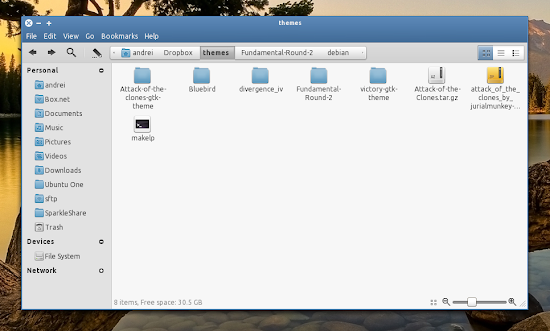
After many comments about it, I've decided to make a separate post as it seems everybody wants to know what theme this is even though there was an announcement on ppa.webupd8.org.

The theme in the above screenshot is Bluebird GTK (the default Xubuntu 10.10 theme) and a new Bluebird Metacity theme - I've combined these two and created one package which you can use in Ubuntu (Gnome) by adding the WebUpd8 themes PPA.

I've also fixed a small bug in the GTK theme which made the Nautilus Elementary zoom slider to look broken.

Install Bluebird GTK + Metacity in Ubuntu


Bluebird is available for Ubuntu 10.04, 10.10 and 11.04. Add the WebUpd8 Themes Ubuntu PPA and install Bluebird GTK + Metacity using the following commands:
sudo add-apt-repository ppa:webupd8team/themes
sudo apt-get update
sudo apt-get install bluebird-gtk-theme

If you're not using Ubuntu, get the GTK theme from Github and the Metacity via Gnome-Look.

Shotwell 0.9 Adds Extensible Plugin Framework For Web Publishing And Slideshow Transitions

Shotwell 0.9

Shotwell is the default Ubuntu photo manager and you can use it to organize your photos, publish them on various websites such as PicasaWeb, Flickr, Facebook and more.

Shotwell 0.9 has been released today, adding an extensible plugin framework for web publishing and slideshow transitions which means we might see a lot more plugins soon for publishing the photos on the web.

The new version also comes with a new search bar which you can use to filter by media type, rating and text matching, TIFF support and option to print multiple photos (including multiple photos per page).

Other new features in Shotwell 0.9 include:
  • Configurable user directory pattern during import
  • Edit multiple photo titles at once
  • Improved rendering of underexposed RAW photos
  • Updated Gexiv2 library with an enhancement to the logging system
  • Various improvements and bug fixes

Install Shotwell 0.9 in Ubuntu 10.10


Add the Shotwell PPA and install the latest Shotwell in Ubuntu 10.10 using the commands below:
sudo add-apt-repository ppa:yorba/ppa
sudo apt-get update
sudo apt-get install shotwell


Also see: gThumb 2.13.1 Released With 'Find Duplicates' Extension, More [PPA].

By the way, which photo manager do you use? Shotwell or gThumb (or maybe some other application)?

Selasa, 22 Maret 2011

Quickly Share A Folder Over HTTP With JetHTTP

JetHTTP

Want to share a folder with someone in your network or over the internet? The easiest way to do it (especially if the folders include some large files) is probably using a tool such as JetHTTP.

JetHTTP is a small GUI-based web server for serving static content over HTTP an you can use it to share a folder with just one click.

By default, the application uses port 8081 and will share your /var/www folder but these can be changed in the settings. Once you set the folder you want to share, simply click "Start server" and then give the person you want to share the folder with the link (http://YOUR-IP:8081). You can stop the server at any time by clicking the "Stop server" button.

Please note that JetHTTP doesn't use any authentication method so do not share anything private. Also, make sure you stop the server once you're done.


Install JetHTTP in Ubuntu


JetHTTP comes with a PPA you can use to install it in Ubuntu 10.04 Lucid Lynx and 10.10 Maverick Meerkat:
sudo add-apt-repository ppa:george-edison55/george-edison
sudo apt-get update
sudo apt-get install jethttp

Unfortunately, the JetHTTP package in the above PPA doesn't come with a .desktop file (but that's available in BZR along with other new stuff like initial POST support so if you know how to compile a program, you could use the latest code) so you'll have to run it by pressing ALT + F2 and then entering:
JetHTTP

If you're not using Ubuntu, you can grab JetHTTP via Launchpad (BZR).

Firefox 4.0, Uploaded To The Firefox Stable Ubuntu PPA

Apologies for all the Firefox posts today, but like I've promissed in the comments, I wanted to let you know that the Firefox Stable Ubuntu PPA has been updated and it now includes Firefox 4.0 stable for Ubuntu 10.04 and 10.10.

Our "Install Firefox 4 In Ubuntu 10.04 / 10.10 Via PPA Repository" post has been updated with exact installation instructions.

Firefox 4, Officially Released

I'll make this short:


Firefox 4 has been officially released and is available to download @ http://www.mozilla.com/en-US/firefox/new/

If you want to run it on Linux, close any running Firefox instance, extract the downloaded archive and double click the file called "firefox" (not firefox-bin!).

Ubuntu: see how to install Firefox 4 from a PPA


To see what's new in Firefox 4, check out the following video:


For a complete list of new features, see http://www.mozilla.com/en-US/firefox/features/